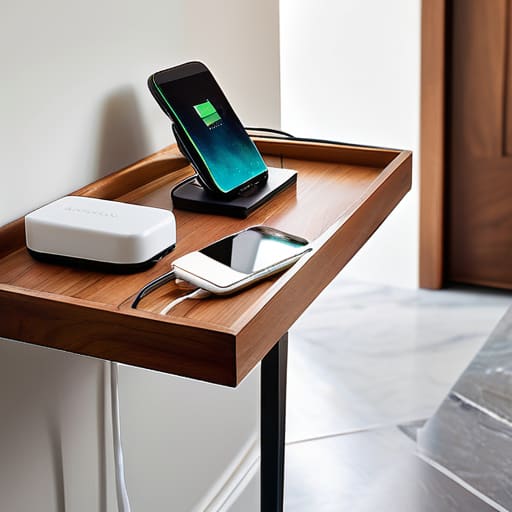
I spent six years on a helpdesk, and if there is one thing I learned, it’s that people don’t actually need more gadgets; they just need their current ones to stop being a nuisance. I remember sitting on my floor last Tuesday, surrounded by a tangled nest of white cables, trying to find the one specific USB-C cord that wasn’t frayed at the neck, just so I could get 5% battery before a meeting. Most “productivity gurus” will tell you that you need a $200 smart hub to fix this, but they’re wrong. Learning how to set up a charging station isn’t about buying a fancy new piece of tech; it’s about managing the physical reality of your cables and outlets so they don’t become a permanent eyesore or a tripping hazard.
In this guide, I’m going to skip the aesthetic fluff and tell you exactly what you need to buy, where to tuck the power strip, and why you should avoid those ultra-cheap multi-port bricks that tend to overheat. We’ll go through the boring but necessary steps of organizing your wires, choosing the right wattage for your devices, and—most importantly—making sure your setup doesn’t cost a fortune in replacement parts when a cheap cable inevitably dies.
Table of Contents
Guide Overview
Tools & Supplies
- Measuring tape for planning layout
- Screwdriver for mounting organizers
- Label maker for cable identification
- Power strip or surge protector (1 unit)
- Cable management box or organizer (1 unit)
- Cable clips or ties (1 pack)
- Multi-device charging cables (various)
Step-by-Step Instructions
- 1. First, you need to decide where this is actually going to live. I’ve seen people try to build “charging hubs” on bedside tables only to end up with a tangled mess of cables that makes them want to throw the whole nightstand out the window. Pick a spot that is near a power outlet but away from where you actually relax. If it’s in your bedroom, keep it on a desk or a dedicated shelf; you don’t want your last thought before sleep to be a stray USB-C cable poking you in the ribs.
- 2. Audit your gear before you buy a single thing. Grab every device that needs a charge—phone, tablet, headphones, Kindle, whatever—and count how many different types of plugs they use. Most things are USB-C now, but you’ll likely still have that one old device that needs Lightning or Micro-USB. Write this list down. There is nothing more annoying than setting up a beautiful station only to realize you’re missing the one specific cable that keeps your old e-reader alive.
- 3. Buy a multi-port GaN charger rather than a bunch of individual “wall warts.” In my helpdesk days, I saw people plug five different chargers into one cheap power strip, and it was a recipe for a tripped circuit. A Gallium Nitride (GaN) charger is smaller, runs cooler, and can handle multiple devices at once. Just make sure the total wattage is higher than the sum of your devices; if you have a laptop and a phone, don’t buy a tiny 20W charger or you’ll be waiting three hours for a 10% jump.
- 4. Get some cable management hardware that isn’t “decorative” junk. I’m talking about weighted cable blocks or simple adhesive clips that stick to the side of your desk. You want the cables to stay exactly where you left them so you aren’t fishing behind the furniture every morning. If you go the route of a “charging box” (those plastic bins that hide everything), make sure it has actual ventilation holes. If you trap a high-speed charger in a sealed plastic box, it’s going to overheat, and that’s how you kill your battery health.
- 5. Label your cables if you have a family or roommates. I know, it feels a bit “middle management,” but it works. A small piece of masking tape or a tiny wrap of colored electrical tape on the end of the cord tells everyone which cable belongs to the iPad and which one is the “do not touch” laptop cord. It prevents the inevitable tug-of-war that happens when someone tries to unplug your work computer to charge their phone.
- 6. Test the setup for a full cycle before you declare victory. Plug everything in, let them charge, and see if the station gets uncomfortably hot or if the power strip starts making a weird buzzing sound. If you’re using a smart plug to automate the charging, make sure it actually cuts the power once the devices are full. There’s no point in having a “smart” station if it’s just keeping your devices under constant trickle charge all night long, which is a great way to degrade a lithium battery.
Picking a Multi Device Charging Hub That Actually Lasts
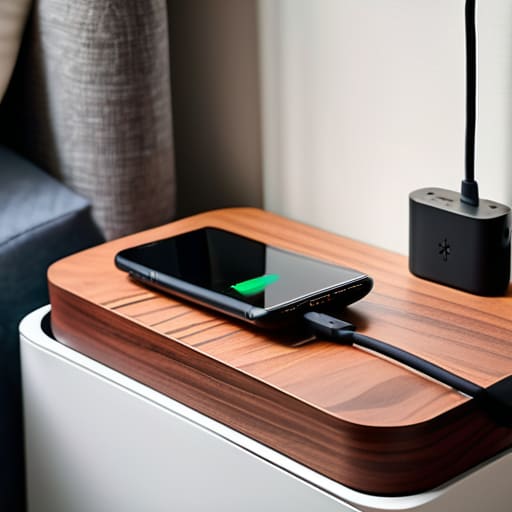
When you’re looking for a multi-device charging hub, ignore the marketing fluff about “ultra-fast” speeds unless they actually list the wattage per port. Most of those cheap plastic bricks you see on sale are just glorified power strips that will overheat if you plug in a laptop and a tablet at the same time. I’ve seen enough fried motherboards to know that you want something with built-in surge protection and, ideally, GaN (Gallium Nitride) technology. It sounds like jargon, but it basically just means the charger stays cool and doesn’t turn your nightstand into a heating element.
Don’t fall into the trap of buying a hub that only has one type of connection. If you end up with a setup that requires five different dongles just to get power to your gear, you haven’t actually achieved any meaningful decluttering tech workspace; you’ve just moved the mess from the floor to the desk. Look for a station that offers a mix of USB-C and USB-A ports. Also, check the fine print on the warranty. If the company doesn’t have a physical address or a clear return policy, walk away. If it breaks in six months, you’re just throwing money into a landfill.
Smart Charging Station Placement and Decluttering Your Tech Workspace
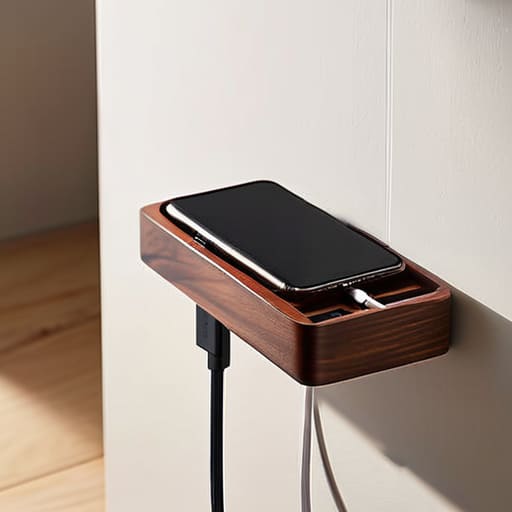
Once you’ve picked a hub that isn’t going to overheat, you have to decide where it actually lives. I used to keep my gear on my bedside table, but after a week of fumbling in the dark and knocking my phone onto the floor, I moved everything to a dedicated shelf in the hallway. Smart charging station placement is really about deciding which room is your “tech graveyard” and keeping it contained. If you put your hub in a high-traffic area like the kitchen counter, you’ll end up with a tangled mess of cords that everyone trips over. Pick a spot that is near a wall outlet but tucked away enough that you aren’t looking at it all day.
The real trick to decluttering your tech workspace isn’t just hiding the hub; it’s managing the “tail” of every single cord. I’m a big fan of using weighted cable blocks or simple adhesive clips to keep the ends of your USB-C cables from sliding behind the desk every time you unplug something. If you don’t anchor them, you’ll spend more time fishing for wires than actually using your devices. Keep it simple: if a cable doesn’t have a purpose, unplug it and put it in a drawer.
Five things I learned the hard way so you don't have to
- Label your bricks. I know it sounds like something a frantic IT manager would do, but when you have three identical white USB-C plugs tucked behind a nightstand, you’re going to spend ten minutes pulling things out of the wall just to find the one that actually charges your Kindle. A piece of masking tape and a Sharpie works fine.
- Watch the heat. If you shove a high-wattage charging hub into a tight, unventilated drawer or a pile of mail, it’s going to throttle its speed or, worse, degrade your battery life. Give your tech some breathing room; heat is the silent killer of electronics.
- Don’t ignore the “phantom” cost of cheap cables. You can buy a $5 three-pack of cables online, but if they don’t support fast charging or have flimsy connectors, you’re just wasting time waiting for a 1% charge to move to 2%. Buy one decent, braided cable per device and call it a day.
- Check your wall outlet layout before you commit. There is nothing more annoying than buying a beautiful, heavy charging station only to realize it blocks the second outlet you actually need for a lamp. If you’re plugging into a power strip, make sure the strip isn’t already a crowded mess of “wall warts.”
- Plan for the “subscription trap” of smart hubs. If you buy a “smart” charging station that requires a proprietary app to manage power distribution, ask yourself what happens when that company goes bust or decides to charge $4.99 a month to keep your ports active. I usually stick to the “dumb” hubs that just provide juice and nothing else.
The short version
Don’t buy the cheapest multi-port hub you find on a discount site; if it doesn’t have its own power brick and proper safety certifications, you’re just paying to potentially fry your phone’s battery.
Plan for the “subscription trap”—if you’re buying smart chargers that require an app to manage, make sure you actually know if your hardware becomes a paperweight the moment you stop paying for the premium tier.
Cables are the real enemy, not the devices; spend the extra five pounds on braided, right-length cords now so you aren’t spending the next six months untangling a nest of white plastic behind your desk.
The real cost of a messy desk
A charging station isn’t about buying a fancy glowing dock to look like a tech YouTuber; it’s about making sure you aren’t hunting for a specific micro-USB cable at 7:00 AM while your phone is at 2% and your coffee is getting cold.
Saoirse Doyle
The Finish Line
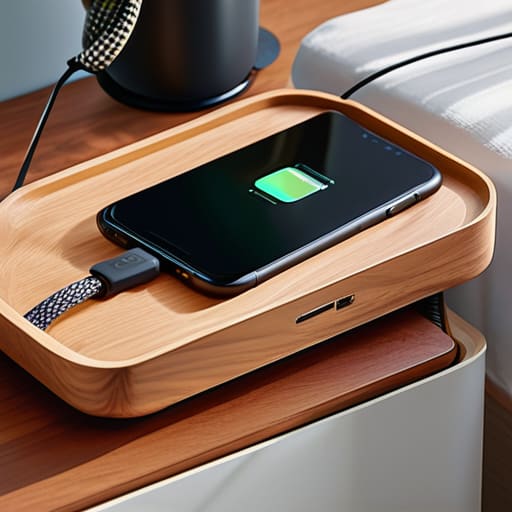
At the end of the day, setting up a charging station isn’t about buying the flashiest gadget on Amazon; it’s about making sure you aren’t hunting for a specific lightning cable ten minutes before you have to leave the house. You’ve picked a hub that won’t overheat, you’ve tucked the cables away so they aren’t a tripping hazard, and you’ve placed it somewhere that actually makes sense for your daily routine. Just remember that the best hardware is the kind you forget is even there because it’s doing its job quietly in the background. If you’ve followed these steps, you’ve moved from a tangled mess of wires to a setup that actually works with your life instead of adding to the friction.
Don’t get caught up in the trap of thinking you need a more expensive, “smart” station every time a new device comes out. Most of the time, a solid, well-placed power strip and a few decent braided cables are all you actually need to keep your digital life running. Technology is supposed to serve us, not become another chore on our to-do list that requires constant troubleshooting. Once this is set up and out of your way, stop thinking about it and go do something that doesn’t involve a screen. Your devices will be ready when you need them, and more importantly, you won’t be spending your evening untangling knots.
Frequently Asked Questions
Will using a multi-device hub actually slow down my phone's charging speed compared to my original wall plug?
The short answer is: yes, it probably will, unless you buy the right one. Most cheap hubs split a single power stream between several ports, which is like trying to feed a whole family with one loaf of bread. If you want the speed of your original wall plug, look for a hub with “Power Delivery” (PD) written on the box. If it doesn’t explicitly list the wattage per port, you’re just buying a very slow, very expensive extension cord.
What happens to my data or device settings if I use a shared charging station in a public space or a guest room?
If you’re using a public station, your data is at risk from “juice jacking”—malware that hitches a ride via the USB cable. Stick to your own brick and plug into a wall outlet whenever possible. In a guest room, the risk is lower, but if you’re using a shared hub, don’t expect your settings to stay put if they’ve enabled “smart” features that sync with the hardware. Just keep your phone locked.
If I decide to stop using a specific smart charging hub, do I lose access to any cloud-synced power management features, or is it just a dumb piece of hardware?
Most of them are just “dumb” hardware, but don’t assume. If the hub relies on an app for scheduling or remote monitoring, you’ll lose those bells and whistles the second you unplug it or the manufacturer kills the server. Check if the “smart” features are processed locally or in the cloud. If it’s cloud-based, you’re essentially buying a very expensive, non-programmable power strip once the subscription or support ends.
