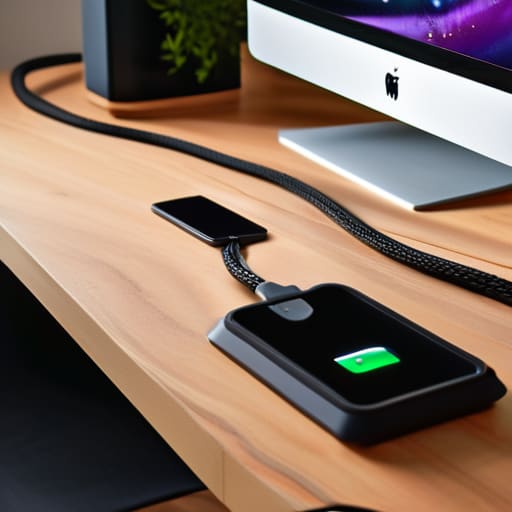
How to Get Desk Cables Under Control Once

I spent six years in a cramped IT helpdesk office, and if there is one thing I learned, it’s that people love to sell you “solutions” that actually just add more clutter to your life. You’ll see influencers on social media claiming you need a thousand-euro modular management system and custom-molded sleeves just to achieve an aesthetic workspace. Honestly? That is a complete waste of money. Most of the time, when people ask me how to organise cables at a desk, they don’t need a design overhaul; they just need to stop the tangle of black plastic from becoming a permanent fixture under their feet.

I’m not going to suggest any expensive subscription-based “smart” organizers or gear that requires a PhD to install. Instead, I’m going to give you the boring, practical version: the specific things you can buy for under twenty quid that actually work. We’ll talk about which clips stay put and which ones fall off the second you move your monitor, and I’ll tell you exactly what to click if you decide to go the digital route with power strips. No hype, just a few straightforward steps to make your setup stop getting in your way.

Table of Contents

Hidden Cable Management Solutions That Actually Stay Put
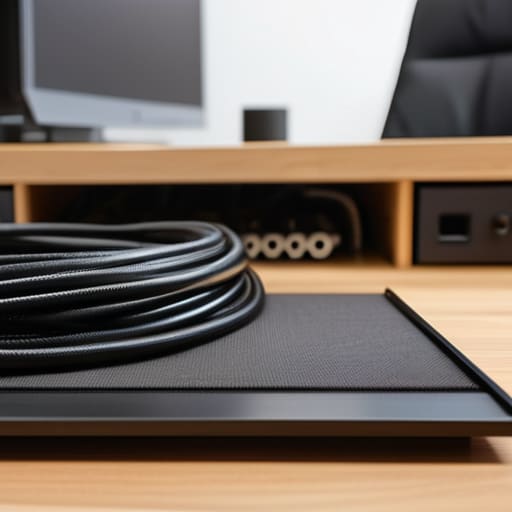
Hidden Cable Management Solutions That Actually Stay Put

Most people reach for those little plastic clips that stick to the side of the desk, but if you’ve ever worked a helpdesk, you know those are a lie. They lose their stickiness in three months, and suddenly you’re fishing a rogue USB-C cable out from under your chair. If you want actual hidden cable management solutions that don’t require a prayer to the adhesive gods, look under the desk instead.

I’m a big fan of the heavy-duty metal cable trays that screw directly into the underside of your desktop. They’re a bit more work to install, but they hold the weight of power bricks without sagging. It’s the most effective way of minimizing wire clutter because it moves the mess entirely out of your line of sight.

If you’re renting and can’t go drilling holes, grab some self-adhesive Velcro strips and run them along the back edge of your desk legs. It’s a simple bit of cable routing techniques that keeps the wires hugging the furniture rather than dangling like spaghetti. Just remember: whatever you choose, make sure you can still reach the plugs when you need to reboot something.

Minimizing Wire Clutter Without Buying a Single Expensive Gadget
Minimizing Wire Clutter Without Buying a Single Expensive Gadget

You don’t need to spend fifty quid on a fancy weighted docking station to achieve a decent decluttering workstation setup. Most of the time, the mess isn’t caused by a lack of expensive hardware, but by a lack of basic direction. If you have a handful of zip ties or even just some old bread ties from the grocery store, you’re already halfway there. The goal isn’t to make it look like a showroom; it’s about minimizing wire clutter so you aren’t constantly untangling a bird’s nest just to plug in a thumb drive.

Start by grouping your cables together as close to the source as possible. If you have three different power bricks under your desk, don’t let them sprawl. Use a bit of masking tape to label both ends of each cord—it sounds tedious, but it saves you from the inevitable “which one is the monitor cable?” panic six months from now. For quick desk cord organizer ideas that cost nothing, try using the existing clips on your desk or even a bit of Blu Tack to keep a charging cable from sliding onto the floor every time you unplug your phone. It’s not glamorous, but it works.

Five ways to stop the cable chaos without losing your mind

  • Label both ends of every wire. Use a piece of masking tape or a cheap label maker to write “Monitor” or “Printer” right where the cord meets the device. Trust me, when you’re crawling under the desk in six months trying to figure out which black cord kills the power, you’ll thank yourself.
  • Use Velcro ties, not plastic zip ties. I spent years in IT watching people zip-tie their entire workstation into a permanent, unchangeable knot. If you use plastic, you’ll eventually have to cut them all off just to add one new USB hub, and that’s when things get messy. Velcro is reusable and forgiving.
  • Get your power strip off the floor. If your power strip is sitting in a dusty pile on the carpet, it’s just a magnet for hair and debris. Screw it to the underside of your desk or mount it to a leg. It keeps the “nest” contained and makes vacuuming actually possible.
  • Group your cables by “destination.” Don’t try to manage every single individual wire. Instead, bundle the cables that go from your desk to your PC into one thick, manageable trunk. It looks cleaner and gives you fewer individual “fingers” to worry about.
  • Leave a little bit of slack at the connection points. People tend to pull everything tight like they’re tuning a guitar, but that puts constant tension on your ports. If you move your laptop or adjust your monitor, you don’t want a tight cable yanking the hardware out of alignment or damaging the internal pins.

The short version

Don’t go down the rabbit hole of buying “smart” cable management kits; most of them are overpriced plastic that won’t stick to your desk after a month.

Use Velcro ties instead of zip ties—zip ties are permanent, and once you inevitably need to move a monitor or add a new charger, you’ll be cutting through your own wires in frustration.

Focus on the floor first; if you stop the power strips from becoming a tangled nest under your feet, 80% of the visual mess and the tripping hazard disappears.

The truth about "clean" setups

Most people think cable management is about making a desk look like a Pinterest photo; it’s actually just about making sure you don’t have to move three different power bricks just to plug in your laptop when you’re tired.

Saoirse Doyle

The finish line (and what comes after)
The finish line (and what comes after).

At the end of the day, you don’t need a $200 modular cable tray or a dedicated “workspace architect” to make your desk usable. Whether you’ve gone the route of using simple Velcro ties to group your power cables or you’ve just tucked your power strip into a cheap basket under the desk, the goal is the same: removing the friction. If you can reach for your phone charger without accidentally yanking your monitor halfway across the desk, you’ve won. Remember that the best setup isn’t the one that looks like a sterile showroom in a tech magazine; it’s the one where you can actually find the end of a wire when you need to move something.

Don’t let the pursuit of a “perfect” setup become another item on your to-do list that makes you feel like you’re failing. Most of the people selling “aesthetic desk setups” on social media are just trying to sell you the very clutter you’re trying to avoid. Just pick one thing—maybe it’s just bundling the mess behind your PC—and do that. Once the wires stop being a physical obstacle, you’ll find it much easier to actually get your work done. Now, go tidy up that one corner, and then leave it alone.

Frequently Asked Questions

How do I stop my cables from sliding off the back of the desk every time I unplug my laptop?

This is the classic “gravity vs. my charger” battle, and gravity always wins. Don’t bother with those fancy, expensive weighted blocks. Just grab a pack of adhesive cable clips—the silicone ones that stick to the edge of the desk. Stick one right where you usually plug in. If you’re on a budget, a heavy binder clip clamped to the desk edge works wonders; just thread the cable through the silver loops. Simple, cheap, and it actually works.

Is it actually safe to bundle all my power cables together, or am I going to cause a heat issue?

It’s a fair question, and no, you aren’t going to start a fire just by grouping them, provided you aren’t doing anything extreme. Bundling your data cables and low-voltage wires is fine. The real caution is with power bricks and heavy-duty extension leads. If a power cable feels hot to the touch or is tucked tightly into a narrow, unventilated plastic tube, give it some breathing room. Don’t wrap them in a thick “rat’s nest” of heavy power cords; keep them loose enough to dissipate heat.

What do I do with all the excess cord length that's too long to hide but too short to coil neatly?

This is the “awkward length” problem, and it’s usually where people give up and just shove everything behind the desk. Don’t do that; it just creates a heavy, tangled knot that’s impossible to untangle later.


How to Set Boundaries With Work Messages Without a Confrontation

I spent six years in a two-person helpdesk, which means I’ve seen exactly how a single “urgent” ping at 8:00 PM can derail a person’s entire evening. Most productivity gurus will tell you that you need a revolutionary new AI-driven task manager or a $20-a-month “focus app” to solve this, but that’s nonsense. You don’t need a subscription to fix your sanity; you need to figure out how to set boundaries with work messages without feeling like you’re being fired. Most of the time, the “crisis” is just someone else’s poor planning, and it shouldn’t cost you your dinner or your sleep.

I’m not going to sell you on a lifestyle overhaul or a complicated digital ecosystem. Instead, I’m going to give you the boring, practical version: which notification settings actually work, how to use “Do Not Disturb” without looking like you’ve gone AWOL, and what to say to your boss when they bypass your status. We’ll look at the specific buttons to click and the social scripts to use so your tech works for you, rather than the other way around.

Table of Contents

Managing Slack Notifications So You Can Actually Breathe

Managing Slack Notifications So You Can Actually Breathe

Slack is the primary offender when it comes to digital burnout prevention. It’s designed to make you feel like you’re constantly in a room with twenty people shouting at once, even when you’re just trying to eat dinner. The first thing you need to do is stop treating every “ping” like an emergency. Go into your settings and set your notification schedule. I personally set mine to automatically mute everything at 6:00 PM. If you don’t do this, your brain stays in “work mode” long after you’ve closed your laptop, because that little red dot is a psychological itch you can’t help but scratch.

When it comes to managing Slack notifications during the day, stop letting every single channel interrupt your flow. Most of those #general or #random channels are noise. Right-click the ones you don’t actually need for immediate action and select Mute. You can still check them when you have a moment, but they won’t hijack your focus. If you’re part of a project that’s particularly loud, use the “Keyword” alert feature instead of staying subscribed to every single message. It’s a much more sustainable way of unplugging after work without feeling like you’ve missed a literal house fire.

The Cost of Being Always on and Digital Burnout Prevention

The Cost of Being Always on and Digital Burnout Prevention

The problem with being “always on” isn’t just that you’re tired; it’s that your brain never actually finishes its shift. When you’re constantly scanning for that little red dot or a vibrating phone, you’re essentially running a background process in your head that eats up all your mental RAM. This is the fastest route to digital burnout prevention failure. You aren’t being more productive by responding to a non-urgent query at 10 PM; you’re just training your colleagues to expect you to be a 24/7 automated response system.

Real work-life balance strategies aren’t about finding a magic app that organizes your life; they are about the uncomfortable decision to be unavailable. I spent years watching people burn out because they thought “professionalism” meant being reachable at all hours. It doesn’t. Professionalism is meeting your deadlines and communicating clearly during your working hours. If you don’t practice unplugging after work by physically putting your phone in another room or turning off the work profile on your device, you’ll eventually find that you have nothing left to give when it actually matters.

Five ways to stop the digital bleeding

  • Audit your notification priority. Most people have every single channel pinging them, which is madness. Go into your settings and mute everything except for direct mentions from your boss or specific emergency keywords. If it’s a general announcement in a #random or #general channel, it does not deserve to vibrate your thigh while you’re eating dinner.
  • Set a “hard out” time in your status. Most messaging apps let you set a custom status or a schedule. Use it. If you stop working at 5:30, set your status to “Away – back tomorrow” and actually turn off the mobile app notifications. If you leave the door open by responding to “just one quick thing” at 8 PM, you are training your colleagues that you are always available.
  • Move the conversation out of the chat. Slack and Teams are terrible for deep thinking or complex problem-solving; they are designed to keep you clicking. If a thread goes longer than five messages without a resolution, stop typing. Send a quick “Let’s pick this up in a call/email tomorrow” and close the tab. It saves your brain and prevents the endless scroll of context switching.
  • Use the “Scheduled Send” feature like your life depends on it. If you do happen to have a sudden burst of productivity at 10 PM, do not send that message immediately. You’ll just trigger a notification on someone else’s phone and start a cycle of replies. Schedule it to land in their inbox at 9 AM the next morning. It keeps your boundaries intact even when you’re the one breaking them.
  • Check your mobile app permissions. This is the big one. If you don’t absolutely need work access on your phone, delete the app entirely. If you must keep it, go into your phone’s system settings—not the app settings—and disable “Background App Refresh.” This ensures the app isn’t constantly pinging the server and sucking your battery or your attention when you aren’t actively looking at it.

The bottom line

Set your status to “away” or “do not disturb” at a fixed time every day; if you don’t train your colleagues on when you’re unavailable, they’ll assume you’re always working.

Audit your notification settings once a month to make sure a new software update hasn’t quietly turned your phone back into a vibrating brick of anxiety.

Remember that most “urgent” messages are just someone else’s lack of planning, and they rarely require you to sacrifice your evening to fix.

The myth of the "urgent" ping

Most of those red notification bubbles aren’t emergencies; they’re just someone else’s lack of planning landing in your lap. If you don’t decide when you’re “off,” the software will decide for you, and it never takes a lunch break.

Saoirse Doyle

The Bottom Line

Setting boundaries is The Bottom Line.

At the end of the day, setting boundaries isn’t about being difficult or “unprofessional”—it’s about technical maintenance for your own brain. We’ve covered how to aggressively mute Slack, how to stop the reflexive habit of checking email the second you wake up, and why you don’t need to be the person who responds to every minor ping within thirty seconds. You don’t need a fancy new productivity app to do this; you just need to stop letting the tools dictate your schedule. Most of the “emergencies” that pop up in a direct message are actually just someone else’s lack of planning, and they shouldn’t cost you your entire evening.

If you find yourself feeling guilty about turning off those notifications, just remember that the world rarely actually ends when you go offline. I spent years in IT watching people treat every ticket like a house fire, only to realize most of them were just lukewarm sparks. You are allowed to be unavailable. You are allowed to have a life that doesn’t exist in a chat window or a cloud-based task manager. Build these walls now, while you still have the energy, because your peace of mind is the only thing you can’t actually download a replacement for.

Frequently Asked Questions

What happens if my boss or a client uses a different app like WhatsApp or iMessage to reach me after hours?

This is where things get messy because personal apps don’t have a “work mode.” If they’re hitting you on WhatsApp, they’re bypassing your professional boundaries and landing straight in your private life. My advice? Don’t reply immediately. If you do, you’ve just trained them that your personal phone is an extension of your desk. If it’s a recurring issue, suggest moving the conversation back to email or Slack. Keep your personal threads for your family and your sourdough starter.

How do I tell my team I'm going offline without sounding like I'm not doing my job?

The trick is to stop framing it as “I’m leaving” and start framing it as “I’m unavailable.” Don’t apologize for having a life; just state your status. A simple, “I’m heading offline for the evening; if there’s a genuine emergency, [insert specific protocol], otherwise I’ll catch up tomorrow,” works best. It sets a boundary without the guilt. If you make it sound like a big, dramatic announcement, people will treat it like one.

If I turn off all my notifications, how do I make sure I don't miss an actual, genuine emergency?

The short answer is: you don’t. If you turn everything off, you’re intentionally choosing to be unreachable.

How to Move Big Files Between Devices Without the Cloud

I spent six years on a helpdesk where I watched grown adults lose their minds because they couldn’t figure out how to transfer files between devices without a massive monthly subscription fee. Most “experts” will try to sell you on a seamless, magical ecosystem that requires you to buy three different brands of hardware just to move a single PDF. It’s exhausting. They make it sound like you need a PhD or a premium cloud tier to move a photo from your phone to your laptop, but the truth is that most of these “convenient” solutions are just expensive digital handcuffs designed to make sure you never leave their walled garden.

I’m not here to pitch you a new way of life or a productivity suite that costs more than my sourdough starter. Instead, I’m going to show you the actual mechanics of what works: the cables you already own, the free tools that don’t suck, and the specific settings you need to click. I’ll tell you exactly what happens to your data if you stop paying for a service, and I’ll point out which methods are genuinely reliable versus which ones are just clever marketing. No hype, just the steps.

Table of Contents

Usb vs Wireless File Transfer What Actually Works

Usb vs Wireless File Transfer What Actually Works

If you’re looking for the fastest way to move large folders, stop looking at your Wi-Fi settings and grab a cable. I spent years watching people try to move 50GB of video files over a wireless connection, only to have the transfer hang at 98% and fail entirely. It’s frustrating, and it’s a waste of time. A physical connection via USB—assuming you have the right dongles or cables—is the only way to guarantee the job actually finishes without a hiccup. It’s the “boring” way, but it’s the one that doesn’t make you want to throw your laptop out a window.

That said, wireless data transfer methods are fine for the small stuff, like a few PDFs or a handful of photos. If you’re just moving a single document, using something like AirDrop or a quick cloud upload is perfectly fine. But keep in mind that wireless is fickle; if your router decides to act up or your phone moves to another room, the connection drops. If you are specifically transferring files from Android to iPhone, you’re going to find that neither side plays particularly nice with the other natively, so you’ll likely end up needing a middleman like a physical drive or a cloud service.

The Fastest Way to Move Large Folders Without Crashes

The Fastest Way to Move Large Folders Without Crashes

If you’re trying to move a 50GB folder of raw video or a massive photo library, please stop trying to do it via Google Drive or iCloud. I spent years watching people lose their minds because a wireless transfer would hang at 99% and then just… fail. When you’re dealing with sheer volume, cloud storage synchronization is your enemy; it’s too slow, it eats your bandwidth, and if your internet blips, you’re often left with a corrupted mess.

For the fastest way to move large folders, you need a physical tether. If you have a Mac and an iPhone, a Lightning or USB-C cable is obviously the path of least resistance. If you’re dealing with a PC and an Android device, skip the “quick share” wireless methods and use a high-quality cable instead. It might feel “old school,” but a wired connection is the only way to ensure the transfer doesn’t choke halfway through. Just a heads-up: if you’re using an external hard drive as a middleman, make sure it’s formatted correctly (look for ExFAT) so both devices can actually read it without throwing an error code at you.

Five things to check before you start moving data

  • Don’t trust your Wi-Fi for big moves. If you’re moving more than a few gigabytes, plug in. Even decent home Wi-Fi can hiccup halfway through a transfer, and nothing is more frustrating than having to figure out which files actually made it and which ones are now corrupted ghosts.
  • Check your storage math twice. It sounds obvious, but I’ve seen people try to move a 100GB folder onto a thumb drive that’s technically “128GB” but actually only has 64GB of usable space after formatting. Check the ‘Available Space’ on the destination device before you even hit copy.
  • Beware the “Cloud Trap” for one-off transfers. Using Google Drive or Dropbox to move files from your laptop to a friend’s computer is fine for a single PDF, but if you’re moving a whole photo library, you’re just uploading it to the internet only to download it again. It’s a massive waste of time and bandwidth.
  • Keep a “Source” copy until you’ve verified the “Destination.” Never use “Cut and Paste.” Always use “Copy and Paste.” If you use “Cut” and the connection drops or the drive gets bumped, you can end up in a situation where the file is gone from the original but didn’t actually land on the new device.
  • Watch out for the subscription cliff. If you decide to use a service like iCloud or OneDrive to bridge the gap between devices, remember that your access to those files is tied to your monthly payment. If you stop paying, those files aren’t “yours” anymore; they’re just sitting in a digital vault you can’t open.

The short version

If you have a massive folder of movies or raw photos, don’t bother with the cloud; plug in a physical drive and let it run while you make tea.

Wireless transfers like AirDrop are great for single files, but they tend to hang and fail once you start moving anything substantial.

Before you commit to a subscription service to manage your files, check the “export” rules—you don’t want your data held hostage if you decide to cancel.

The real cost of convenience

We spend so much time looking for the ‘magic’ wireless solution that we forget the most reliable tool is usually a physical cable and a bit of patience; don’t let a slick interface trick you into a subscription you’ll regret the moment you stop paying for it.

Saoirse Doyle

The bottom line

The bottom line: use hardware ownership.

At the end of the day, there isn’t one “perfect” method, just the one that fits what you’re moving right now. If you have a single photo, AirDrop or a quick email is fine. If you have a massive library of high-res video or a folder of work files that cannot afford to vanish, use a physical cable and a dedicated external drive. Avoid the temptation to move everything to a cloud service just because it feels modern; unless you are prepared to pay that monthly subscription fee forever to keep your files accessible, keep your most important data on hardware you actually own. It’s about choosing the right tool for the specific job, rather than trying to make one single app do everything.

My time on the helpdesk taught me that most “tech problems” are really just people fighting against a setup that wasn’t built for their actual life. Don’t let the fear of a slow transfer or a complicated menu stop you from organizing your digital space. You don’t need a complex, automated ecosystem to be productive; you just need to know where your stuff lives and how to get it from point A to point B without a headache. Once you have a reliable way to move your data, the technology finally gets out of your way, and you can get back to whatever it was you actually wanted to do in the first place.

Frequently Asked Questions

Is it actually safe to move my sensitive documents over a public Wi-Fi network?

Short answer: No. Don’t do it. If you’re sitting in a coffee shop using their free Wi-Fi, you’re essentially shouting your files across a crowded room. Even with a password, those networks are notoriously insecure. If you absolutely have to move something sensitive while you’re out, use your phone’s mobile hotspot instead. It’s a bit more data-heavy, but it’s a private tunnel that keeps your tax returns and IDs to yourself.

What happens to my files if the transfer gets interrupted halfway through a large folder?

It depends on how you’re moving them, but usually, it’s a mess. If you’re dragging and dropping via USB, you’ll likely end up with a “partial” folder on the new device—some files will be there, some won’t, and some might be corrupted and unopenable. If you’re using a cloud service, it’ll usually just pause and resume once the connection is back. My rule: if it’s a big move, use a tool that verifies the files actually arrived.

If I use a cloud service to move these files, how much am I going to be charged for extra storage once I'm done?

That’s the part they don’t put in the “Free Forever” fine print. If you use a service like Google Drive or iCloud to move files, you’re essentially renting a digital warehouse. Once you exceed the free tier—usually 5GB or 15GB—you’ll be looking at roughly $2 to $3 a month for every 100GB or so. Just remember: if you stop paying, you don’t lose the files immediately, but you won’t be able to add anything new.

Doomscrolling: Why It Is Hard to Stop and What Helps

It’s 2:00 AM, the kitchen is silent except for the hum of the fridge, and I am staring at a glowing rectangle in the dark, feeling my brain turn into actual sludge. I know the feeling—that specific, hollow exhaustion that comes when you realize you’ve spent the last hour scrolling through a relentless stream of crisis after crisis. People love to treat this like some new, complex psychological phenomenon, but let’s be honest about what is doomscrolling: it’s just a digital feedback loop designed to keep you hooked on bad news. It isn’t a lack of willpower; it’s a highly engineered trap that exploits how our brains are wired to scan for threats.

I’m not here to sell you a $50 “digital detox” retreat or a subscription to a meditation app that promises to fix your soul. I just want to help you get your afternoon back. In this post, I’m going to break down exactly how these algorithms keep you stuck, why your phone is specifically designed to make you feel this way, and a few low-effort ways to break the cycle without having to throw your smartphone into the sea.

Table of Contents

The Psychology of Endless Scrolling and Your Brains Glitch

The Psychology of Endless Scrolling and Your Brains Glitch.

The reason you can’t seem to put the phone down isn’t because you lack willpower; it’s because these apps are designed to exploit a specific glitch in your brain. When you scroll, you’re essentially playing a slot machine where the prize is a hit of dopamine. Every time you swipe and see something mildly interesting or even just slightly upsetting, your brain gets a tiny chemical nudge to keep going. This is the core of the psychology of endless scrolling: it turns your attention into a resource that is being harvested by an algorithm that doesn’t care if you’re tired or stressed.

The real problem is that this loop creates a state of constant physiological arousal. You aren’t just “looking at news”; you are putting your nervous system through a series of micro-shocks. This constant state of high alert is a major contributor to the impact of constant news consumption, leaving you feeling wired yet completely exhausted. It’s a strange, hollow kind of fatigue where your brain feels like it has fifty tabs open, all of them playing audio at once, and none of them are actually helping you get anything done.

Impact of Constant News Consumption on Your Actual Day

Impact of Constant News Consumption on Your Actual Day.

The real problem isn’t just that you’re reading bad news; it’s how that news sits in your body. When you spend your morning absorbing a stream of crises, your nervous system stays in a state of low-grade high alert. You aren’t just “informed”—you’re physiologically primed to expect the worst. This makes the impact of constant news consumption feel less like a mental burden and more like a physical weight. You’ll find yourself sitting at your desk, staring at a spreadsheet, but your brain is actually still stuck in a headline you read twenty minutes ago.

This constant state of alertness is one of the primary ways managing digital fatigue becomes a necessity rather than a luxury. It bleeds into your actual life: you become more irritable with your partner, you lose the ability to focus on a single task for more than ten minutes, and your sleep suffers because your brain thinks it needs to stay awake to monitor the world. It’s not a lack of willpower; it’s your brain trying to process a never-ending loop of emergencies that you have absolutely no power to fix.

Five ways to stop the loop without deleting your entire digital life

  • Set a “hard stop” timer on your most problematic apps. Most phones have a built-in screen time setting that locks the app after a certain amount of minutes. It’s not perfect—you can always click ‘ignore limit’—but that extra three-second friction is usually enough to make you realize you’ve been staring at the same thread for twenty minutes.
  • Move your news and social feeds off your home screen. If you have to swipe three times and hunt through a folder to find Twitter or a news app, you’re less likely to open them out of pure muscle memory. The goal isn’t to ban them, it’s to stop the mindless tapping while you’re waiting for your kettle to boil.
  • Curate your feed to include “boring” things. If your algorithm only serves up crisis and outrage, it’s going to keep feeding you crisis and outrage. Start following some accounts that post nothing but sourdough recipes, woodworking, or just pictures of trees. It breaks the feedback loop by giving the algorithm something else to work with.
  • Use a dedicated “news window.” Instead of checking headlines every time you get a notification, pick one or two specific times a day to catch up. This prevents the constant drip-feed of anxiety and turns news consumption into a deliberate task rather than a background habit that runs your day.
  • Audit your notifications. If an app is pinging you every time something “happens” in the world, it’s designed to pull you back in. Go into your settings and turn off everything except direct messages from actual humans. You don’t need a vibration in your pocket to tell you that a stranger is arguing about a headline.

The bottom line

Doomscrolling isn’t a lack of willpower; it’s your brain getting caught in a design loop specifically built to exploit your curiosity and survival instincts.

The cost isn’t just “feeling bad”—it’s the measurable loss of your focus, your time, and your ability to engage with the real world once you finally put the phone down.

You don’t need a digital detox retreat to fix this; you just need to recognize the loop while it’s happening and implement small, boring friction points to break it.

The trap of the infinite feed

“Doomscrolling isn’t just a bad habit; it’s a feedback loop designed to exploit the part of your brain that thinks more information equals more safety, when in reality, you’re just trading your actual peace of mind for a pile of digital noise that doesn’t even want you to win.”

Saoirse Doyle

Cutting the Cord

Person cutting the cord with digital distractions.

At the end of the day, doomscrolling isn’t a character flaw or a lack of willpower; it’s just a feedback loop designed to exploit how your brain is wired. We’ve looked at how that endless refresh cycle hijacks your dopamine and how that constant stream of heavy news eventually bleeds into your actual, physical afternoon, leaving you feeling hollow and distracted. You don’t need a radical digital detox or a complete lifestyle overhaul to fix it. You just need to recognize that the loop is happening and realize that the algorithm doesn’t care about your peace of mind. It only cares about your attention.

My advice is to stop looking for a perfect productivity app to solve this. Instead, start by making the friction higher—turn off those non-essential notifications or, better yet, leave your phone in another room while you make your coffee. The goal isn’t to become a hermit who never reads the news; it’s to make sure that when you do engage with the world, you’re doing it on your own terms. Reclaim those small, quiet pockets of your day. Once you stop letting the feed dictate your mood, you’ll find you have a lot more energy for the things that actually matter.

Frequently Asked Questions

How do I tell if I'm actually staying informed or if I've just fallen into a doomscrolling loop?

The easiest way to tell is by looking at your hands and your head. If you’re scrolling because you’re looking for a specific piece of information—like a weather update or a local news headline—you’re staying informed. If you’re scrolling because you feel a weird, itchy compulsion to see “what else” is happening, you’re in a loop. If you finish a session feeling more anxious than when you started, you haven’t learned anything; you’ve just been processed.

Is there a way to fix my social media algorithms so they stop feeding me constant bad news?

You can’t exactly “reset” the algorithm with a single button, but you can retrain it. Most platforms use engagement as their primary metric—meaning if you linger on a tragedy, they’ll send you ten more. Start aggressively using the “Not Interested” or “Show less of this” options. It’s tedious, but it works. Also, clear your search history and follow a few “boring” accounts—hobbyists, gardeners, or bread bakers—to force the feed to pivot.

What actually happens to my focus and attention span if I don't stop doing this?

Your brain essentially loses its ability to stay in “deep work” mode. When you spend your mornings jumping between thirty-second clips and outrage-filled threads, you’re training your attention to crave a hit of novelty every few seconds. It’s like trying to read a book while someone keeps tapping you on the shoulder. Eventually, even simple tasks feel frustratingly slow because your brain is waiting for the next dopamine spike that isn’t coming.

Isas Explained: Which Type Fits What You Are Saving for

I spent six years on a helpdesk listening to people vent about software that promised to “revolutionize their workflow” only to end up charging them forty quid a month for features they never touched. I see the same pattern happening with personal finance, specifically when people start searching for what is an isa only to be met with glossy brochures and advisors who make a living by making simple things sound impossibly complex. Most of the advice out there is designed to make you feel like you’re already behind, as if you need a PhD in economics just to put some money aside without the taxman taking a bite.

I’m not here to sell you a lifestyle or a complex mathematical model. I’m going to give you the boring, practical version: exactly how these accounts work, the different types you can actually use, and—most importantly—what happens to your money if you decide to switch providers or stop contributing. We’ll look at the fees, the fine print, and the actual effort required to keep them running. No hype, no jargon, just the straight facts so you can get it sorted and get on with your life.

Table of Contents

The Isa vs Standard Savings Account Where Your Money Actually Goes

The Isa vs Standard Savings Account Where Your Money Actually Goes

Think of a standard savings account as a leaky bucket. It’s perfectly fine for your emergency fund or money you might need next Tuesday, but the moment you start earning a decent amount of interest, the taxman shows up. In a normal account, if your interest exceeds your Personal Savings Allowance, you’ll owe a chunk of that profit back to HMRC. When comparing an isa vs standard savings account, the difference isn’t usually about the interest rate itself, but about who gets to keep it.

An ISA acts like a protective shield around your interest. Because these are tax-free savings accounts in the UK, the money you earn stays in your pocket regardless of how much it grows. You don’t have to report it on a tax return or worry about hitting a threshold. However, there is a catch: the ISA annual limit 2024 is capped at £20,000. Once you’ve hit that ceiling, you can’t put more into the tax-free wrapper until the next tax year begins. It’s a finite space, so you have to be a bit intentional about how you fill it.

Tax Free Savings Accounts Uk the Real Benefits of Tax Free Interest

Tax Free Savings Accounts Uk the Real Benefits of Tax Free Interest

The actual benefit of tax-free savings accounts in the UK isn’t some complex financial wizardry; it’s just about keeping the government’s hands off your interest. When you use a standard savings account, you have a “Personal Savings Allowance,” which lets you earn a certain amount of interest before you owe tax. But once you hit that ceiling, every extra penny you earn starts getting nibbled away. With an ISA, that ceiling doesn’t exist. Whether you earn five pounds or five thousand in interest, it all stays in your pocket.

The catch, as with most things, is the boundary. For the current period, the isa annual limit 2024 stands at £20,000. You can’t just dump your entire life savings in there if you’ve already hit that cap, so you have to be somewhat intentional about how you spread your money. It’s not about finding a magical way to get rich overnight; it’s about ensuring that the interest you’ve worked hard to earn doesn’t get eroded by tax just because you had a particularly good year of saving.

Five things to check before you click 'open account'

  • Know your limit. You can only put £20,000 into ISAs every tax year. If you accidentally go over, the bank will likely flag it, and you’ll end up having to sort out the tax headache yourself.
  • Check the “lock-in” period. Some ISAs—especially Fixed Rate ones—are basically digital vaults. You can put money in, but if you suddenly need it for a car repair or a broken boiler, they’ll charge you a hefty penalty to get it out.
  • Watch the subscription trap. If you’re using a third-party app to manage your savings or track your goals, make sure you know what happens to your data and your connection to the bank if you stop paying the monthly fee.
  • Don’t confuse the type with the goal. A Cash ISA is for when you want to keep things simple and safe; a Stocks and Shares ISA is for when you’re okay with the balance actually going down sometimes in exchange for potentially higher growth.
  • The “Transfer” rule. If you want to move your ISA from one bank to another, let the new bank do the heavy lifting. If you withdraw the money to your standard current account and then deposit it into the new ISA yourself, you’ve broken the tax-free chain and wasted your allowance.

The short version: what you actually need to know

An ISA isn’t a magical way to get rich; it’s just a way to keep the taxman from taking a slice of the interest you earn on your savings.

You can only put a certain amount into these accounts each year (the allowance), so once you’ve hit that limit, you can’t add more until the next tax year starts.

Most ISAs are flexible, meaning you can take money out and put it back in without losing your tax-free status, but always check the fine print—some older or specific types of accounts will penalize you for touching the cash.

The reality of the tax-free bucket

“Think of an ISA less like a magic wealth-building machine and more like a protective shell around your savings; it doesn’t change how much interest you earn, it just stops the taxman from coming by to take a slice of it every year.”

Saoirse Doyle

The bottom line

The bottom line on ISA savings.

At the end of the day, an ISA isn’t some magic trick to make you rich overnight; it’s just a way to stop the taxman from nibbling at your interest while you’re trying to build a safety net. You’ve looked at how they differ from standard savings, why that tax-free status matters, and the various types available depending on whether you want to play it safe with cash or take a swing with stocks. Just remember my golden rule from the helpdesk: read the fine print on the fees. Whether it’s a Cash ISA or a Stocks and Shares version, make sure you know exactly what it costs to keep the account open and, more importantly, how easy it is to move your money if you decide to switch providers later.

Don’t let the jargon make you feel like you’re already behind. Most people spend so much time worrying about finding the “perfect” investment strategy that they end up doing nothing at all, which is usually the most expensive mistake you can make. You don’t need a complex spreadsheet or a degree in finance to get started; you just need to pick a bucket, put some money in it, and let it sit. Consistency beats complexity every single time. Once you’ve set up the automation and the account is working in the background, you can get back to the things that actually matter—like making sure your sourdough starter doesn’t die.

Frequently Asked Questions

Can I move my money between different ISAs, or am I stuck with the first one I open?

You can move it, but don’t just withdraw the cash and deposit it elsewhere. If you do that, the government counts it as a new contribution, and you’ll likely blow your annual limit.

What happens to the money inside my ISA if I decide to close the account or stop contributing?

The short answer is: nothing bad happens to your money. If you stop contributing, the balance just sits there, continuing to earn interest or investment returns. It doesn’t vanish. If you decide to close the account entirely, you can transfer the funds to a different provider or a standard savings account. Just be careful with “flexible” ISAs; some let you take money out and put it back in the same year, but most don’t.

Is there a limit to how much I can put into an ISA each year, and what happens if I accidentally go over it?

Yes, there is a cap. For the current tax year, it’s £20,000. You can split this across different types of ISAs, but the total across all of them can’t exceed that number. If you accidentally oversubscribe, it’s a bit of a headache. Your provider will usually contact you to sort it out, but you’ll likely have to move the excess money back into a standard account. It’s not a permanent ban, just a bit of paperwork.

Home Energy Monitoring: Finding the Appliance That Costs You

I spent six years in a helpdesk chair watching people try to “optimize” their lives with expensive gadgets that ended up being nothing more than glorified paperweights. Most of the marketing around smart homes makes it sound like you need a degree in electrical engineering to figure out what is home energy monitoring and how it’s going to save your life. They sell it as this seamless, magical ecosystem, but usually, it’s just a series of finicky sensors and apps that demand a monthly subscription just to show you a graph of your toaster’s usage. It’s not about building a futuristic command center; it’s about stopping the mystery of why your electric bill looks like a phone number every January.

I’m not here to sell you on a lifestyle upgrade or a shiny new piece of tech you’ll stop using in three weeks. Instead, I’m going to break down the actual hardware, the real-world costs, and—most importantly—what happens to your data if the company decides to pivot or shut down their servers. I’ll show you which setups actually work without requiring a constant battle with your Wi-Fi, and which ones are just expensive ways to feel productive while your money leaks out of the socket.

Table of Contents

Real Time Electricity Consumption Seeing the Actual Drain

Real Time Electricity Consumption Seeing the Actual Drain

The whole point of this setup isn’t just to see a monthly total that makes you wince; it’s about seeing the actual drain as it happens. Most of us live in a state of “energy guesswork,” where we assume the fridge is fine and the heater is the culprit. Real-time electricity consumption monitoring pulls back the curtain, showing you exactly how much power your devices are pulling at this very second. It’s the difference between looking at a receipt at the end of the month and watching the cash fly out of your wallet every time you turn on the kettle.

This usually works through smart meter integration or by clipping sensors onto your main breaker. If you get it right, you can finally perform a proper household power consumption analysis without needing a degree in electrical engineering. You’ll see that spike when the dryer kicks in, or that annoying, constant “phantom load” from your gaming PC or old TV. Just a heads-up: some of these systems rely on a cloud subscription to show you these live graphs. If you stop paying, you usually lose the live data and are left with nothing but a very expensive, very silent piece of plastic on your wall.

Smart Meter Integration the Setup Youll Actually Use

Smart Meter Integration the Setup Youll Actually Use

Most people think they need to buy a whole new ecosystem of smart plugs to see what’s happening, but the easiest route is usually through smart meter integration. If your utility provider has already installed a digital meter, you might already have the data sitting there, waiting to be pulled into an app. Some setups allow you to sync your meter data directly with a dashboard, which is great because it doesn’t require you to stick extra sensors onto your fuse box. It’s the path of least resistance, though I should warn you: some utility apps are notoriously clunky and only update once a day, which defeats the purpose if you’re trying to catch a vampire appliance in the act.

If your provider’s tech is rubbish—and let’s be honest, it often is—you’ll likely end up looking at hardware that clips onto your consumer unit. This is where the real household power consumption analysis happens. It’s a bit more fiddly to install, and you might need to feel a little brave around your electrical panel, but it gives you the granular detail that a standard utility app won’t. Just keep an eye on the connection stability; if the bridge loses Wi-Fi, you’re back to guessing.

Five things to check before you start chasing kilowatts

  • Check the “offline” plan. Before you buy a monitor that promises to save you £50 a month, ask yourself what happens if their servers go down or they decide to hike the subscription fee. If the hardware becomes a glorified paperweight the moment you stop paying the monthly fee, walk away.
  • Don’t trust the “all-in-one” marketing. Most systems are great at seeing the big picture (your whole house) but terrible at seeing the small picture (that one old fridge in the garage). If you want to know exactly which appliance is the culprit, you usually need specific smart plugs, not just a central hub.
  • Look for local data storage. I’ve spent too many hours helping people recover “lost” energy trends because a cloud service wiped their history during a software update. If the system lets you save your data locally on an SD card or a home server, you’ll actually own your information.
  • Beware of the “setup fatigue” trap. Some systems require you to clip sensors onto every single wire in your breaker box. Unless you’re comfortable with electrical panels, stick to the non-invasive clamps (CT clamps) that just clip around the main lines. It’s much less likely to end in a frantic call to an electrician.
  • Match the monitor to your utility provider. Some smart meters are surprisingly good at talking to third-party apps, while others are locked down tight. Check if your energy provider has an existing API or app that already does half the work for you before you go out and buy a whole new ecosystem.

The bottom line

It won’t magically lower your bill, but it stops the guessing game by showing you exactly which appliance is running your costs into the ground.

Watch out for the “subscription trap”—some of the best hardware becomes a glorified paperweight if the company decides to start charging a monthly fee just to see your own data.

Don’t overcomplicate the setup; if you can’t get it working with your existing smart meter or a simple clamp-on sensor in twenty minutes, it’s probably more trouble than it’s worth.

The reality of the data

Most people think home energy monitoring is about some grand mission to save the planet, but after years of fixing smart home setups that just create more noise, I’ve learned it’s actually much simpler: it’s about finally seeing which specific appliance is quietly bleeding your bank account dry while you’re asleep.

Saoirse Doyle

The Bottom Line

The Bottom Line on home energy monitoring.

At the end of the day, home energy monitoring isn’t about becoming a data scientist or obsessing over every single watt. It’s about moving away from that monthly “shock” when the utility bill arrives and actually understanding where your money is going. You’ve looked at how real-time tracking catches those power-hungry appliances and how smart meter integration can do the heavy lifting for you. Just remember my golden rule: before you commit to a fancy dashboard, check if the data is yours to keep or if you’re just renting a view of your own electricity until the subscription lapses. If you pick a tool that is reliable and doesn’t require a degree in electrical engineering to set up, you’ve already won half the battle.

Don’t feel like you need to automate your entire house by next Tuesday. Most people find that just seeing the numbers is enough to change their habits naturally. You don’t need a complex, expensive ecosystem to make a dent in your costs; you just need a bit of visibility into the invisible. Start small, pick a system that won’t break the moment you change your Wi-Fi password, and let the data do the nagging for you. Once the system is running quietly in the background, you can get back to the things that actually matter—like making sure your bread starter hasn’t died while you were staring at a pie chart.

Frequently Asked Questions

Do I need to rewire my whole house just to get this data, or can I just plug something into the wall?

No, you don’t need to call an electrician and strip your walls bare. Most people think they need a full rewire, but that’s a massive headache you don’t need. You have two main routes: the “plug-and-play” route with smart plugs for individual appliances, or the “clamp-on” method where you clip sensors around your existing wires in the breaker box. The latter gives you the whole house view without the renovation drama.

If I stop paying for the monitoring service subscription, do I lose all my historical usage data?

This is the question I wish more people asked before hitting ‘subscribe.’ It depends entirely on where the data lives. If you’re using a cloud-based service, the second your payment fails, they usually lock your historical charts behind a paywall or just wipe them. If you’ve gone the local route—like using Home Assistant or a dedicated hub—the data stays on your hardware. Check the fine print; don’t let your energy history become someone else’s monthly recurring revenue.

Is this actually going to save me money on my monthly bill, or is the hardware cost just going to eat the savings?

The honest answer? It depends on whether you’re a “tinkerer” or just someone who wants to stop guessing. If you just plug it in and look at the pretty graphs, you won’t save a cent. You actually have to change your behavior—like realizing your old fridge is a power hog or that the heater kicks in way too often. If you use the data to cut usage, it pays off. If you just want a gadget, the hardware is a sunk cost.

Deep Work: Protecting the Hours That Actually Produce Something

I spent six years in a cramped IT office listening to people complain that they were “too busy” to get anything done, when in reality, they were just drowning in a sea of poorly configured notifications and open browser tabs. Most of the books you see on your social media feed treat deep work like some expensive, mystical state of enlightenment you can only achieve if you buy a specific $30 planner and a subscription to a meditation app. But let’s be honest about what is deep work: it isn’t a productivity miracle; it’s just the ability to sit your backside in a chair and finish one task without checking your email every four minutes.

I’m not here to sell you a lifestyle or a new piece of software that promises to fix your brain. I’m going to show you how to actually carve out time for the hard stuff by stripping away the digital noise that’s currently breaking your flow. We’ll look at the actual cost of these “focus” tools, which ones are just fancy distractions, and how to build a setup that actually stays out of your way. No hype, no fluff—just the practical steps to getting your work done so you can actually close your laptop.

Table of Contents

Cal Newport Productivity Philosophy for People With Actual Jobs

Cal Newport Productivity Philosophy for People With Actual Jobs

Cal Newport’s whole thing—the core of the Cal Newport productivity philosophy—isn’t about working more hours or finding a magic app that tracks your every move. It’s actually a fairly blunt distinction between deep work and shallow work. Shallow work is that endless, soul-sucking loop of answering “quick” Slack messages, clearing out non-urgent emails, and attending meetings that could have been a bulleted list. It feels like progress because you’re busy, but it’s mostly just noise. Deep work is the heavy lifting: the stuff that actually requires your brain to stay engaged with a single, difficult problem for a stretch of time.

The reason most of us fail at this isn’t because we lack willpower; it’s because we haven’t mastered minimizing context switching. Every time you pause a task to check a notification, you aren’t just losing five seconds; you’re incurring a massive tax on your mental energy. I call it cognitive residue. You think you’ve moved on, but a part of your brain is still stuck on that last email you read. To actually get anything done, you have to protect your focus from these micro-distractions before they turn into a full-blown afternoon of nothingness.

Deep Work vs Shallow Work Stopping the Constant Firefighting

Deep Work vs Shallow Work Stopping the Constant Firefighting

In my helpdesk days, I saw this play out constantly. Most people spend their entire shift in “shallow work” mode—responding to instant messages, clearing out low-priority emails, and jumping between tabs. It feels like you’re being productive because you’re moving fast, but you’re actually just reacting. This is the firefighting phase. You aren’t actually solving problems; you’re just managing the symptoms of being interrupted.

The real issue here is minimizing context switching. Every time you pause a complex task to answer a “quick” Slack question, you aren’t just losing those thirty seconds; you’re paying a massive tax in cognitive load. It takes your brain a significant amount of time to re-orient to the original problem. To move from shallow work to something meaningful, you have to stop treating every notification like an emergency. Deep work isn’t about working harder; it’s about protecting your mental bandwidth from the constant, low-level noise that keeps you from actually finishing anything substantial.

Five ways to actually find your focus without losing your mind

  • Stop trying to “find” time for deep work. It doesn’t exist in the gaps between meetings or while you’re waiting for the kettle to boil. You have to carve it out by physically blocking time on your calendar and—this is the important part—turning off the notifications that make you feel like you need to respond to every Slack ping within thirty seconds.
  • Pick a single, boring task. Deep work isn’t about solving the mysteries of the universe; it’s about doing the one thing on your list that requires actual thought. If you try to “deep work” your way through five different projects at once, you’re just doing high-speed shallow work.
  • Audit your environment before you start. If your desk is a graveyard of half-empty coffee mugs and your browser has forty-two tabs open, your brain is going to struggle to settle. Close the tabs you aren’t using. If you use a task manager like Todoist or Notion, clear the clutter so you’re only looking at the one thing that matters right now.
  • Embrace the “fiddly” transition period. There is a period, usually about twenty minutes in, where your brain feels itchy and you desperately want to check your email just to feel productive. That’s not a sign that you’re doing it wrong; it’s just the friction of your brain actually starting to work. Sit through it.
  • Know when to quit. Deep work is mentally exhausting, like a heavy lifting session at the gym. If you try to force it for eight hours straight, you’ll just end up staring at a screen feeling useless. Set a timer, do your stint, and then go do something that doesn’t involve a glowing rectangle.

The bottom line

Deep work isn’t about working more hours; it’s about making sure the hours you do work aren’t being eaten alive by trivial tasks and constant notifications.

If you spend your whole day “firefighting”—answering every ping and clearing every small task—you aren’t being productive, you’re just being busy.

You don’t need a complex new system to start; you just need to protect your time from the shallow work that makes you feel like you’ve done something when you actually haven’t.

The reality of the "deep work" hype

Deep work isn’t some mystical state of zen you achieve by buying a $40 notebook; it’s just the quiet, slightly annoying discipline of closing your email tab and refusing to let a notification dictate what you do with your brain for an hour.

Saoirse Doyle

Getting started without the fluff

Getting started without the fluff.

If you take anything away from this, let it be that deep work isn’t about buying a new $20-a-month task manager or redesigning your entire digital workspace. It’s really just about the unsexy work of protecting your time from the constant, low-level noise of notifications and shallow tasks. We’ve spent the last few sections looking at how Newport’s philosophy applies to real life—not the idealized version where you live in a cabin—and how to distinguish between actually moving the needle and just firefighting all day. You don’t need a perfect setup to start; you just need to decide which hour of your day is non-negotiable and close the extra tabs.

At the end of the day, the goal isn’t to become a productivity machine. I don’t want to be one, and I certainly don’t want you to be one either. The point of carving out space for deep work is to actually get the hard stuff done so you can stop thinking about work when you’re finally off the clock. When you master the ability to focus, you stop feeling like you’re constantly running behind a treadmill that’s set just a little too fast. It’s about reclaiming your brain from the apps that are designed to keep it scattered, and honestly, that’s worth more than any subscription-based “focus tool” you could ever download.

Frequently Asked Questions

How do I actually do deep work if my job requires me to be on Slack or email all day?

Look, if you try to go completely dark, your team will think you’ve been kidnapped. Instead, stop treating Slack like a live chat and start treating it like mail. Pick two windows—maybe 10:00 AM and 3:00 PM—to clear the decks. Close the app entirely in between. If something is truly on fire, they’ll call you. If they don’t call, it can wait forty minutes while you actually finish your work.

Can you do deep work in short bursts, or does it have to be a multi-hour marathon?

It depends on what you’re trying to actually accomplish. If you’re trying to write a complex report or debug a messy script, a twenty-minute burst isn’t going to cut it; you’ll spend the whole time just getting your bearings. But if you’re just trying to clear a specific, heavy task off your plate, 45 minutes of focused effort is better than three hours of distracted staring. Don’t aim for marathons if you can’t sustain them.

Is there a way to track if I'm actually getting better at this, or am I just guessing?

You can’t track “focus” with a fancy app, and most of those ones that promise to do it just become more shallow work to manage. Instead, track your output. Keep a simple log—a notebook or a basic spreadsheet—of how many hours you actually spent in a flow state versus how many hours you spent “working” while actually just answering emails. If your meaningful task list is growing and your firefighting is shrinking, you’re winning.

How to Cut an Energy Bill Without Sitting in the Dark

I spent six years in IT support, and if there’s one thing I learned, it’s that people love selling “smart” solutions to problems that don’t actually require them. You’ll see ads everywhere for AI-driven smart thermostats and complex home automation ecosystems that promise to revolutionize how to save on energy bills, but most of the time, they’re just expensive gadgets that add another subscription to your monthly headache. I’m tired of seeing people spend three hundred pounds on a device just to save five pounds a month; it’s mathematically ridiculous.

I’m not here to pitch you a new piece of hardware or a lifestyle overhaul that requires you to live in the dark. Instead, I’m going to give you the boring, practical version: the actual things you can click, switch, or unplug to see a difference in your bank balance. We’re going to look at the settings that actually matter, the appliances that are secretly bleeding money, and which “eco-modes” are actually a scam. No hype, no unnecessary tech, just the steps that work.

Table of Contents

Smart Meter Benefits What the Data Actually Tells You

Smart Meter Benefits What the Data Actually Tells You

Most people think a smart meter is just a fancy digital display that replaces the old spinning dial, but it’s actually just a data collection tool. The real smart meter benefits aren’t about the device itself; they are about the visibility it gives you. When you can see exactly when your spikes happen—like that massive jump when the kettle goes on or the dryer kicks in—you stop guessing. Instead of wondering why your bill is high, you can see the direct link between your habits and your costs.

If you use your energy provider’s app, you can track your usage in near real-time. This makes it much easier to identify if you’re reducing electricity consumption effectively or if a specific appliance is a hidden energy hog. It’s a bit like checking your bank balance before you tap your card; it forces a moment of awareness. However, keep in mind that a smart meter won’t magically fix a drafty window or an ancient heater. It just tells you exactly how much those problems are costing you in real numbers.

Reducing Electricity Consumption Without Living in the Dark

Reducing Electricity Consumption Without Living in the Dark.

Most people think reducing electricity consumption means sitting in a cold room with the lights off, but that’s just a recipe for misery. If you want to actually see a difference in your monthly statement without making your life unpleasant, you have to look at the “vampire” loads and the heavy hitters. Start by checking your energy efficient appliances; if your fridge is a relic from the early 2000s, it’s likely working twice as hard as it needs to just to keep your milk cold. It’s a high upfront cost, but it’s one of the few things that actually pays for itself in lower, predictable usage.

Beyond the big machines, look at your windows and doors. You can spend thousands on massive home insulation improvements, but sometimes the fix is much more boring—like replacing a drafty seal or adding heavy curtains. It’s about managing the heat you’ve already paid for rather than just cranking the thermostat. If you can stop the warmth from escaping, your heating and cooling efficiency improves naturally, and you won’t find yourself constantly fighting your own thermostat just to stay comfortable.

The low-effort stuff that actually moves the needle

  • Stop paying for “smart” heating if you aren’t using it. If you have a programmable thermostat, set it to drop the temperature by 3 or 4 degrees every night. If you’re still using a manual dial, just get a basic digital one. You don’t need an app that sends you notifications every time the boiler kicks in; you just need it to turn off when you’re asleep.
  • Check your “vampire” loads, but don’t go overboard. It’s worth plugging your TV and gaming consoles into a single power strip that you can flick off at night. It’s not about the tiny trickle of power from a single charger; it’s about the stuff that stays in “standby” mode and pulls juice 24/7.
  • Wash your clothes on 30 degrees. Most modern detergents work perfectly fine at lower temperatures, and heating the water is where the bulk of the electricity goes. It’s a small change, but if you’re running a machine three or four times a week, it adds up by the end of the month.
  • Look at your fridge and freezer seals. If you can slide a piece of paper between the door and the seal and it pulls out easily, your fridge is working twice as hard as it should be to keep things cold. It’s a cheap fix—usually just a bit of cleaning or a new rubber strip—but it stops money from leaking out of the kitchen.
  • Use your oven’s residual heat. If you’re cooking something that takes a while, turn the oven off ten minutes before the timer goes off. The heat trapped inside will finish the job. It sounds like something a grandmother would say, but in a house with high energy rates, it’s just common sense.

The short version

Stop chasing every “smart” gadget; focus on the big stuff like your thermostat, your water heater, and your old fridge.

Use your smart meter data to find the “vampire” devices that pull power even when they’re turned off, then unplug them or use a power strip.

Don’t buy into the subscription trap—if a device requires a monthly fee just to keep your energy data private, it’s probably not worth the headache.

## The subscription trap of "smart" living

Most people think saving money on energy means buying a dozen expensive gadgets that promise to optimize your life, but usually, it just means finding the three things that are actually draining your bank account and turning them off. Don’t buy a smart plug for a lamp you only turn on once a week; just buy a better bulb and move on.

Saoirse Doyle

The bottom line

The bottom line: saving energy money.

At the end of the day, saving money on your energy bill isn’t about buying a dozen new smart gadgets that all require a monthly subscription to work. It’s about the basics: checking your smart meter data to see where the leaks are, swapping out those old, hungry bulbs for LEDs, and being slightly more intentional about when you run the heavy appliances. You don’t need a complex, automated ecosystem to see a difference in your bank balance; you just need to stop paying for energy you aren’t actually using. If you do these things, you’ll find that your house stops feeling like a leaky bucket and starts feeling like a managed space.

I know it feels like a lot of small, annoying chores, but the goal isn’t to turn your home into a high-tech laboratory. The goal is to make your technology—and your utilities—work for you, rather than the other way around. Once you’ve set the foundation and automated the bits that actually matter, you can stop worrying about the meter and get back to your actual life. Whether that’s baking a loaf of sourdough or just sitting in a well-lit room without feeling guilty about the cost, the point is to reclaim your peace of mind.

Frequently Asked Questions

Do I actually need to buy smart plugs for every single appliance, or is that just more tech I'll end up ignoring?

Don’t do it. Buying a smart plug for every appliance is a classic case of “tech creep”—it’s more money spent on a system that eventually becomes a headache to manage. Stick to the big offenders: your coffee machine, a space heater, or those lights you always forget. If you can’t see a clear way to automate it to save money, it’s just another thing that’ll need a firmware update in six months.

If I switch to a different energy tariff, how do I know if it's actually saving me money or just a marketing trick?

Don’t let them dazzle you with “introductory rates” that vanish after six months. To see if a switch actually works, ignore the flashy brochures and look at the unit rate versus the standing charge. Grab your last three bills, find your total kWh usage, and run the math yourself on the new tariff’s numbers. If the standing charge is massive, you might be paying for the privilege of being connected, even if the electricity itself is “cheaper.”

What happens to my data if I use a smart meter provider that requires a monthly subscription?

If you cancel the subscription, you don’t lose your historical data—it’s yours—but you do lose the interface. Think of it like a fitness app: the data is still on your phone, but you can’t see the pretty graphs anymore. You’ll likely be able to download a CSV file of your usage before you walk away, so do that first. Once the sub ends, you’re back to basic readings and no fancy insights.

How to Light Yourself Properly for Video Calls

Please don’t let the influencers fool you: you do not need a three-point professional studio kit or a ring light that looks like a UFO landed in your living room just to look decent on a Tuesday morning. Most of the advice you see online about how to light a room for video calls is designed to sell you gear you’ll eventually end up using as a very expensive coat rack. I spent six years in IT support watching people get increasingly frustrated because they were trying to follow “pro” setups in tiny spare bedrooms that simply weren’t built for it. Usually, the problem isn’t a lack of equipment; it’s just that you’re sitting in a dark corner with a single, harsh overhead bulb making you look like a character in a noir film.

I’m not here to pitch you a subscription-based lighting app or a piece of hardware that breaks the moment you move it. Instead, I’m going to show you how to use the stuff you already own to get a clean, professional look. We’ll talk about where to place a basic desk lamp, how to use your windows without blinding yourself, and exactly what to do when your setup feels a bit fiddly. This is the no-nonsense version of lighting: practical, cheap, and actually sustainable.

Table of Contents

Natural Light Positioning for Webcam Without the Glare

Natural light positioning for webcam without the glare.

The easiest way to fix your lighting is to use what you already have: a window. But if you sit with your back to the glass, you’ll end up looking like a dark silhouette in a witness protection program. If you sit directly facing it, you’ll likely deal with harsh squinting and blown-out highlights. The sweet spot for natural light positioning for webcam use is to have the window off to one side. This creates a slight, natural shadow on the other side of your face, which adds depth and prevents you from looking like a flat, two-dimensional sticker stuck onto your background.

If the sun is hitting your face too directly and making you look washed out, don’t fight it with expensive gear. Just pull a sheer curtain across the window. This acts as a DIY diffuser, softening the light and making it much more forgiving on your skin. It’s a much better way of improving webcam image quality with lighting than buying a cheap ring light that makes your eyes look like glowing white circles. It’s free, it works, and it doesn’t require a new power outlet.

Reducing Shadows in Video Conferencing Using What You Own

Reducing Shadows in Video Conferencing Using What You Own

You don’t need to go out and buy a professional ring light vs softbox for Zoom setups just to stop looking like a silhouette. Most of the time, the heavy shadows under your eyes or the dark patch on one side of your face are caused by having a single, harsh light source coming from the side. To fix this, look for what you already have—a floor lamp, a desk lamp, or even a bedside light—and move it. The goal is to create a makeshift three-point lighting setup for remote work by using a secondary light to fill in those dark spots.

If you have a lamp with a shade, aim it at a white wall or the ceiling behind your monitor rather than directly at your face. This turns the entire wall into a massive, soft reflector, which is much better for improving webcam image quality with lighting than a tiny, bright bulb pointed straight at your forehead. It diffuses the light and helps in reducing shadows in video conferencing without that clinical, “interrogation room” vibe. Just watch out for the color temperature; if your lamp is a warm yellow and your window is bright blue, you’re going to look a bit sickly. Try to match them up if you can.

Five ways to stop looking like a ghost in your meetings

  • Position your main light source slightly above eye level. If it’s too low, you get that “unsettling interrogation” look where your nostrils are the main feature; if it’s too high, you just look like a shadow in a cave.
  • Use a piece of white paper or a cheap piece of foam board to bounce light back onto the side of your face that’s currently in the dark. It’s a zero-cost way to fill in those heavy shadows without buying a second lamp.
  • Turn off the overhead “big light” if it’s a harsh fluorescent bulb. Those things are designed for warehouses, not human faces, and they make everyone look slightly sickly and grey.
  • If you do buy a ring light, don’t get the cheapest one on Amazon that plugs into a USB port. They usually have terrible color accuracy and will make your skin tone look like an orange. Look for something with adjustable “warmth” so you can actually look human.
  • Check your background for “light leaks.” If there is a bright window or a lamp directly behind you, your webcam will try to compensate by turning you into a dark silhouette. Close the blinds or move the lamp.

The short version

Face the window or move your desk so the light hits your face, not your back; otherwise, you’re just a dark silhouette in a bright room.

If you’re using a lamp, don’t point it directly at your eyes or your lens—bounce it off a wall or use a piece of paper to soften it so you don’t look like you’re being interrogated.

You don’t need a ring light to look decent; just find a way to get even light across your face so you aren’t one-half shadow and one-half glow.

## The expensive mistake

You don’t need a ring light that makes you look like you’re staring into a portal to another dimension; you just need to stop sitting with a window directly behind your head so you don’t look like a witness in a true crime documentary.

Saoirse Doyle

Don't overthink it

Natural window lighting: Don't overthink it.

At the end of the day, you don’t need a ring light that looks like a UFO hovering over your desk. If you’ve positioned yourself facing a window and used a cheap floor lamp to fill in those dark shadows under your eyes, you’ve already done 90% of the work. Remember that the goal isn’t to look like a polished influencer; it’s just to ensure your colleagues can actually see your face instead of a silhouette in a dark room. Stick to soft, indirect light, keep the glare off your glasses, and you’re good to go. If you do decide to buy a dedicated light later, just check the power requirements first—I’ve seen enough people trip over cables just to look slightly more professional.

We spend so much time worrying about the “perfect” setup that we end up paralyzed by the gear we don’t have. But your work matters more than your lighting, and your team is likely more focused on what you’re saying than whether your background is perfectly illuminated. Once you have the basics sorted, stop tweaking the brightness and just get on with your day. A functional, clear image is a tool that works for you, not a project that consumes your afternoon. Now, go turn that lamp on and get back to what you were actually supposed to be doing.

Frequently Asked Questions

Should I buy one of those expensive ring lights, or is a desk lamp actually enough?

Don’t buy the ring light. Most of them are just cheap plastic circles that create a weird, artificial glow that makes you look like you’re in a sci-fi movie. A decent desk lamp with a warm bulb is plenty. If the light is too harsh, just drape a thin white t-shirt over it—it acts as a diffuser. Save your money for something that actually matters, like a better chair or better bread flour.

What happens to my video quality if my internet connection is a bit spotty?

If your connection starts acting up, your video quality is usually the first thing to go. Most platforms like Zoom or Teams will automatically drop your resolution to save the audio—because being able to hear someone is more important than seeing them in high definition. You’ll likely see yourself become a pixelated, blurry mess. If it gets really bad, the video might freeze entirely. If you’re in a crucial meeting, just turn your camera off; it saves bandwidth and stops you from looking like a slideshow.

How do I stop my face from looking washed out if I'm using a bright window?

The problem is the contrast. Your camera is trying to figure out how to show the bright window and your face at the same time, and it usually chooses the window, leaving you looking like a silhouette.

How to Stop Procrastinating on the One Task You Keep Skipping

I spent six years on a helpdesk watching people spend three hours configuring a “perfect” task management system just to avoid doing the actual work they were hired for. It’s a classic trap: we buy the premium subscription, color-code the tags, and download every shiny new widget, thinking that’s the secret to how to stop procrastinating. But most of that is just productive procrastination—a way to feel busy without actually being effective. You don’t need a $12-a-month app to tell you that you have chores to do; you need to stop letting your tools become your distractions.

I’m not going to sell you on a revolutionary new lifestyle hack or a complex psychological framework that requires a PhD to implement. Instead, I’m going to give you the boring, functional truth about why your current setup is failing you and how to fix it. We’ll look at what to click, which notifications to kill for good, and how to use the tools you already own to actually get through your list. No hype, no fluff—just a way to make your digital life stop getting in your way.

Table of Contents

Breaking Down Large Goals Before You Freeze Up

Breaking Down Large Goals Before You Freeze Up

The reason you’re staring at that blank screen isn’t because you’re lazy; it’s because the task looks like a mountain and you’re trying to leap to the summit in one go. When a project feels too big, your brain treats it like a threat, which is where those classic executive dysfunction strategies actually come into play. I used to see this all the time on the helpdesk: people wouldn’t start a software migration because they were looking at the entire company’s data instead of just one folder.

The fix is incredibly boring, which is why nobody talks about it. You have to stop thinking about “The Project” and start thinking about the next ten minutes. Instead of writing “Organize Taxes” on your list, write “Find the folder with the receipts.” This is one of the most effective ways of breaking down large goals because it removes the intimidation factor. If the task feels heavy enough to make you want to close your laptop and walk away, it is still too big. Keep slicing the task into smaller, slightly more ridiculous pieces until the next step feels so easy it’s almost insulting.

Executive Dysfunction Strategies for People Who Hate Lists

Executive Dysfunction Strategies for People Who Hate Lists

If you’re like me, the sight of a long, neatly typed checklist doesn’t feel like a roadmap; it feels like a list of ways you’ve already failed. For people dealing with executive dysfunction, traditional time management techniques often backfire because they require a level of “starting” that feels physically impossible. When your brain refuses to sequence tasks, a list just becomes a wall of text that triggers a freeze response.

Instead of trying to force yourself into a rigid planner, try the “low-stakes entry” method. This is one of my favorite executive dysfunction strategies because it bypasses the need for a grand plan. Pick one thing—not the most important thing, just the easiest thing—and commit to doing it for exactly five minutes. If you want to stop after five minutes, you are legally allowed to stop. The goal isn’t to finish the project; it’s just to interrupt the paralysis. By lowering the barrier to entry, you stop fighting your brain and start working with the momentum you actually have.

Five ways to actually start doing the thing

  • Stop hunting for the “perfect” setup. I spent three years in IT watching people reinstall their entire operating system because they thought a fresh start would make them more disciplined. It won’t. Use the calendar you already have open, or use a scrap of paper. The friction of setting up a new productivity suite is usually just procrastination in a fancy suit.
  • The five-minute rule for when your brain says no. If a task feels like a mountain, tell yourself you’re only going to work on it for five minutes. Set a timer on your phone. Usually, the hardest part isn’t the work; it’s the transition from “not working” to “working.” Once the timer goes off, you’re allowed to stop, but most of the time, you’ll just keep going.
  • Close the tabs that aren’t relevant to the task. If you’re trying to write a report but you have seventeen tabs open—including three different news sites and a recipe for sourdough—you’re asking your brain to fight a losing battle. Close everything except what you need. If you’re worried about losing a link, use a bookmark folder, don’t leave it sitting in your browser bar like a distraction lure.
  • Forgive yourself for the wasted morning. I see people spend an entire day spiraling because they slept in or spent two hours scrolling. They think, “Well, the day is ruined, I’ll start fresh Monday.” That’s nonsense. You can start a new “day” at 2:00 PM. The guilt is just more mental clutter that keeps you from actually being productive.
  • Check your subscriptions before you buy a “focus” app. There is a whole industry built on selling you “distraction-free” environments that actually just create more notifications and billing cycles. Before you pay $10 a month for a new task manager, ask yourself if you’ve actually used the one you’re already paying for. If you haven’t, a new app won’t fix the habit; it’ll just be another thing to manage.

The short version

Stop looking for a “perfect” setup; if you spend more time configuring your task manager than actually doing tasks, the tool is working against you.

If a big project feels paralyzing, don’t make a list of ten steps. Just pick the one thing that takes less than five minutes and do it to break the freeze.

Before you subscribe to a new “productivity” app, ask yourself what happens to your data if you cancel next month—usually, you’re just renting a sense of organization that disappears when the billing cycle ends.

The truth about "productivity"

Most procrastination isn’t a character flaw or a lack of willpower; it’s just the friction of a system that’s too complicated to actually use. You don’t need a more sophisticated workflow; you need one that doesn’t feel like a second job just to keep it running.

Saoirse Doyle

Stop looking for the magic button

Stop looking for the magic button.

At the end of the day, we’ve covered a lot of ground, from breaking down those massive, paralyzing projects to finding ways to work around executive dysfunction without forcing yourself into a rigid list-making habit that you’ll inevitably abandon by Tuesday. The common thread here isn’t about finding a secret hack or a high-priced subscription service that promises to “optimize your life.” It’s about lowering the barrier to entry. Whether you are simplifying your tasks or changing how you approach a messy brain, the goal is the same: making the work slightly less annoying so you can actually start it.

Please, stop waiting for the perfect moment of motivation to arrive before you open that document or send that email. Motivation is a fickle colleague that rarely shows up when you actually need it most. Instead, focus on building a setup that is functional enough to let you move forward even when you feel like rubbish. You don’t need a flawless system to be productive; you just need one that doesn’t get in your way. Just start where you are, with whatever messy, imperfect tools you already have on your desk.

Frequently Asked Questions

What do I do when I've broken a task down but I still can't bring myself to start the first step?

If the breakdown is done and you’re still staring at the screen, stop looking for a better way to plan it. You’re likely stuck in “analysis paralysis,” which is just a fancy way of saying you’re overthinking the friction. Try the five-minute rule: tell yourself you’ll only do the first tiny sub-task for five minutes, then you can quit. Usually, the hardest part isn’t the work; it’s the mental hurdle of actually opening the file.

If I'm using a digital task manager to stay organized, how do I stop it from just becoming another way to procrastinate?

The trap with digital task managers is that “organizing” feels like work, but it isn’t. I spent years watching people spend hours color-coding tags instead of actually doing the tasks. If you spend more time moving cards between columns than checking them off, you’re just playing a productivity video game. Pick one tool, stop adding new sub-tasks for every minor thought, and if the app takes more than five minutes to set up, it’s already winning.

How do I handle the guilt of a "bad day" where none of these strategies actually worked?

Look, I spent six years watching people spiral because they couldn’t follow a simple checklist. Here’s the truth: some days the brain just says no. You can’t “optimize” your way out of being a human being. If the strategies failed, stop trying to fix yourself for the evening. Close the laptop, ignore the half-finished task, and just reset. The guilt is usually more exhausting than the actual work. Tomorrow is just another Tuesday.