
I spent six years in a two-person helpdesk, which means I’ve seen exactly how a single “urgent” ping at 8:00 PM can derail a person’s entire evening. Most productivity gurus will tell you that you need a revolutionary new AI-driven task manager or a $20-a-month “focus app” to solve this, but that’s nonsense. You don’t need a subscription to fix your sanity; you need to figure out how to set boundaries with work messages without feeling like you’re being fired. Most of the time, the “crisis” is just someone else’s poor planning, and it shouldn’t cost you your dinner or your sleep.
I’m not going to sell you on a lifestyle overhaul or a complicated digital ecosystem. Instead, I’m going to give you the boring, practical version: which notification settings actually work, how to use “Do Not Disturb” without looking like you’ve gone AWOL, and what to say to your boss when they bypass your status. We’ll look at the specific buttons to click and the social scripts to use so your tech works for you, rather than the other way around.
Table of Contents
Managing Slack Notifications So You Can Actually Breathe

Slack is the primary offender when it comes to digital burnout prevention. It’s designed to make you feel like you’re constantly in a room with twenty people shouting at once, even when you’re just trying to eat dinner. The first thing you need to do is stop treating every “ping” like an emergency. Go into your settings and set your notification schedule. I personally set mine to automatically mute everything at 6:00 PM. If you don’t do this, your brain stays in “work mode” long after you’ve closed your laptop, because that little red dot is a psychological itch you can’t help but scratch.
When it comes to managing Slack notifications during the day, stop letting every single channel interrupt your flow. Most of those #general or #random channels are noise. Right-click the ones you don’t actually need for immediate action and select Mute. You can still check them when you have a moment, but they won’t hijack your focus. If you’re part of a project that’s particularly loud, use the “Keyword” alert feature instead of staying subscribed to every single message. It’s a much more sustainable way of unplugging after work without feeling like you’ve missed a literal house fire.
The Cost of Being Always on and Digital Burnout Prevention
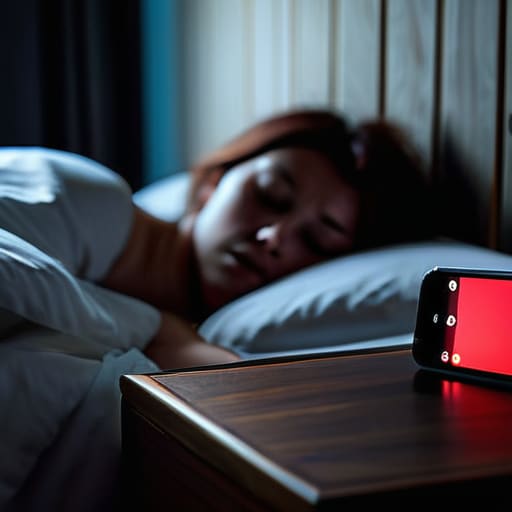
The problem with being “always on” isn’t just that you’re tired; it’s that your brain never actually finishes its shift. When you’re constantly scanning for that little red dot or a vibrating phone, you’re essentially running a background process in your head that eats up all your mental RAM. This is the fastest route to digital burnout prevention failure. You aren’t being more productive by responding to a non-urgent query at 10 PM; you’re just training your colleagues to expect you to be a 24/7 automated response system.
Real work-life balance strategies aren’t about finding a magic app that organizes your life; they are about the uncomfortable decision to be unavailable. I spent years watching people burn out because they thought “professionalism” meant being reachable at all hours. It doesn’t. Professionalism is meeting your deadlines and communicating clearly during your working hours. If you don’t practice unplugging after work by physically putting your phone in another room or turning off the work profile on your device, you’ll eventually find that you have nothing left to give when it actually matters.
Five ways to stop the digital bleeding
- Audit your notification priority. Most people have every single channel pinging them, which is madness. Go into your settings and mute everything except for direct mentions from your boss or specific emergency keywords. If it’s a general announcement in a #random or #general channel, it does not deserve to vibrate your thigh while you’re eating dinner.
- Set a “hard out” time in your status. Most messaging apps let you set a custom status or a schedule. Use it. If you stop working at 5:30, set your status to “Away – back tomorrow” and actually turn off the mobile app notifications. If you leave the door open by responding to “just one quick thing” at 8 PM, you are training your colleagues that you are always available.
- Move the conversation out of the chat. Slack and Teams are terrible for deep thinking or complex problem-solving; they are designed to keep you clicking. If a thread goes longer than five messages without a resolution, stop typing. Send a quick “Let’s pick this up in a call/email tomorrow” and close the tab. It saves your brain and prevents the endless scroll of context switching.
- Use the “Scheduled Send” feature like your life depends on it. If you do happen to have a sudden burst of productivity at 10 PM, do not send that message immediately. You’ll just trigger a notification on someone else’s phone and start a cycle of replies. Schedule it to land in their inbox at 9 AM the next morning. It keeps your boundaries intact even when you’re the one breaking them.
- Check your mobile app permissions. This is the big one. If you don’t absolutely need work access on your phone, delete the app entirely. If you must keep it, go into your phone’s system settings—not the app settings—and disable “Background App Refresh.” This ensures the app isn’t constantly pinging the server and sucking your battery or your attention when you aren’t actively looking at it.
The bottom line
Set your status to “away” or “do not disturb” at a fixed time every day; if you don’t train your colleagues on when you’re unavailable, they’ll assume you’re always working.
Audit your notification settings once a month to make sure a new software update hasn’t quietly turned your phone back into a vibrating brick of anxiety.
Remember that most “urgent” messages are just someone else’s lack of planning, and they rarely require you to sacrifice your evening to fix.
The myth of the "urgent" ping
Most of those red notification bubbles aren’t emergencies; they’re just someone else’s lack of planning landing in your lap. If you don’t decide when you’re “off,” the software will decide for you, and it never takes a lunch break.
Saoirse Doyle
The Bottom Line

At the end of the day, setting boundaries isn’t about being difficult or “unprofessional”—it’s about technical maintenance for your own brain. We’ve covered how to aggressively mute Slack, how to stop the reflexive habit of checking email the second you wake up, and why you don’t need to be the person who responds to every minor ping within thirty seconds. You don’t need a fancy new productivity app to do this; you just need to stop letting the tools dictate your schedule. Most of the “emergencies” that pop up in a direct message are actually just someone else’s lack of planning, and they shouldn’t cost you your entire evening.
If you find yourself feeling guilty about turning off those notifications, just remember that the world rarely actually ends when you go offline. I spent years in IT watching people treat every ticket like a house fire, only to realize most of them were just lukewarm sparks. You are allowed to be unavailable. You are allowed to have a life that doesn’t exist in a chat window or a cloud-based task manager. Build these walls now, while you still have the energy, because your peace of mind is the only thing you can’t actually download a replacement for.
Frequently Asked Questions
What happens if my boss or a client uses a different app like WhatsApp or iMessage to reach me after hours?
This is where things get messy because personal apps don’t have a “work mode.” If they’re hitting you on WhatsApp, they’re bypassing your professional boundaries and landing straight in your private life. My advice? Don’t reply immediately. If you do, you’ve just trained them that your personal phone is an extension of your desk. If it’s a recurring issue, suggest moving the conversation back to email or Slack. Keep your personal threads for your family and your sourdough starter.
How do I tell my team I'm going offline without sounding like I'm not doing my job?
The trick is to stop framing it as “I’m leaving” and start framing it as “I’m unavailable.” Don’t apologize for having a life; just state your status. A simple, “I’m heading offline for the evening; if there’s a genuine emergency, [insert specific protocol], otherwise I’ll catch up tomorrow,” works best. It sets a boundary without the guilt. If you make it sound like a big, dramatic announcement, people will treat it like one.
If I turn off all my notifications, how do I make sure I don't miss an actual, genuine emergency?
The short answer is: you don’t. If you turn everything off, you’re intentionally choosing to be unreachable.
