Smart Meters: What They Show and What They Change

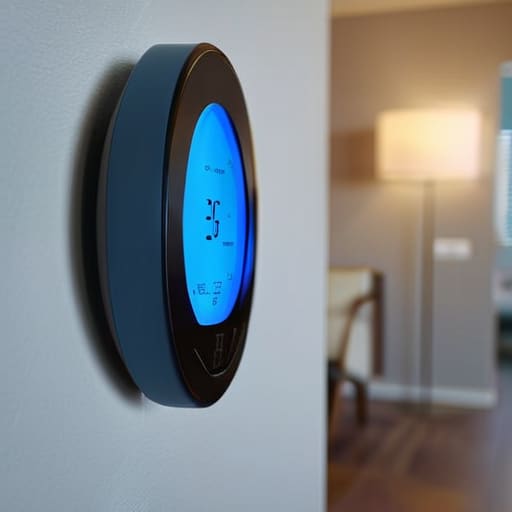
I spent six years on a helpdesk listening to people explain how “smart” their new gadgets were, only to watch them struggle to turn the thing on. When it comes to energy, there is a massive amount of marketing noise trying to convince you that a smart meter is some revolutionary piece of AI-driven home automation. It isn’t. If you strip away the glossy brochures, the question of what is a smart meter really boils down to a simple digital box that talks to your utility provider so a human doesn’t have to walk into your hallway once a month. It’s a tool for data, not a magic wand that will suddenly make your heating bills disappear.

I’m not here to sell you on the “future of living” or any other breathless nonsense. Instead, I want to walk you through how these things actually work, what they look like when they inevitably lose connection, and what happens to your data if you decide you don’t like the provider. I’ll give you the boring, honest version: the setup process, the potential pitfalls, and whether or not it’s actually worth the hassle of switching.

Table of Contents

Smart Meter vs Traditional Meter the Actual Differences

Smart Meter vs Traditional Meter the Actual Differences

The main difference between a smart meter vs traditional meter isn’t actually about how they measure electricity—they both count units of energy the same way. The real shift is in how that information travels. A traditional meter is a passive device; it sits there, counts, and waits for a human to physically walk up to your house to write the numbers down once a month. A smart meter uses automated meter reading technology to send those numbers to your provider via a wireless network, usually without you ever noticing.

Because the data is sent digitally, you get the benefit of real-time energy monitoring if you use your provider’s app. With an old-fashioned meter, you’re essentially flying blind between readings, often guessing your usage based on a bill that is already three weeks old. The smart version lets you see the spikes when the kettle goes on or the dryer starts. Just keep in mind that while this helps with reducing electricity bills, it requires you to actually look at the data and change your habits, otherwise, it’s just a more expensive way to watch yourself waste power.

The Smart Meter Installation Process Without the Fluff

The Smart Meter Installation Process Without the Fluff

The smart meter installation process is usually less of a construction project and more of a quick swap. An engineer will arrive, typically during a standard four-hour window, and replace your old dial-based unit with the new digital one. They’ll need to turn off your power for a little while—usually about thirty minutes to an hour—to safely disconnect the old wires. It’s a bit annoying if you’re mid-task, but it’s standard procedure. Once the new unit is in, they’ll check that it’s communicating correctly with the network to ensure your real-time energy monitoring actually works.

You don’t need to rewire your house or move your furniture. The engineer basically just pulls the old box off the wall and slots the new one in its place. The most important thing to watch for is the communication link; sometimes, if your house has thick stone walls or is in a bit of a dead zone, the signal can be finicky. If they can’t get a solid connection, they might have to install a signal booster. It’s a straightforward job, provided you’ve cleared a bit of space around your current meter cupboard.

Five things to check before you let them in your house

  • Ask about the data. You should be able to see your own usage through an app or a web portal without paying a “premium service” fee. If they can see your patterns but you can’t, that’s a problem.
  • Check the signal strength. These things rely on a wireless network (either cellular or a dedicated radio frequency) to talk to the grid. If your house is a concrete fortress or in a dead zone, the “smart” part of the meter might just become an expensive paperweight.
  • The “subscription” trap. While the meter itself is usually provided by your utility company, some third-party apps that offer “energy saving insights” charge a monthly fee. Ask yourself if you actually need a graph to tell you that turning off the lights saves money.
  • Keep your old meter’s final reading. Even though the transition is supposed to be seamless, digital handovers can be glitchy. Take a photo of your old meter’s display before the technician swaps it out, just in case your next bill looks like a typo.
  • Don’t panic about the privacy stuff. A smart meter doesn’t know you’re watching Netflix or that you’ve just started the kettle; it just sees the load on the circuit. It’s a data point, not a camera, but it’s worth knowing exactly what frequency they’re using to transmit it.

The short version

A smart meter doesn’t magically lower your usage; it just stops the guesswork by sending your data to the provider automatically.

Installation is usually a quick swap, but you should check if your provider charges for the hardware or if it’s included in your plan.

If you decide you hate the idea of constant data sharing, you can usually ask to go back to a manual reading, though it might make your billing less predictable.

The bottom line on smart meters
The bottom line on smart meters.

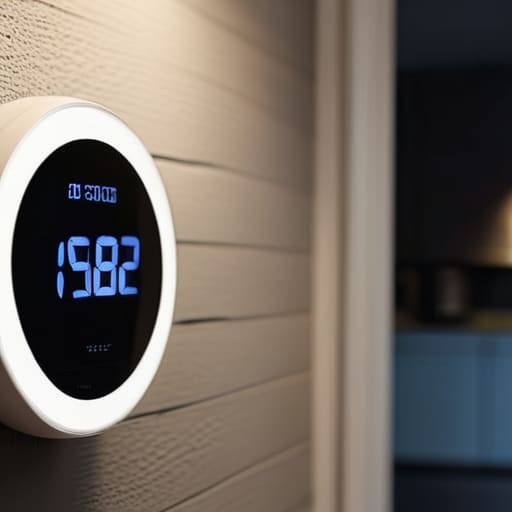
At the end of the day, a smart meter isn’t some futuristic gadget that’s going to manage your life for you; it’s just a digital upgrade to a piece of hardware that’s been doing the same job for decades, designed to stop the manual guesswork and give you a clearer look at where your money is actually going.

Saoirse Doyle

The bottom line on smart meters

At the end of the day, a smart meter isn’t some magical device that will suddenly make your electricity bill disappear. It is essentially just a digital bridge between your house and the utility company, designed to stop the manual guesswork and the “estimated” bills that always seem to arrive when you’re already stressed. You’ll get more accurate data and, if you choose to use an In-Home Display, a better idea of when you’re actually burning through power. Just remember: the hardware is usually free or low-cost, but the real value is in the data you can actually use to spot your own habits. If you don’t look at the numbers, it’s just another plastic box on the wall doing very little for you.

Don’t feel like you need to overhaul your entire life or buy every smart gadget on the market just because you have a new meter. Technology should serve you, not give you a new hobby of managing apps and notifications. If having a smart meter means you spend ten minutes a month checking your usage instead of ten minutes a week arguing with a paper bill, then it has done its job. Keep it simple, use the data if it helps, and if it doesn’t, just let it sit there and do its thing in the background. Technology is at its best when you forget it’s even there.

Frequently Asked Questions

Will my electricity or gas actually get more expensive once the meter is installed?

The short answer is no, the meter itself doesn’t change the price of your unit of energy. It’s just a different way of counting it. However, there is a catch: because smart meters provide more granular data, you might suddenly see exactly how much that “always-on” device in the corner is costing you. It’s not that the electricity gets more expensive; it’s just that you can no longer hide from the math.

What happens to my data, and who exactly gets to see my usage patterns?

Here’s the deal with your data: your energy supplier gets the granular details—how much and when you use power—so they can bill you accurately. In some areas, the network operator sees it too, just to keep the grid stable. It’s not like someone is watching you brush your teeth in real-time, but they do see the patterns. If you want to opt out of sharing more detailed data, check your provider’s privacy settings; it’s usually a toggle.

If the smart meter loses connection or breaks, do I lose power?

The short answer is no. If the smart meter loses its connection to the grid or the little digital brain inside decides to quit, your lights will stay on. The electricity doesn’t actually flow through the smart part of the meter; it just flows past it. You might stop seeing real-time updates in your app, and your provider might have to go back to manual readings, but your kettle will still work.


Compound Interest Explained With Real Numbers

I spent six years on a helpdesk listening to people explain why they couldn’t afford a new laptop, only to realize they were being sold a version of finance that felt more like a magic trick than math. Most “experts” talk about wealth building like it’s some secret ritual you need a premium subscription to access, but when you actually strip away the jargon, the question of what is compound interest isn’t actually that mysterious. It isn’t a miracle, and it isn’t a get-rich-quick scheme designed by someone in a fleece vest; it’s just your money earning a little extra, and then that extra bit earning its own little extra, over and over again.

I’m not here to sell you on a “financial freedom” lifestyle or a high-fee investment platform. My goal is to give you the boring, functional truth about how the math actually moves. I’ll show you how the numbers stack up, where the hidden fees usually hide to eat your gains, and exactly how much time you actually need to let the process work. No hype, no breathless excitement—just a clear look at how to make the math work for you instead of against you.

Table of Contents

Simple vs Compound Interest Why the Math Actually Matters

Simple vs Compound Interest Why the Math Actually Matters

The easiest way to think about the difference between simple vs compound interest is to look at where the new money comes from. With simple interest, you’re only earning a cut on your original deposit. If you put in $1,000, you get the same flat amount every year, like a predictable, albeit boring, paycheck. It’s linear. It stays in its lane.

Compound interest, however, is where things get slightly weird. Instead of just paying you for your initial deposit, the bank starts paying you for the interest they already paid you. It creates a feedback loop. This is the engine behind exponential growth in finance; your money isn’t just sitting there, it’s actively recruiting more money to join the pile.

In the beginning, the gap between the two looks negligible—honestly, it’s almost invisible on a monthly statement. But because of the power of compounding, that gap widens aggressively the longer you leave it alone. It’s not about a sudden windfall; it’s about the math quietly snowballing in the background while you’re busy doing literally anything else.

The Compound Interest Formula Without the Textbook Fluff

The Compound Interest Formula Without the Textbook Fluff

If you search for the compound interest formula, you’re going to find a wall of math that looks like it was designed to make you close your laptop and go for a walk. It usually involves $A = P(1 + r/n)^{nt}$, which is just a fancy way of saying that your money is growing on top of itself. You don’t need to memorize the variables to understand the concept; you just need to realize that the “n” in that equation represents how often the bank decides to check your balance and add a little extra. The more frequently they do that—whether it’s monthly or daily—the faster that exponential growth in finance starts to kick in.

The reason this gets messy in real life is because of how different banks talk to you. They’ll throw around terms like “interest rate” versus “annual percentage yield” to make things sound complicated. In plain English, the interest rate is what they promise, but the APY is what you actually get after the math does its thing. I always tell people to look at the APY; it’s the only number that actually tells you the truth about your money’s trajectory. It’s the difference between a slow crawl and the power of compounding actually doing the heavy lifting for you.

Five things to keep in mind before you start playing with the math

  • Time is the only thing you can’t buy back. You can always add more money later, but you can’t add more years to the start of the calculation. The math works exponentially, which means the “magic” happens at the very end of the timeline, not the beginning.
  • Watch the fees like a hawk. If your investment grows by 7% but your platform takes 2% in management fees, you aren’t losing 2%; you’re losing the compounding power of that 2% every single year. Over twenty years, those fees eat a massive chunk of your potential total.
  • Frequency matters more than you think. Interest that compounds monthly is going to outperform interest that compounds annually, even if the interest rate looks the same on paper. It’s just more frequent “interest on interest” cycles.
  • Don’t touch the principal. The whole engine relies on the base amount staying put. If you start dipping into your savings every time you want a new gadget, you aren’t just spending the cash—you’re deleting the future growth that cash was supposed to generate.
  • Understand the “tax drag.” Depending on where you keep your money (like a standard savings account versus a tax-advantaged retirement account), the government might take a bite out of your interest every year. This slows down the compounding speed significantly compared to accounts where the growth is sheltered.

The short version: what you actually need to remember

Compound interest isn’t magic; it’s just math that builds on itself. You earn interest on your original money, and then you earn interest on that interest, which creates a snowball effect that gets faster the longer you leave it alone.

Time is more important than the amount you start with. Because the growth is exponential, a small amount of money tucked away in your twenties will often do more heavy lifting than a much larger amount shoved into an account in your fifties.

The math works both ways. While it’s your best friend in a savings account or an index fund, it’s your worst enemy with high-interest debt like credit cards. If you aren’t paying those off, the interest is compounding against you, making the hole deeper every single month.

The reality of the math

Compound interest isn’t some magical trick to get rich by Tuesday; it’s just the mathematical equivalent of a snowball rolling down a hill. It starts out small, slow, and frankly, a bit boring, but if you stop messing with it and actually let it roll, it eventually starts doing more work than you ever could.

Saoirse Doyle

The Bottom Line

The Bottom Line: Time builds wealth.

If you take anything away from this, let it be that compound interest isn’t some magical trick or a secret reserved for people with massive inheritance funds. It is simply the mathematical result of not interrupting the cycle. We’ve looked at how the math differs from simple interest, how that formula actually functions in the real world, and why the timeline matters more than the initial amount you throw at it. You don’t need to be a math whiz or have a complex spreadsheet to make this work; you just need to understand that time is your most valuable asset, far more than the specific dollar amount you start with today.

Most people spend their lives waiting for the “perfect” moment to start saving or investing, usually convinced they don’t have quite enough to make a dent. But from what I’ve seen, the cost of waiting is almost always higher than the cost of starting small and being slightly wrong. You don’t need a perfect system or a high-frequency trading account; you just need to get the engine running. Once the momentum builds, the math does the heavy lifting for you, allowing you to focus on your actual life while your money quietly does its job in the background.

Frequently Asked Questions

How much money do I actually need to start seeing these results?

The honest answer is: as little as you can spare without feeling the sting. I used to tell people they needed a massive lump sum to make the math move, but that’s a lie. Compound interest is a game of time, not just volume. If you start with fifty quid a month now, it beats starting with five hundred a month ten years later. Just pick a number that won’t make you panic when your starter bread fails.

Does inflation eat all the gains I make from compounding?

The short answer is: yes, it can, if you aren’t careful. Think of inflation as a slow leak in your tire. Compound interest is the air you’re pumping in, but if the leak is faster than your pump, you’re still going to end up on the rim. To actually get ahead, your interest rate has to beat the inflation rate. If you’re earning 3% but bread prices are rising by 5%, you’re technically losing ground.

What’s the difference between compound interest in a savings account versus a debt like a credit card?

It’s the same math, just working in opposite directions. With a savings account, compound interest is your friend; the bank pays you interest, and then you earn interest on that interest. It’s a slow build. With a credit card, it’s a trap. The bank charges you interest on your balance, and then they charge you interest on the interest you didn’t pay. It snowballs against you, usually much faster than your savings grow.

Blue Light: What the Evidence Actually Supports

I spent six years in a cramped IT office listening to people complain about eye strain, and most of the advice they were given was absolute nonsense. You’ve probably seen the ads for those $50 “blue light blocking” glasses that claim to be a miracle cure, but let’s be real: most of them are just expensive plastic. People get so caught up in the marketing that they forget the basics of what is blue light and how it actually interacts with your biology. It isn’t some magical, invisible poison; it’s just a specific part of the light spectrum that tells your brain it’s midday, even when you’re staring at a spreadsheet at 11:00 PM.

I’m not here to sell you a subscription to a wellness app or a pair of designer spectacles. Instead, I want to give you the boring, practical version of how to manage your screen time without making your life complicated. We’ll walk through the actual settings on your phone and laptop that work, what the science actually says about your sleep cycles, and—most importantly—which “solutions” are a complete waste of money.

Table of Contents

High Energy Visible Light the Science Without the Fluff

High Energy Visible Light the Science Without the Fluff

Technically, we’re talking about High-Energy Visible (HEV) light. It’s a specific part of the light spectrum that sits right between ultraviolet and the rest of the visible colors. Because it has a shorter wavelength, it carries more energy, which is why it’s called “high-energy.” You get it from the sun, obviously, but your phone and laptop are basically small, constant emitters of it. It isn’t “poison,” but it is intense, and your eyes weren’t exactly designed to stare at a concentrated beam of it for eight hours a day while you’re sitting in a dim living room.

This intensity is what leads to those annoying digital eye strain symptoms—the dry eyes, the headaches, and that heavy feeling behind your brow after a long shift. More importantly, it messes with your internal clock. When you’re staring at a screen late at night, that HEV light tricks your brain into thinking it’s midday, which causes significant circadian rhythm disruption. It essentially tells your body to stop the melatonin production you need to actually drift off. It’s not that the light is “evil”; it’s just that your biology is still running on much older software than your hardware.

Digital Eye Strain Symptoms Youre Probably Ignoring

Digital Eye Strain Symptoms Youre Probably Ignoring

Most people don’t realize they have digital eye strain until they’re staring at a wall in a dark room at 11 PM, wondering why their head feels like it’s being squeezed in a vice. It usually starts small: a slight dryness, a nagging itch, or that weird feeling that your focus is sliding around the screen rather than staying on the text. You might even notice your vision getting a bit blurry by mid-afternoon. I used to think this was just “getting older,” but after years of troubleshooting hardware, I realized it was just my eyes protesting the constant bombardment of high-energy visible light.

The real trouble, though, isn’t just the physical discomfort; it’s how it tricks your brain. When you’re staring at a bright display late at night, you’re essentially telling your body it’s midday. This leads to significant circadian rhythm disruption, which is a fancy way of saying your internal clock gets completely lost. Because of the way melatonin production and screens interact, your brain stops prepping for sleep because it thinks the sun is still up. If you find yourself lying awake with a racing mind despite being exhausted, your screen is likely the culprit.

Five ways to stop your screens from messing with your head

  • Use the built-in “Night Shift” or “Blue Light Filter” settings on your phone and laptop. It doesn’t make the screen look perfect—it’ll look a bit orange and warm—but it stops that harsh glare right before you try to sleep.
  • Get a pair of blue light glasses if you absolutely must work late, but don’t go spending sixty quid on them. Most of the time, the software settings mentioned above do the same job for free.
  • Follow the 20-20-20 rule. Every 20 minutes, look at something 20 feet away for 20 seconds. It sounds like something a primary school teacher would say, but it actually gives your eye muscles a chance to stop being stuck in a permanent squint.
  • Set a “digital sunset.” Try to put the phone down or at least turn the brightness all the way down an hour before you want to be asleep. If you’re still scrolling through news feeds at midnight, no amount of blue light filtering is going to save your sleep cycle.
  • Check your environment lighting. If you’re sitting in a dark room with a bright monitor, the contrast is what’s really killing you. Turn on a lamp or use some soft ambient light so your eyes aren’t fighting a battle between a black room and a glowing rectangle.

The short version

Blue light isn’t some invisible monster; it’s just a specific part of the light spectrum that can mess with your sleep if you’re staring at a screen right before bed.

If your eyes feel scratchy or your head aches after a long shift, it’s likely digital eye strain, and “night mode” settings are a decent band-aid, not a cure.

Don’t go out and buy expensive “blue light blocking” glasses unless you actually like them; most of what you need is just adjusting your screen brightness and taking actual breaks.

The reality of the glow

“Blue light isn’t some mysterious, invisible poison; it’s just a specific part of the light spectrum that’s great for keeping you awake during the day and terrible for helping you wind down at night. Your screen isn’t attacking you, it’s just doing exactly what it was designed to do: keep your brain alert, even when you’re trying to go to sleep.”

Saoirse Doyle

The bottom line on blue light

The bottom line on blue light.

At the end of the day, blue light isn’t some invisible monster coming to destroy your retinas, but it is a persistent variable in how you feel. We’ve covered how high-energy visible light impacts your circadian rhythm and why those stinging, dry eyes are usually a sign that you’ve been staring at a backlit rectangle for too long without a break. You don’t need to buy a pair of expensive, overpriced blue-light-blocking glasses that promise to fix your life; you just need to manage your environment. Use the night mode settings already built into your phone, dim your screens when the sun goes down, and for heaven’s sake, stop scrolling in total darkness right before you try to sleep.

My time on a helpdesk taught me that people usually look for a complex software fix when the solution is actually just changing a single habit. You don’t need a new productivity app or a specialized lighting setup to reclaim your focus or your sleep; you just need to stop letting your devices dictate your biology. Technology is supposed to be a tool that serves you, not a constant drain on your physical well-being. Set some boundaries with your screens, give your eyes a break, and remember that the most effective “system” is usually just the one that requires the least amount of friction to maintain.

Frequently Asked Questions

Do blue light glasses actually work, or are they just a way for companies to sell me more plastic?

Honestly? Most of them are just expensive plastic. If you’re buying them to stop eye strain, you’re probably wasting your money. The strain usually comes from how we use screens—not blinking enough or sitting too close—not the light itself. If you want to try them, fine, but I’d rather you just use the “Night Shift” setting already built into your laptop for free. It does the same thing without the markup.

Will turning on "Night Shift" or a blue light filter actually fix my sleep, or am I just masking the problem?

It’s a bit of both. Turning on Night Shift or a blue light filter helps by reducing the specific wavelength that tells your brain it’s noon, making it easier to wind down. But it isn’t a magic fix. If you’re scrolling through stressful emails or high-octane news at 11 PM, the blue light filter won’t save you from the mental stimulation. Use the filter, but don’t use it as an excuse to stay online longer.

Is it the blue light itself that's the issue, or is it just the fact that I'm staring at a screen for eight hours straight?

It’s a bit of both, but mostly it’s the staring. Blue light is a specific wavelength that can mess with your circadian rhythm, but “eye strain” is usually just your eye muscles getting exhausted from focusing on a fixed distance for too long. You can use a blue light filter all day, but if you don’t blink or look away from the screen every twenty minutes, your eyes are still going to feel like sand.

How to Speed Up an Old Laptop Before You Replace It

I spent six years in a cramped IT office listening to the same frantic question every Tuesday: “How do I make this thing stop freezing?” Usually, it was someone staring at a spinning loading icon while their deadline ticked closer. Most of the “experts” you’ll find online will try to sell you a $50 monthly subscription to a “system optimizer” that does nothing but bloat your registry and drain your bank account. Honestly, if you’re looking for a magic software button for how to speed up an old laptop, you’re being sold a lie. Most of those tools are just digital junk mail designed to exploit your frustration.

I’m not here to sell you a subscription or a “miracle” app. Instead, I want to walk you through the actual, slightly boring mechanics of what makes a computer feel sluggish. We’re going to look at the physical bottlenecks—like your hard drive or your RAM—and the specific settings that are quietly eating your processing power in the background. I’ll tell you exactly what is worth spending ten minutes fixing, what requires a screwdriver, and when it’s time to just admit the hardware has reached its limit and move on.

Table of Contents

Disable Background Processes to Reclaim Your Sanity

Disable Background Processes to Reclaim Your Sanity

Most people think their laptop is slow because it’s “old,” but usually, it’s just because it’s trying to do fifty things at once that you didn’t actually ask it to do. Every time you install a new printer driver or a random piece of software, they tend to sneakily set themselves up to run the moment you turn the machine on. To fix this, you need to disable background processes that are eating your resources while you’re just trying to read an email.

Open your Task Manager—Ctrl+Shift+Esc if you don’t have it memorized—and click on the ‘Startup’ tab. You’ll likely see a long list of things like Spotify, Steam, or various update helpers marked as “Enabled.” If you don’t need them running the second you log in, right-click and hit disable. It doesn’t delete the app; it just stops it from being a resource hog. This is one of the easiest ways to optimize Windows performance without spending a cent. Just a heads up: don’t touch anything that looks like it belongs to your audio drivers or your security software, or you’ll end up with a different kind of headache.

Clear Temporary Files Before They Bury Your Drive

Clear Temporary Files Before They Bury Your Drive

If you’ve ever felt like your computer is dragging its feet, it’s often because it’s literally tripping over its own digital trash. Every time you download a file, update an app, or even just browse the web, your system creates little snippets of data called temporary files. They’re meant to be short-term, but they tend to stick around like uninvited guests. When these files pile up, they can check disk usage metrics and find you’re running out of breathing room, which forces the system to work much harder just to find a place to put new information.

To fix this, you don’t need fancy software. On a Windows machine, just type “Disk Cleanup” into your search bar and let it do the heavy lifting. It’ll show you a list of things you can safely delete—think system error memory dumps and temporary internet files. It’s a bit of a chore to do manually, but it’s one of the easiest ways to clear temporary files without breaking anything important. Just a heads-up: if you’re clearing out your “Downloads” folder via this method, make sure you actually want those files gone first. Once they’re deleted, they’re gone.

The heavy lifting: three hardware fixes and two software realities

  • If you’re still running your OS on a mechanical hard drive, you aren’t actually using a computer; you’re operating a very expensive paperweight. Swapping that old spinning drive for a cheap SATA SSD is the single most impactful thing you can do. It’s the difference between a boot time of four minutes and forty seconds. Just make sure you clone your drive or have a backup ready, because the process is a bit of a chore.
  • Check your RAM usage. If you’re constantly hitting 80% or higher just by opening three Chrome tabs, your laptop is suffocating. Most older laptops let you pop the back off and slide in another 4GB or 8GB stick for about the price of a decent sourdough loaf. It’s a one-time cost that actually sticks, unlike another monthly subscription for “cloud optimization.”
  • Stop the “Startup” bloat. Go into your Task Manager (Ctrl+Shift+Esc) and look at the Startup tab. If Spotify, Steam, or some random printer utility is set to “Enabled,” turn it off. They don’t need to be running from the second you hit the power button. It won’t make your processor faster, but it will stop that initial five-minute lag when you first sit down to work.
  • Check your thermal paste and dust. If your laptop fans sound like a jet engine taking off, your processor is likely “thermal throttling”—meaning it’s intentionally slowing itself down so it doesn’t melt. If you’re brave enough to open it up, a can of compressed air in the vents can help, but if it’s really old, the thermal paste has likely turned to dust and might need replacing. It’s fiddly, but worth it.
  • Be realistic about your browser. Modern websites are incredibly heavy. If you’re on an old machine, stop using Chrome if you can help it; it eats RAM like it’s going out of style. Try a lighter browser or, at the very least, install an ad-blocker. Ads and tracking scripts are massive resource hogs that your old processor shouldn’t have to fight through just to read a news article.

The short version for when you're in a hurry

If your laptop is more than five years old, don’t waste your time on fancy software “boosters” that charge a monthly fee; they usually just add more background processes to the very problem you’re trying to fix.

Focus on the heavy hitters first—cleaning out your startup apps and clearing your drive—before you start considering hardware upgrades like RAM or an SSD.

Always check what happens to your files if you decide to cancel a subscription; I’ve seen too many people lose access to their own data because they thought they were buying a tool when they were actually just renting a service.

The hard truth about hardware

You can spend hours tweaking settings and deleting cache files, but at the end of the day, you’re usually just trying to squeeze more life out of a machine that was designed to be replaced three years ago.

Saoirse Doyle

The reality check

The reality check for aging computer hardware.

At the end of the day, you’ve done the heavy lifting. By trimming down those background processes that were eating your RAM for breakfast and clearing out the digital cobwebs in your temporary folders, you’ve given your hardware a fighting chance. It won’t turn a five-year-old machine into a high-end gaming rig, but it should stop it from feeling like it’s wading through molasses every time you open a browser tab. Just remember that these are maintenance steps, not permanent fixes. If you find yourself repeating these steps every single month, it’s usually a sign that the hardware has finally reached its natural limit and it might be time to stop patching the leaks and start looking at a replacement.

My best advice is to stop feeling guilty about the speed of your tech. We live in a world designed to make you feel like your current tools are obsolete the moment a new model is announced, but that’s mostly just clever marketing. If your laptop can still handle your spreadsheets, your emails, and your streaming without making your desk feel like a space heater, then it is doing its job. Use what you have until it truly breaks. There is a quiet kind of satisfaction in making things last in a culture that wants you to click ‘buy’ on something new every single year.

Frequently Asked Questions

If I delete these temporary files, am I going to lose my actual documents or photos?

No, you won’t lose your photos or documents. Temporary files are just the digital equivalent of the scrap paper and empty coffee cups left on a desk; they’re things the system created to get a job done and then forgot to throw away. Deleting them is like clearing the clutter so you can actually see the desk. Your actual files live in their own dedicated folders, and they aren’t part of this cleanup process.

Is there a way to tell which background processes are actually useful and which ones are just bloatware?

Look, don’t just start clicking “End Task” on everything in Task Manager unless you want a blue screen and a headache. A good rule of thumb: if the process has a name you recognize (like Chrome, Spotify, or Steam), it’s probably fine. If it’s a string of gibberish or something like “System Host,” leave it alone. If you’re suspicious, right-click the process, select “Search online,” and see if it’s just something your printer needs to function.

At what point is all this tinkering a waste of time and I should just buy a new machine?

Look, I spent six years telling people “have you tried turning it off and on again,” but there is a limit to how much life support a machine can take. If you’ve cleared the bloat, upgraded the RAM, and swapped in an SSD, but it still stutters just opening a browser tab, you’re done. Don’t throw good money after bad. If the hardware is older than five years and won’t run modern security updates, stop tinkering and start saving for a new one.

How to Find and Cancel Subscriptions You Forgot About

I spent six years on a helpdesk listening to people swear that they were being “tricked” by their bank accounts, when really, they were just trapped in a labyrinth of poorly designed user interfaces. Most productivity gurus will tell you that you need a fancy new budgeting app to track your leaks, but that’s just another monthly fee you don’t need. The truth is, learning how to cancel unwanted subscriptions isn’t about finding a magic tool; it’s about knowing exactly which buttons to click to stop the bleeding. It’s frustrating, it’s often intentionally obfuscated, and it usually feels like you’re fighting a battle against a very polite, very automated machine.

I’m not going to give you a lecture on mindfulness or suggest you download a subscription manager that costs ten dollars a month to save you five. Instead, I’m going to give you the actual exit strategy. I’ll walk you through the specific menus for the big players, tell you which companies are notorious for hiding their “cancel” button in a sub-menu three layers deep, and—most importantly—what happens to your data the moment you hit confirm. No hype, no fluff, just the steps to get your money back.

Table of Contents

Bank Statement Audit Tips for the Chronically Distracted

Bank Statement Audit Tips for the Chronically Distracted

If you’re like me, looking at a bank statement feels a bit like looking at a crime scene where you’re both the victim and the perpetrator. The trick to identifying ghost subscriptions isn’t to scan the whole list at once—that’s how you miss the $4.99 charge hiding behind a generic “Service LLC” name. Instead, grab a coffee, sit down, and filter your transaction history by “recurring” or “automatic” if your banking app allows it. If it doesn’t, you’ll have to do it the manual way: scroll through the last three months and look for anything that hits on the same date every single time.

Don’t just look for big numbers, either. The real damage usually comes from the small, “invisible” ones—the extra cloud storage, the premium weather app, or that fitness trial you forgot to kill. Once you spot a suspicious line item, don’t just assume it’s a mistake. Log into the actual service first to see what the billing cycle looks like. The goal isn’t just reducing monthly expenses, it’s making sure you actually know where your money is going before it leaves your account.

Managing Recurring Billing Without Losing Your Mind Much

Managing Recurring Billing Without Losing Your Mind Much

Once you’ve finished your audit, the real work is preventing the next wave of charges from hitting your account. I used to tell my users that the easiest way to handle this was to wait for the email notification, but that’s a lie—most companies make those notifications intentionally vague or bury them in your spam folder. Instead, I’ve found that managing recurring billing works best when you treat it like a scheduled maintenance task. Pick one day a month—the day after payday is usually easiest—to look at your upcoming scheduled transfers.

If you’re looking for a way to automate this, you can find various subscription management tools that claim to do the heavy lifting for you. Just a word of caution from my helpdesk days: many of these tools require you to hand over your bank login credentials, which is a privacy trade-off not everyone is comfortable with. If you want to keep things simple and manual, just set a recurring calendar event for your most expensive services. It takes thirty seconds, but it’s much better than the “oops” moment when you see a $15 charge for a streaming service you haven’t opened since last Christmas.

The "Don't Get Trapped" Checklist

  • Check the “hidden” cancellation path. A lot of services make the ‘Cancel’ button look like a tiny, greyed-out link buried under three layers of ‘Manage Account’ menus. If you can’t find it within two minutes, they’re doing it on purpose.
  • Verify the data grace period. Before you hit confirm, check if you actually lose access to your files immediately or if you keep them until the end of the billing cycle. Most let you finish the month, but some cloud storage providers will lock you out of your own documents the second the payment fails.
  • Watch out for the “Pause” trap. When you click cancel, they’ll almost certainly offer to “pause” your subscription for three months instead. Don’t do it unless you actually intend to come back; a pause is just a delayed bill that’s harder to track in your bank statement later.
  • Confirm the email receipt. Never trust a “Cancellation Successful” pop-up on a screen. Always wait for the automated email. If it doesn’t show up in your inbox within ten minutes, go back and check your status—half the time, the session just timed out and they’ve still got your money.
  • Audit your App Store vs. Direct billing. This is the one that trips everyone up. If you signed up through your iPhone, you can’t cancel it on the company’s website; you have to go through your Apple ID settings. If you try to cancel on the web and it says ‘Subscription not found,’ you’re likely paying through a third-party middleman.

The three things you actually need to remember

Check the “grace period” before you hit cancel; most services let you keep your files for 30 days, but some will lock you out of your data the second the billing cycle ends.

Don’t just delete the app from your phone to stop a subscription—that’s a classic mistake that leaves the recurring charge running in the background.

Keep a simple list of what each service actually costs per year, because seeing that a “small” £4.99 monthly charge is actually £60 is usually the only thing that makes the cancellation feel worth the effort.

The subscription trap

Most companies don’t design their cancellation buttons to be easy to find; they design them to be a psychological hurdle you’ll eventually give up on. Cancelling isn’t about being organized—it’s about deciding that a service isn’t worth the mental tax of remembering it exists.

Saoirse Doyle

The Final Cleanup

Completing The Final Cleanup of digital subscriptions.

At the end of the day, cleaning up your digital life isn’t about finding some magical new budgeting app or a complex spreadsheet. It’s about the manual, slightly annoying work of looking at your bank statement, finding that one $9.99 charge you forgot about, and actually clicking the cancel button. Remember to check what happens to your data after you leave; most services give you a grace period, but some will wipe your files the second your access expires. If you’ve done the audit and mapped out your recurring bills, you’ve already done the hardest part of the job.

Don’t feel guilty about the money you’ve already spent on services you didn’t use. That’s just a “sunk cost,” and dwelling on it won’t put the cash back in your account. The goal here isn’t perfection; it’s just making sure your current setup stops getting in your way. Once you’ve trimmed the fat, you’ll likely find that you have a bit more breathing room—both in your bank account and in your head. Now, go close those extra tabs and get back to something real.

Frequently Asked Questions

What actually happens to my files or photos the second I hit cancel?

The short answer is: usually nothing happens immediately. Most services let you keep your files until the end of the current billing cycle. Think of it like a gym membership; you’ve paid for the month, so you can still use the equipment. However, once that period ends, you often drop into a “read-only” mode. You can see your photos, but you can’t add new ones, and eventually, they’ll start deleting things to save server space. Always download your stuff first.

If I find a charge I don't recognize, how do I fight it without getting stuck in a loop with customer support?

First, don’t call the bank yet; they’ll just freeze your card and make your life harder. Instead, find the specific transaction in your app and look for a “Contact Merchant” link. If you have to use a chat bot, type “Agent” or “Human” repeatedly—it’s a cliché because it actually works. Once you reach a person, skip the backstory. State the date, the amount, and say, “I did not authorize this charge. Please confirm the cancellation and refund.”

How do I track down those subscriptions that aren't in my email inbox but are still hitting my bank account?

This is the part where the “I thought I cancelled that” realization actually hurts. If it’s not in your inbox, it’s likely a “ghost” subscription—often billed through a third party like Apple, Google, or Amazon rather than the service itself. Open your phone’s subscription settings immediately; that’s where most of these hide. If it’s still not there, you’ll have to play detective with your banking app, looking for weird merchant names that don’t match your emails.

How to Choose a Desk Chair When You Sit in It All Day

I spent six years in IT support, and if there is one thing I learned, it’s that people will spend a thousand euros on a “revolutionary” ergonomic throne only to realize the lumbar support feels like a brick pressing into their spine. Most of the advice you see online about how to choose a desk chair for home is just high-end marketing disguised as wellness. They want you to believe you need a complex system of levers and patented mesh to survive a workday, when in reality, most of those fancy features are just points of failure waiting to happen. You don’t need a spaceship; you just need something that doesn’t make you want to lie face-down on the carpet by 3:00 PM.

I’m not here to sell you on a lifestyle or a specific brand. Instead, I’m going to walk you through the actual mechanics of what matters: seat depth, armrest stability, and whether that “breathable” fabric is actually going to pill after two months of use. I’ll tell you exactly what to test before you tap your card, so you can find a chair that stays out of your way and lets you actually get your work done.

Table of Contents

Why Lumbar Support Importance Matters More Than the Aesthetic

Why Lumbar Support Importance Matters More Than the Aesthetic.

You’ll see plenty of chairs online that look like they belong in a high-end architectural magazine—minimalist silhouettes, sleek velvet, or that “mid-century modern” look that everyone loves on Pinterest. They look great in a photo, but most of them are essentially beautiful torture devices. When you’re sitting for six hours a day, the aesthetic matters about as much as the color of your wallpaper. What actually matters is the lumbar support importance; if that chair doesn’t physically push against the curve of your lower spine, you’ll find yourself slouching into a C-shape by lunchtime.

I’ve seen too many people buy a “statement piece” only to realize they’re spending their entire evening rubbing ibuprofen into their hips. A chair can have the best materials for office chairs—breathable mesh or premium leather—but if it lacks a dedicated way to support your lower back, it’s just an expensive piece of furniture. You want something that holds your spine in place so your muscles don’t have to do all the heavy lifting. If you have to choose between a chair that looks “cool” and one that actually keeps you upright, choose the one that keeps you upright.

A Seat Depth and Width Guide for Actual Humans

A Seat Depth and Width Guide for Actual Humans

Most people focus on how a chair looks in a Zoom window, but they forget that the actual surface area of the seat is what dictates whether you’ll be fidgeting by 2:00 PM. When I’m looking at a seat depth and width guide, I’m looking for one specific thing: the gap between the edge of the seat and the back of your knees. If the seat is too deep, it’s going to cut off your circulation; if it’s too shallow, you’ll feel like you’re perched on a stool rather than sitting in a chair. You want about two or three fingers of space there.

Width is the same story. If you’re a larger person, a narrow seat pan is just going to feel like a cage. I’ve seen plenty of “ergonomic” designs that are actually quite restrictive because they prioritize a slim profile for aesthetics. For effective posture correction seating, you need enough room to shift slightly without feeling like you’re sliding off the edge. If the chair is too wide, you’ll likely slouch to one side to find comfort, which defeats the whole purpose of the investment.

Five things to check before you click 'buy'

  • Check the armrests. If they are fixed in place and they hit the underside of your desk, you’re going to end up pulling your chair out six inches every time you want to type. That’s how you end up with a messy workspace and a sore shoulder. Look for ones that adjust up, down, and ideally, in and out.
  • Don’t trust the “heavy duty” label without looking at the cylinder. Most cheap chairs use a basic gas lift that starts sinking after six months of actual use. If the description doesn’t mention a Class 4 cylinder, it’s probably going to be a slow, expensive descent toward the floor by next Christmas.
  • Test the tilt tension. You don’t want a chair that snaps backward like a catapult, but you also don’t want one so stiff you feel like you’re sitting on a wooden bench. There should be a knob underneath that lets you dial in how much effort it takes to lean back.
  • Look at the casters (the wheels). If you have hardwood floors, “standard” plastic wheels will eventually scratch them or make a horrible grinding sound. Get the rubberized ones. They’re quieter, they roll smoother, and they won’t leave tiny scars in your floorboards.
  • Consider the fabric’s breathability. Mesh looks great in photos and is very “tech-forward,” but if you’re someone who runs hot, a cheap mesh can feel like sitting on a plastic net. If you go with fabric, make sure it’s a high-rub count material; otherwise, the seat will start looking saggy and worn within a year.

The quick version for when you just want to sit down

Prioritize the mechanics over the look; if the height adjustment is sticky or the armrests don’t move where you need them, the chair is useless regardless of how it looks in your office setup.

Check the seat depth before you buy; if the edge hits the back of your knees, you’ll end up slouching to compensate, which defeats the entire purpose of buying an “ergonomic” chair.

Don’t get caught in the “subscription trap” of high-end modular brands; check if the replacement parts are easy to find on your own or if you’re forced into a proprietary ecosystem just to fix a broken caster.

The real cost of a bad chair

Most people spend three weeks researching the ‘ergonomic’ buzzwords in the product description, only to realize too late that the armrests are non-adjustable and they’re spending the next six months fighting a constant ache in their shoulders. Stop looking for the chair that looks good in a minimalist office setup and start looking for the one that doesn’t make you want to stand up every twenty minutes.

Saoirse Doyle

Getting it right the first time

Getting it right the first time.

At the end of the day, don’t let the marketing departments bully you into thinking you need a “command center” or a chair that looks like it belongs in a spaceship. If you focus on the basics—making sure the lumbar support actually hits your spine where it should and that you aren’t being pinched by a seat pan that’s too deep—you’ve already won half the battle. Test the adjustment levers before you tap ‘buy’ and, for heaven’s sake, check the warranty terms to see if it actually covers the gas lift, because that is usually the first thing to go.

Buying a chair shouldn’t feel like a high-stakes tech upgrade, even though we spend more time in them than we do in our actual beds. You aren’t looking for a lifestyle statement; you’re just looking for a piece of furniture that stays out of your way so you can get your work done and then go live your life. If you find something that supports your back without requiring a manual to sit down, consider that a massive win. Get the right setup, stop thinking about your posture every ten minutes, and get back to the things that actually matter.

Frequently Asked Questions

Is it worth spending the extra money on a high-end ergonomic brand, or can I just get something decent from a big-box retailer?

Look, if you’re eyeing a Herman Miller because it looks good in a YouTube setup, stop. You’re paying for the brand and the engineering. If you have a bad back, those high-end chairs are worth it because they’re built to last a decade, not a season. But for most of us, a decent mid-range chair from a reputable office supplier is fine. Just avoid the big-box “gaming” chairs; they’re usually just cheap foam wrapped in aggressive branding.

How do I know if a chair's "adjustable" features are actually useful or just more things that will break in a year?

Look, “adjustable” is often just marketing-speak for “more moving parts to snap.” When you’re testing a chair, don’t just pull the levers to see if they move; pull them and feel the resistance. If a lever feels loose or makes a grinding sound, that mechanism is going to fail by next Christmas. I always check the tension knobs too—if they’re plastic and feel flimsy, they’ll strip. Stick to metal levers and solid, heavy-duty adjustments.

What happens to the warranty if I buy a chair online and it arrives with a faulty gas lift?

If your gas lift is shot on arrival, don’t panic, but don’t wait to report it. Most reputable retailers consider this “Dead on Arrival” (DOA), which is covered under your consumer rights regardless of the manufacturer’s specific warranty. Check the return window immediately—usually 14 to 30 days. If you bought it through a marketplace like Amazon, use their system first; it’s much faster than arguing with a manufacturer’s support desk.

How to Build a to Do List That Does Not Become a Graveyard

I spent six years in a two-person helpdesk office, and if I had a euro for every time someone asked me for a “revolutionary” new way to manage their tasks, I’d have retired long before my sourdough starter even hit its first peak. Most productivity gurus want to sell you a $12-a-month subscription to a platform that requires three different plugins just to add a single checkbox. They make you feel like you’re failing because your system isn’t “optimized,” but the truth is that most of these tools are just expensive ways to feel busy. If you are searching for how to build a to do list that works, stop looking for a magic app that promises to fix your life and start looking for a way to stop the friction between your brain and your actual work.

I’m not going to give you a lecture on “workflow synergy” or tell you to download a complex ecosystem that will break the moment you stop paying the monthly fee. Instead, I’m going to show you the boring, practical reality of what actually sticks. We’re going to talk about what to click, where your data actually lives, and how to build a setup that stays out of your way so you can actually get things done.

Table of Contents

The Boring Truth About Productivity Workflow Optimization

The Boring Truth About Productivity Workflow Optimization.

The term “productivity workflow optimization” sounds like something a consultant charges three hundred pounds an hour to explain, but in reality, it’s just a fancy way of saying you want your tools to stop fighting you. Most people spend their Sunday nights setting up elaborate systems—color-coding calendars, tagging sub-tasks, and downloading every new “minimalist” planner—only to abandon them by Wednesday because the setup itself became a chore. I spent six years watching people try to outrun their workload by rearranging their digital furniture. It doesn’t work. You aren’t actually being productive; you’re just performing productivity.

If you want to actually get things done, you need to stop looking for a complex GTD methodology basics tutorial and start looking at your friction points. A list only works if it’s easier to use than the alternative of just doing the thing. If your system requires five clicks and a specific mood to function, it’s not a tool; it’s a hurdle. The goal isn’t to have a beautiful, perfectly categorized dashboard; it’s to have a reliable way to capture a thought before it vanishes and a way to look at it later without feeling overwhelmed.

Why Your Gtd Methodology Basics Are Probably Failing You

Why Your Gtd Methodology Basics Are Probably Failing You

Most people dive into the GTD methodology basics because they’ve been told it’s the “gold standard,” but they end up spending more time categorizing tasks than actually doing them. I spent years watching people build these elaborate, multi-layered digital architectures—folders within folders, tags within tags—only to realize they’ve just created a second job for themselves. You aren’t being productive; you’re just performing administrative theater. If your system requires a twenty-minute ritual every morning just to figure out what you’re supposed to be doing, it’s not a tool, it’s a barrier.

The problem usually boils down to a lack of realistic prioritization frameworks for tasks. You end up with a massive, undifferentiated wall of text where “Email the landlord” sits right next to “Finish quarterly report.” When everything is flagged as high priority, nothing is. This is how you end up stuck in a loop of overwhelming choice paralysis, where you stare at your screen for ten minutes before deciding to just check social media instead. A list shouldn’t be a graveyard for everything you’ve ever thought of doing; it should be a clear, narrow path for what you are actually going to do today.

Five ways to stop fighting your own list

  • Pick a tool that works offline. If your entire ability to function relies on a cloud connection or a subscription that might expire next Tuesday, you don’t have a system; you have a liability. I prefer tools that let me export my data to a simple CSV or text file so I’m not held hostage by a monthly fee.
  • Stop treating every task like a project. If a task says “Plan summer holiday,” it’s too big and it’s going to sit there for three weeks until you feel guilty about it. Break it down into “Book flights” or “Check passport expiry.” Small, boring steps actually get finished.
  • The “One In, One Out” rule for your backlog. If you keep adding tasks to a list that never ends, you aren’t being productive; you’re just collecting digital clutter. If you add a new “must-do” item, look at your current list and decide what is actually getting pushed to next month or deleted entirely.
  • Separate your “Brain Dump” from your “Today List.” You need a messy place to throw every random thought that hits you while you’re working, but that shouldn’t be your active workspace. Keep a scratchpad for the chaos and a separate, very short list for the three things that actually matter before dinner.
  • Accept that the list will break. Some days you’ll get sick, some days the internet goes down, and some days you’ll just stare at a wall. Don’t try to build a “perfect” list that accounts for every minute of your life. Build a list that you can look at on Wednesday and not feel like a failure because Monday didn’t go to plan.

The things you actually need to remember

Stop chasing the “perfect” app and start looking for the one that doesn’t require a PhD to set up; if you spend more time organizing the list than doing the work, the tool is failing you.

Always check the “exit strategy” for any software you subscribe to—know exactly how much of a headache it will be to get your data back if you decide to cancel the monthly fee.

A system is only as good as its lowest point of friction, so if your to-do list requires five clicks and a login just to add a single task, it’s going to break the moment you’re actually busy.

The trap of the perfect setup

A to-do list isn’t a project in itself; if you spend more time color-coding categories and setting up automation than actually clearing your inbox, you haven’t built a system, you’ve just built a very expensive way to procrastinate.

Saoirse Doyle

Stop searching, start doing

Stop searching, start doing with simple tools.

At the end of the day, a to-do list isn’t a lifestyle choice or a personality trait; it’s just a tool to keep your brain from looping on things you haven’t finished. You don’t need a complex, multi-layered hierarchy or a subscription-based app that promises to “revolutionize your focus” only to lock your data behind a paywall next year. You just need a place to dump the noise, a way to prioritize the actual work, and a system that is reliable enough to exist even when your phone dies or your internet goes out. Keep it simple, keep it local if you can, and for heaven’s sake, make sure you actually know how to export your data if you decide to walk away from the software.

If you find yourself staring at a blank screen or a list of fifty tasks that haven’t moved in three weeks, don’t go looking for a new app. That’s just procrastination in a shiny new wrapper. Instead, strip everything back until you are left with something so basic it feels almost insulting. The goal isn’t to have the most aesthetically pleasing digital workspace in the world; the goal is to get through your day and eventually close your laptop without that nagging sense of dread. Build the smallest possible version of a system that works, and then get on with your life.

Frequently Asked Questions

How do I stop my to-do list from becoming a graveyard of tasks I'll never actually do?

You’re treating your list like a wish list instead of a schedule. If a task has been sitting there for three weeks, it’s not a task; it’s a ghost. Either it’s too big—so break it down into something that takes ten minutes—or it’s not actually important, in which case, delete it. A graveyard of tasks is just a way of lying to yourself about what you’re actually going to achieve today.

Which apps actually let me own my data if I decide to cancel my subscription next year?

If you want to keep your data when the subscription ends, look for apps that support local backups or standard file formats. Obsidian is the gold standard here because your notes are just plain text files sitting on your hard drive; if the app disappears, your data stays exactly where it is. Notion is the opposite—if you stop paying, you’re stuck in their ecosystem. Apple Notes is okay, but exporting gets fiddly. Stick to Markdown.

Do I really need a separate system for work and home, or is that just adding more friction?

If you’re already feeling overwhelmed, adding a second app is just more homework you don’t have time for. I used to advocate for strict separation, but the friction of switching contexts usually wins. Use one system, but use “tags” or “folders” to keep the work stuff from bleeding into your grocery list. The goal is visibility, not silos. If you can’t see your whole life in one glance, the system is failing you.

How to Protect Your Eyes When You Stare at Screens All Day

I spent six years in a cramped helpdesk office where the fluorescent lights hummed just loud enough to be annoying, and the only thing worse than the noise was the way everyone’s eyes looked by 4:00 PM—red, glassy, and completely drained. I used to see people dropping fifty quid on those cheap, orange-tinted blue light glasses that promised to save their vision, but honestly, most of them were just expensive plastic. If you’re looking for a magic pair of spectacles to fix your life, you’re going to be disappointed; learning how to protect your eyes from screens is less about buying new gear and more about fixing your actual habits.

I’m not here to sell you a subscription to a meditation app or a fancy ergonomic setup you don’t need. Instead, I’m going to give you the boring, practical version of what actually works: adjusting your OS settings, managing your lighting, and knowing when to actually look away. We’ll talk about what’s worth your time and what is just clever marketing designed to make you feel like your setup is broken.

Table of Contents

Spotting Digital Eye Strain Symptoms Before They Ruin Your Day

Spotting Digital Eye Strain Symptoms Before They Ruin Your Day

The thing about digital eye strain symptoms is that they don’t usually hit you like a lightning bolt; they sort of creep up on you while you’re halfway through an email. You might notice your eyes feeling slightly “gritty,” like there’s a tiny bit of sand behind your eyelids, or you might find yourself squinting at a spreadsheet that looked perfectly fine ten minutes ago. I used to think I just needed more caffeine, but it was actually my eyes telling me they were done for the day.

If you start getting a dull ache right behind your brow or a headache that sits right at the temples, that’s your body’s way of flagging computer vision syndrome. It’s easy to ignore these little warnings, but if you push through, you’ll end up spending the rest of the evening staring blankly at a wall because looking at anything—even a book or a phone—feels like a chore. Pay attention to the sudden need to rub your eyes or the way the text seems to dance slightly on the screen; those are the red flags that you need to step away before the headache becomes a full-blown event.

Why Blue Light Filtering Glasses Are Usually a Waste of Money

Why Blue Light Filtering Glasses Are Usually a Waste of Money

I’ve spent enough time in IT to know that when people feel a physical symptom, they immediately look for a gadget to fix it. Most of you will head straight to Amazon to buy a pair of blue light filtering glasses, thinking that a tinted lens is the magic shield between you and a headache. Here is the truth: unless you are working in a dark room with a massive, unshielded monitor, those glasses are mostly doing nothing but making your screen look slightly yellow.

The science is messy, but the practical reality is simpler. Most of your discomfort isn’t actually caused by the light spectrum itself; it’s caused by how you interact with the device. You aren’t blinking enough, you’re sitting too close, and you’re likely squinting at a screen that is way too bright for a dim room. If you want actual computer vision syndrome relief, don’t reach for your wallet first. Instead, look at your ergonomic workstation setup. Adjust your monitor height, fix your lighting, and use the built-in “Night Shift” or “Blue Light Filter” settings already on your laptop. They are free, they don’t require a new case, and they actually work.

Five ways to stop your eyes from feeling like they've been rubbed with sandpaper

  • Use the 20-20-20 rule. Every twenty minutes, look at something twenty feet away for twenty seconds. It sounds like a schoolroom drill, but it’s just a way to force your eye muscles to relax so they don’t lock up in a permanent stare.
  • Turn on the built-in “Night Light” or “Night Shift” settings in your OS. You don’t need to buy a special lamp or a subscription to a blue-light-blocking app; Windows and macOS already have this in the display settings. It makes the screen warmer, which is easier on the eyes when the sun goes down.
  • Adjust your monitor height. The top of your screen should be at or slightly below eye level. You want to be looking slightly downward at your work, not tilting your chin up like you’re watching a movie. It changes how wide your eyelids stay open and helps prevent your eyes from drying out.
  • Check your text size. If you find yourself leaning forward or squinting to read an email, your font is too small. Go into your browser or system settings and bump the scaling up by 10 or 15 percent. If you’re straining to see, you’re already losing the battle.
  • Clean your screen. I know it sounds trivial, but a layer of dust and fingerprint grease creates glare and reduces contrast. When the image is fuzzy, your eyes work harder to resolve the details. Grab a microfiber cloth and wipe it down once a week so you aren’t fighting through a smudge.

The short version for when your eyes are already burning

Stop looking for a magic gadget; the best thing you can do is the 20-20-20 rule: every 20 minutes, look at something 20 feet away for 20 seconds.

Use your OS settings instead of buying hardware; turn on ‘Night Shift’ or ‘Night Light’ in your display settings to warm up the screen without spending a cent.

Fix your lighting so you aren’t fighting glare; if there is a window behind you or a bright lamp reflecting off your monitor, your eyes are working twice as hard as they need to.

## The reality of the "eye strain" fix

“We spend so much time looking for a magical software update or a pair of expensive glasses to fix the problem, when the real solution is just as boring as it sounds: stop treating your eyes like they’re part of the hardware that doesn’t need maintenance.”

Saoirse Doyle

The bottom line

The bottom line for eye health.

Look, there isn’t a magic software update or a pair of expensive glasses that is going to fix the fact that humans weren’t designed to stare at backlit rectangles for ten hours straight. If you take anything away from this, let it be that the most effective tools are the ones that cost zero pounds: adjusting your brightness to match the room, using the built-in night mode settings already on your phone, and actually looking away from the screen every twenty minutes. You don’t need a subscription-based wellness app to tell you to blink; you just need to stop treating your eyes like they’re indestructible hardware.

At the end of the day, your tech should serve you, not the other way around. We spend so much time trying to optimize our digital lives—buying the right mouse, the right keyboard, the right productivity suite—that we forget the most important piece of the setup is the person sitting in the chair. Don’t let the pursuit of a “perfect” workflow turn into a reason to ignore your own physical limits. Take the breaks, dim the lights, and remember that no amount of digital efficiency is worth a permanent headache.

Frequently Asked Questions

Is there a specific setting on my phone or laptop that actually works better than the built-in blue light filters?

The short answer is no, because “better” is subjective when you’re just fighting physics. Your OS already has the best tools: Night Shift on Mac/iPhone or Night Light on Windows. They work by shifting the color temperature of the entire display. If you want something more aggressive, you can download f.lux, which lets you schedule much deeper amber tones. It’s free, it doesn’t require a subscription, and it won’t lock your files if you stop using it.

How often am I actually supposed to look away from the screen to make a difference?

The standard advice is the 20-20-20 rule: every 20 minutes, look at something 20 feet away for 20 seconds. It sounds like a chore, but it’s just about forcing your eye muscles to unclamp. If that feels too frequent, aim for a real break every hour where you actually stand up and look out a window. Just don’t switch from your monitor to your phone; that’s just trading one strain for another.

If I stop using a specific eye-care app or subscription, do I lose any data or settings I've already configured?

It depends on where the app stores its brain. If it’s a local utility—like a simple brightness shifter or a system-level blue light filter—your settings disappear with the app, but your files are fine. If it’s a subscription service that “tracks” your eye health or usage patterns, that data usually lives on their servers. If you cancel, you typically lose access to those historical charts. Check the fine print for “data portability” before you commit.

How to Track Spending Without Logging Every Coffee

I spent six years on a helpdesk watching people lose their minds over software that was supposed to “simplify” their lives, only to end up spending more time troubleshooting the tool than actually doing the work. Most of the advice you see online about how to track spending is just a thinly veiled sales pitch for a $12-a-month subscription that promises to automate your soul away. They tell you that you need a beautiful dashboard, a complex AI categorization engine, and a complete lifestyle overhaul. Honestly? Most of that is just noise designed to make you feel like your current method is broken so you’ll buy their fix.

I’m not here to sell you a shiny new ecosystem or a lifestyle makeover. My goal is to show you how to find a way to track spending that actually stays out of your way. I’ll walk you through the different ways to do it—from the “low-tech” spreadsheet methods that never crash to the automated apps that might lock your data behind a paywall—and I’ll tell you exactly what happens to your history if you decide to cancel the service. We’re going to focus on what to click, what it costs, and how to make sure the system actually works for you.

Table of Contents

Personal Finance Apps What to Click and What It Costs

Personal Finance Apps What to Click and What It Costs

If you’re looking into personal finance apps, you’ll quickly realize most of them are designed to make you feel like you’re failing a test you never signed up for. Most people start with the “big” names—the ones with the sleek interfaces and the automated bank syncing. They’re great for monthly expense management because they do the heavy lifting of categorizing your coffee runs and utility bills for you. But here is the catch: that automation is a double-edged sword. If the sync breaks—and it will, usually right when you’re trying to reconcile a weird transaction—you’re left staring at a broken dashboard.

Before you commit, check the “exit strategy.” Many of these tools operate on a subscription model, and I need to be clear: if you stop paying, you often lose access to the very data you spent months collecting. You aren’t just losing a tool; you’re losing your history. If you want to try budgeting methods for beginners without the high stakes, look for apps that allow for a full CSV export. You want to own your data, not rent it from a company that might change its pricing tier next Tuesday.

Monthly Expense Management for People Who Hate Systems

Monthly Expense Management for People Who Hate Systems

If you’re anything like me, the idea of “monthly expense management” sounds like a chore designed by someone who enjoys spreadsheets more than sunlight. Most people fail at this because they try to build a fortress of rules on day one. You don’t need a complex architecture; you just need to know where the leaks are. I usually suggest starting with a simple “look back” rather than a strict “look forward.” Instead of trying to predict every cent, just spend one month observing where the money actually goes. It’s less about intense financial goal setting and more about not being surprised when your balance is lower than you thought it should be on the 20th.

When it comes to budgeting methods for beginners, the most effective one is usually the one that requires the least amount of manual data entry. If you have to log every single coffee purchase by hand, you will stop doing it by Tuesday. The goal is reducing impulse spending by creating a tiny bit of friction. If you can see a running total of your “fun money” for the month, you’ll naturally pause before that third unnecessary Amazon order. Keep it low-effort, or it won’t stick.

Five things that actually matter when you’re looking at your bank statement

  • Stop looking for the “perfect” app. I spent years watching people cycle through five different budgeting tools in six months because they were looking for a magic fix. Pick one that lets you export your data to a spreadsheet, because if you ever decide to cancel the subscription, you’ll want those numbers in a format that isn’t locked behind a paywall.
  • Automate the data entry, but audit the results. Most apps use “plaid” or similar services to pull your transactions automatically, which is great until it mislabels your local pub as “General Merchandise.” Set aside ten minutes on a Sunday to scan for these errors; if you don’t, your end-of-month report will be useless.
  • Watch out for the “subscription creep” in your own tracking. Many finance apps charge a monthly fee to tell you how much money you’re spending. If you’re paying £8 a month for an app to save you £5 a month in impulse buys, the math isn’t working. Use a simple, free spreadsheet if your spending habits aren’t actually that complex.
  • Categorize by “Needs” vs “Wants” rather than “Groceries” vs “Entertainment.” Knowing you spent £400 on food is fine, but knowing £150 of that was takeout because you were too tired to cook is the information that actually helps you change anything.
  • Don’t track every single cent. If you try to account for a 50p chocolate bar, you’ll burn out by Tuesday and stop looking at your accounts entirely. Group small, miscellaneous spends into a single “buffer” category and focus your energy on the big hitters like rent, utilities, and subscriptions.

The Bottom Line

Understanding your finances: The Bottom Line.

Don’t let the “perfect” setup become a second job; if an app takes more than ten minutes a week to maintain, it’s not a tool, it’s a chore.

Always check the export function before you subscribe, because the moment you want to leave, you’ll need that data in a CSV or you’ll be locked out of your own history.

A simple spreadsheet that you actually use is infinitely better than a high-tech dashboard that you stop checking after the first month.

The truth about tracking

Stop looking for the app that makes you feel organized; you’re just looking for a way to ignore the math. Pick a tool that actually lets you export your data, learn where the ‘cancel subscription’ button is before you sign up, and then just start typing in the numbers.

Saoirse Doyle

The Bottom Line

If you’ve read this far, you probably already know that there isn’t a magic app waiting to solve your money problems. You either pick a dedicated tool, commit to a manual spreadsheet, or just start looking at your bank statements once a week like a normal person. The goal isn’t to build a perfect, automated dashboard that looks like a Bloomberg terminal; the goal is to actually know where the money went before the month ends. Whether you choose a subscription-based app or a dusty notebook, just make sure you understand the exit strategy—know exactly how to get your data out if that company decides to hike their prices or shut down their servers next year.

At the end of the day, tracking your spending is just another form of maintenance, much like cleaning out your inbox or updating your router’s firmware. It’s not particularly glamorous, and it won’t make you feel like a productivity guru, but it does stop the constant, low-grade anxiety of wondering if you can afford that specific grocery run. Don’t wait for the “perfect system” to arrive, because it won’t. Just pick a method that doesn’t annoy you and start there. Once the system stops getting in your way, you can finally stop thinking about your budget and start actually living your life.

Frequently Asked Questions

If I stop paying for my budgeting app, do I actually lose access to my historical spending data or can I export it first?

This is the exact question I wish more people asked before hitting “subscribe.” The answer is: it depends, but usually, it’s a bit of a headache. Most apps will let you log in to view your data, but they’ll lock the “export” button behind a paywall. My rule is simple: if you’re thinking about cancelling, export your data to a CSV file first. Don’t trust a company to let you leave with your own history.

Is it worth the time to manually enter every single coffee purchase, or will that just make me want to quit the system in three weeks?

If you try to log every latte, you’ll quit by week three. I spent six years watching people abandon perfectly good systems because they turned a task into a second job. Manual entry is for when you need to verify a weird transaction, not for daily coffee. Pick an app that pulls from your bank automatically. If you can’t trust the automation, your system is too high-maintenance to actually work.

How much of my bank account data am I actually sharing when I link my accounts to these third-party apps?

When you link an account, you aren’t handing over your keys; you’re giving them a very specific, read-only view of your transaction history. Most apps use services like Plaid to pull data, which means they see what you spent and when, but they can’t actually move your money or change your password. The real risk isn’t a thief draining your account, but the app itself selling your spending habits to advertisers. Always check if the “data sharing” toggle is buried in the settings.

How Much Standby Power Really Costs You

I spent six years on a helpdesk listening to people complain about rising utility bills, and most of the “solutions” I heard were absolute nonsense. People would suggest buying a $200 “smart energy monitor” or a series of expensive, proprietary power hubs that require their own monthly subscription just to tell you your toaster is plugged in. It’s exhausting. The truth is, most of these gadgets are just another way to make you feel like you need a complex system to solve a simple problem. If you actually want to know how to reduce standby power without turning your living room into a data center, you don’t need an app; you just need to understand where the invisible leaks are happening.

I’m not here to sell you a new ecosystem or a shiny piece of hardware. My goal is to give you the boring, practical version of what actually works. I’ll walk you through which devices are the real culprits, which power strips are worth the extra five pounds, and—crucially—what happens to your settings if you actually pull the plug. We’re going to focus on low-effort, high-impact moves that stop your house from bleeding money while you sleep.

Table of Contents

The Real Cost of Vampire Energy Consumption Solutions

The Real Cost of Vampire Energy Consumption Solutions.

Before you go out and buy a suite of expensive gadgets to fix this, let’s talk about the math. Most people think they need a high-tech overhaul, but the real cost of most vampire energy consumption solutions is often higher than the actual electricity they save. I’ve seen people spend eighty quid on “smart” plugs just to save about three quid a year on their utility bill. It’s a classic case of solving a problem with a tool that’s more complicated than the issue itself.

If you want to see the actual numbers, I suggest a simple phantom power usage measurement using a cheap plug-in watt meter. It costs about ten pounds and tells you exactly which device is the culprit. You’ll likely find it isn’t your fridge, but that old printer or the gaming console that stays in “instant-on” mode. My advice? Don’t over-engineer it. Before you invest in a complex ecosystem, try the unplugging electronics impact method first—just pull the plug on the stuff you aren’t using. It’s free, it’s boring, and it actually works.

How to Start Reducing Household Electricity Bills Today

How to Start Reducing Household Electricity Bills Today

If you want to start reducing household electricity bills without turning your living room into a dark cave, start with the low-hanging fruit. The easiest win is a physical audit of your “always-on” devices. Walk through your house and look for those tiny, glowing LED eyes on your microwave, coffee maker, or game console. If it has a light, it’s drawing power. You don’t need to go around unplugging everything every night—that’s a recipe for burnout—but identifying the biggest culprits is the first step.

For the stuff you use daily but not constantly, like your TV setup or home office, I suggest looking into smart power strips benefits. A good smart strip can cut the connection to your peripherals (like printers or speakers) automatically when your main device is off. It’s a “set it and forget it” approach that actually works. If you’re feeling particularly skeptical, you can pick up a cheap phantom power usage measurement tool from a hardware store. It’ll show you exactly how many cents a single device is bleeding from your bank account every month, which usually makes the effort of switching it off feel a lot more worth it.

Five ways to actually stop the bleed

  • Get some decent power strips—the kind with individual switches. I stopped using those fancy “smart” strips because they just add another app to manage, and frankly, I don’t need my power strip sending me push notifications. Just flip the switch on the strip when you head to bed or leave for work. It’s manual, sure, but it’s a zero-cost way to ensure your TV and game console aren’t sipping power all night.
  • Check your “Sleep” vs. “Hibernate” settings on your computer. Sleep mode keeps the RAM powered so it wakes up fast, but it’s still drawing juice. If you aren’t going to touch the laptop for more than an hour, set it to Hibernate. It saves your state to the hard drive and cuts the power draw down to almost nothing. It takes an extra ten seconds to start up, but it’s worth the few cents you’ll save over a year.
  • Look at your router. Most people leave their Wi-Fi running 24/7, which is fine, but if you have a secondary router or an old one sitting in a drawer acting as an extender, it’s likely a constant drain. If you don’t need that extra coverage at night, unplug it. Just be aware that if you use smart home devices (like bulbs or plugs), they’ll go offline until you plug it back in.
  • The “hidden” culprits are usually the chargers. A phone charger plugged into the wall without a phone attached is still drawing a tiny bit of current. It’s not going to bankrupt you, but if you have a whole house full of them, it adds up. I keep a small power strip by my nightstand for all my charging bricks; when I’m done, I kill the strip.
  • Be wary of “Eco-modes” that require a subscription or a specific brand of smart plug to work. A lot of these companies sell you a “solution” that costs more in monthly fees than the electricity it actually saves. If a device claims to save you money but requires a $5/month app to manage its power settings, walk away. Use a mechanical timer or a simple physical switch instead.

The short version for when you’re busy

You don’t need a smart home overhaul; just unplug the things that don’t actually need to stay “awake” to do their job.

Focus on the high-draw offenders like old gaming consoles and desktop setups rather than obsessing over a single phone charger.

If you buy smart plugs to save power, make sure they aren’t themselves drawing more energy than they’re actually saving.

The reality of the "always-on" lifestyle

We’ve been conditioned to think that if a device isn’t actively doing something, it isn’t costing us anything. But after years of looking at power draw logs, I can tell you that those little standby lights are basically just tiny, slow leaks in your bank account. You don’t need a smart home ecosystem to fix it; you just need to stop letting your gadgets stay awake for no reason.

Saoirse Doyle

The bottom line

Saving money is the bottom line.

At the end of the day, you don’t need to turn your house into a dark, unplugged cave to see a difference. It’s really just about a few intentional shifts: swapping out those old, power-hungry peripherals, using smart power strips for your entertainment center, and being honest about which devices are actually worth the electricity they’re sipping while you sleep. You don’t have to fix everything overnight, but identifying the biggest offenders—usually that old printer or the gaming rig left on standby—is where you’ll see the most immediate return on your time. It’s less about a massive lifestyle overhaul and more about stopping the slow leak in your bank account.

I know it feels a bit tedious to hunt down every little glowing LED in the living room, but there is a certain quiet satisfaction in knowing your tech is working for you, rather than just draining your wallet for no reason. We spend so much time managing our digital lives that we often forget the physical cost of keeping it all running. If you take ten minutes this weekend to audit your plugs, you aren’t just saving a few euros; you’re reclaiming a bit of control over your own space. Keep it simple, keep it functional, and let the machines stay off when you aren’t using them.

Frequently Asked Questions

If I use smart plugs to cut power, will my router or smart home devices lose their settings every time I turn them off?

Short answer: No, your settings are safe. Most devices store their configuration on internal flash memory that doesn’t need power to stay put. When you toggle that smart plug back on, your router will reboot and try to reconnect just like it does after a power cut. Just a heads-up: if you cut power to a smart hub or a bridge, your other smart devices might show as “offline” in your apps until everything finishes its boot cycle.

Is it actually worth buying those expensive power strips with individual switches, or should I just stick to the cheap ones?

Honestly? Don’t bother with the expensive ones. I spent years troubleshooting hardware, and a power strip is just a bridge. A cheap, reliable one from a brand you actually recognize does the exact same job as a “smart” version. If you want to save money, buy a basic strip with individual switches so you can kill the power to your printer or coffee machine manually. It’s more tactile, and there’s no firmware to glitch out.

Will putting my computer or TV on a deep sleep mode actually save enough money to justify the hassle of waiting for them to boot back up?

Honestly? For a TV, no. It’s pennies. But for your computer, it depends on your workflow. If you’re just hitting “Sleep,” the difference is negligible. However, if you’re leaving a high-end desktop running all night, switching to a true shutdown or deep sleep actually matters. If you hate the boot time, just use “Hibernate”—it saves your open windows to the disk and pulls almost zero power. It’s the middle ground that doesn’t feel like a chore.