I spent six years in a cramped helpdesk office where the fluorescent lights hummed just loud enough to be annoying, and the only thing worse than the noise was the way everyone’s eyes looked by 4:00 PM—red, glassy, and completely drained. I used to see people dropping fifty quid on those cheap, orange-tinted blue light glasses that promised to save their vision, but honestly, most of them were just expensive plastic. If you’re looking for a magic pair of spectacles to fix your life, you’re going to be disappointed; learning how to protect your eyes from screens is less about buying new gear and more about fixing your actual habits.
I’m not here to sell you a subscription to a meditation app or a fancy ergonomic setup you don’t need. Instead, I’m going to give you the boring, practical version of what actually works: adjusting your OS settings, managing your lighting, and knowing when to actually look away. We’ll talk about what’s worth your time and what is just clever marketing designed to make you feel like your setup is broken.
Table of Contents
- Spotting Digital Eye Strain Symptoms Before They Ruin Your Day
- Why Blue Light Filtering Glasses Are Usually a Waste of Money
- Five ways to stop your eyes from feeling like they've been rubbed with sandpaper
- The short version for when your eyes are already burning
- ## The reality of the "eye strain" fix
- The bottom line
- Frequently Asked Questions
Spotting Digital Eye Strain Symptoms Before They Ruin Your Day
The thing about digital eye strain symptoms is that they don’t usually hit you like a lightning bolt; they sort of creep up on you while you’re halfway through an email. You might notice your eyes feeling slightly “gritty,” like there’s a tiny bit of sand behind your eyelids, or you might find yourself squinting at a spreadsheet that looked perfectly fine ten minutes ago. I used to think I just needed more caffeine, but it was actually my eyes telling me they were done for the day.
If you start getting a dull ache right behind your brow or a headache that sits right at the temples, that’s your body’s way of flagging computer vision syndrome. It’s easy to ignore these little warnings, but if you push through, you’ll end up spending the rest of the evening staring blankly at a wall because looking at anything—even a book or a phone—feels like a chore. Pay attention to the sudden need to rub your eyes or the way the text seems to dance slightly on the screen; those are the red flags that you need to step away before the headache becomes a full-blown event.
Why Blue Light Filtering Glasses Are Usually a Waste of Money
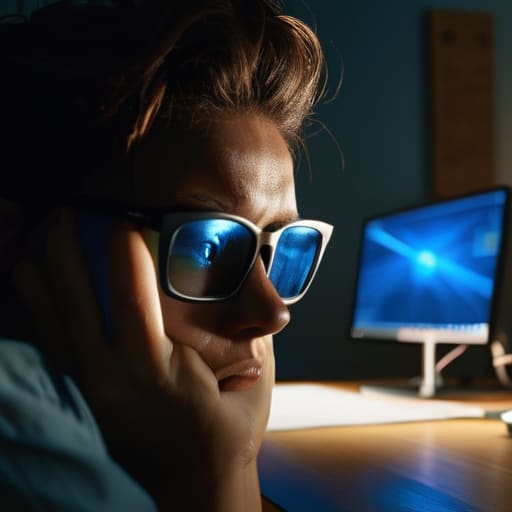
I’ve spent enough time in IT to know that when people feel a physical symptom, they immediately look for a gadget to fix it. Most of you will head straight to Amazon to buy a pair of blue light filtering glasses, thinking that a tinted lens is the magic shield between you and a headache. Here is the truth: unless you are working in a dark room with a massive, unshielded monitor, those glasses are mostly doing nothing but making your screen look slightly yellow.
The science is messy, but the practical reality is simpler. Most of your discomfort isn’t actually caused by the light spectrum itself; it’s caused by how you interact with the device. You aren’t blinking enough, you’re sitting too close, and you’re likely squinting at a screen that is way too bright for a dim room. If you want actual computer vision syndrome relief, don’t reach for your wallet first. Instead, look at your ergonomic workstation setup. Adjust your monitor height, fix your lighting, and use the built-in “Night Shift” or “Blue Light Filter” settings already on your laptop. They are free, they don’t require a new case, and they actually work.
Five ways to stop your eyes from feeling like they've been rubbed with sandpaper
- Use the 20-20-20 rule. Every twenty minutes, look at something twenty feet away for twenty seconds. It sounds like a schoolroom drill, but it’s just a way to force your eye muscles to relax so they don’t lock up in a permanent stare.
- Turn on the built-in “Night Light” or “Night Shift” settings in your OS. You don’t need to buy a special lamp or a subscription to a blue-light-blocking app; Windows and macOS already have this in the display settings. It makes the screen warmer, which is easier on the eyes when the sun goes down.
- Adjust your monitor height. The top of your screen should be at or slightly below eye level. You want to be looking slightly downward at your work, not tilting your chin up like you’re watching a movie. It changes how wide your eyelids stay open and helps prevent your eyes from drying out.
- Check your text size. If you find yourself leaning forward or squinting to read an email, your font is too small. Go into your browser or system settings and bump the scaling up by 10 or 15 percent. If you’re straining to see, you’re already losing the battle.
- Clean your screen. I know it sounds trivial, but a layer of dust and fingerprint grease creates glare and reduces contrast. When the image is fuzzy, your eyes work harder to resolve the details. Grab a microfiber cloth and wipe it down once a week so you aren’t fighting through a smudge.
The short version for when your eyes are already burning
Stop looking for a magic gadget; the best thing you can do is the 20-20-20 rule: every 20 minutes, look at something 20 feet away for 20 seconds.
Use your OS settings instead of buying hardware; turn on ‘Night Shift’ or ‘Night Light’ in your display settings to warm up the screen without spending a cent.
Fix your lighting so you aren’t fighting glare; if there is a window behind you or a bright lamp reflecting off your monitor, your eyes are working twice as hard as they need to.
## The reality of the "eye strain" fix
“We spend so much time looking for a magical software update or a pair of expensive glasses to fix the problem, when the real solution is just as boring as it sounds: stop treating your eyes like they’re part of the hardware that doesn’t need maintenance.”
Saoirse Doyle
The bottom line
Look, there isn’t a magic software update or a pair of expensive glasses that is going to fix the fact that humans weren’t designed to stare at backlit rectangles for ten hours straight. If you take anything away from this, let it be that the most effective tools are the ones that cost zero pounds: adjusting your brightness to match the room, using the built-in night mode settings already on your phone, and actually looking away from the screen every twenty minutes. You don’t need a subscription-based wellness app to tell you to blink; you just need to stop treating your eyes like they’re indestructible hardware.
At the end of the day, your tech should serve you, not the other way around. We spend so much time trying to optimize our digital lives—buying the right mouse, the right keyboard, the right productivity suite—that we forget the most important piece of the setup is the person sitting in the chair. Don’t let the pursuit of a “perfect” workflow turn into a reason to ignore your own physical limits. Take the breaks, dim the lights, and remember that no amount of digital efficiency is worth a permanent headache.
Frequently Asked Questions
Is there a specific setting on my phone or laptop that actually works better than the built-in blue light filters?
The short answer is no, because “better” is subjective when you’re just fighting physics. Your OS already has the best tools: Night Shift on Mac/iPhone or Night Light on Windows. They work by shifting the color temperature of the entire display. If you want something more aggressive, you can download f.lux, which lets you schedule much deeper amber tones. It’s free, it doesn’t require a subscription, and it won’t lock your files if you stop using it.
How often am I actually supposed to look away from the screen to make a difference?
The standard advice is the 20-20-20 rule: every 20 minutes, look at something 20 feet away for 20 seconds. It sounds like a chore, but it’s just about forcing your eye muscles to unclamp. If that feels too frequent, aim for a real break every hour where you actually stand up and look out a window. Just don’t switch from your monitor to your phone; that’s just trading one strain for another.
If I stop using a specific eye-care app or subscription, do I lose any data or settings I've already configured?
It depends on where the app stores its brain. If it’s a local utility—like a simple brightness shifter or a system-level blue light filter—your settings disappear with the app, but your files are fine. If it’s a subscription service that “tracks” your eye health or usage patterns, that data usually lives on their servers. If you cancel, you typically lose access to those historical charts. Check the fine print for “data portability” before you commit.
