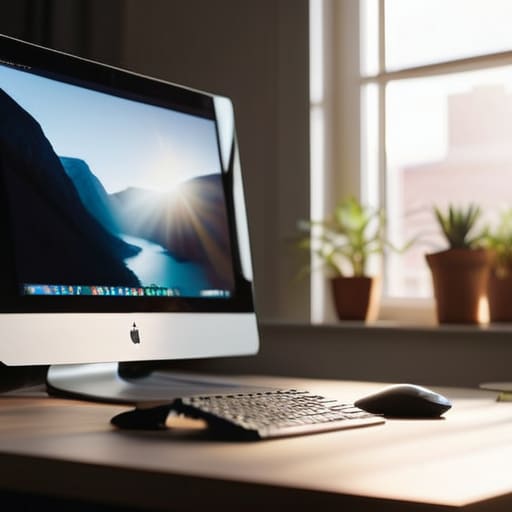
I spent six years in a tiny IT office listening to people complain about “ergonomic fatigue,” which is usually just a fancy way of saying they’ve been staring at a screen like a gargoyle for eight hours straight. You don’t need a three-hundred-euro articulating arm or a “smart” desk that vibrates to remind you to stand; most of the time, the solution is much more boring. People get caught up in complex diagrams and expensive gadgets, but figuring out what is correct monitor height usually comes down to something as simple as a stack of old textbooks or a decent monitor riser. If you’re currently hunching forward like you’re trying to read a menu in a dark restaurant, your setup is failing you, not the other way around.
I’m not here to sell you a productivity system or a subscription to a wellness app that’ll charge you monthly just to tell you to sit up straight. Instead, I’m going to give you the actual, unvarnished steps to get your screen where it needs to be so you can stop the neck ache. We’ll look at where your eyes should land, how to use what you already own, and what to avoid so you don’t waste money on gear that doesn’t actually fix the problem.
Table of Contents
Finding Your Optimal Viewing Angle Without the Fluff
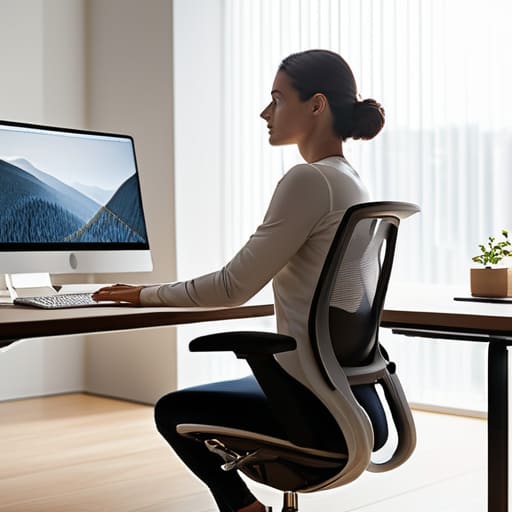
You don’t need a degree in kinesiology to figure this out, but you do need to stop looking down at your lap. The goal is to find an optimal viewing angle where your eyes hit the top third of the screen while you’re sitting naturally. If you’re staring at the center of the monitor, you’re likely tilting your chin up, which is a fast track to a tension headache. If you’re looking at the bottom, you’re hunching. Aim for that top-third sweet spot; it allows your gaze to sweep downward naturally rather than forcing your neck into a permanent crane.
If your desk is too low or your monitor is stuck in a fixed position, don’t just live with it. This is where monitor stand ergonomics actually matter. If you don’t have an adjustable arm, grab a stack of sturdy books or a dedicated riser. It’s not about aesthetics; it’s about making sure your head stays balanced over your shoulders. When your eyes and neck are aligned, you’ll notice you stop leaning forward to “catch” the text, which is usually the first sign that your posture is failing you.
Monitor Stand Ergonomics What Actually Works and Whats Junk
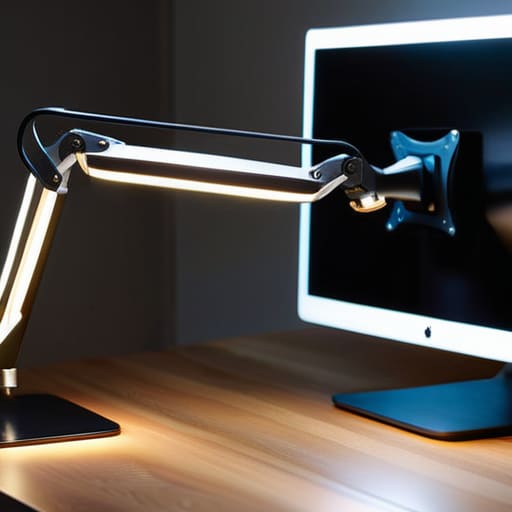
Most people treat their monitor stand like an afterthought, usually just stacking a few thick textbooks or a random kitchen gadget under the screen. If you’re trying to build a proper ergonomic workstation setup, you need something that actually moves. I’ve spent too many years watching people hunch over because their screen is sitting two inches too low. A decent monitor arm is the gold standard here; it clears up desk space and, more importantly, lets you adjust the height and depth with one hand. If you can’t tweak it when you change your seating position, it’s not doing its job.
On the flip side, avoid those cheap, fixed-height plastic risers that claim to be “ergonomic.” They usually have zero adjustability, which is a recipe for disaster. If you can’t fine-tune the position to hit that optimal viewing angle, you’re just setting yourself up for a headache. If you go the route of a monitor arm, just check if it’s VESA compatible before you buy it—most are, but I’ve seen enough people try to bolt a heavy screen to a non-compatible bracket to know that checking the specs first saves a lot of frustration.
Five ways to stop fighting your desk setup
- The top of your screen should be at eye level. I know, it sounds obvious, but most people have their monitors way too low, which leads to that “turtle neck” posture. If you’re looking down, your spine is paying the price.
- Check your distance. Your monitor shouldn’t be right in your face like an unwanted guest; aim for about an arm’s length away. If you find yourself leaning forward to read small text, don’t move the screen closer—just increase the scaling in your display settings.
- Watch your tilt. Your screen should be tilted back slightly, usually about 10 to 20 degrees. It’s not about looking up at the screen, but rather making sure the angle of the glass matches the natural line of your sight.
- Stop using books as stands. I’ve seen it a hundred times: someone stacks three heavy textbooks to lift a monitor. It’s unstable and it looks messy. Get a proper monitor riser or a dedicated arm; it’s a one-time cost that actually stays put.
- Align your peripherals first. If your keyboard and mouse are too high, you’ll naturally hunch forward, making your monitor height irrelevant. Fix your seating height and arm position before you start obsessing over where the screen sits.
The TL;DR version
If your eyes aren’t level with the top third of the screen, you’re going to end up with a neck ache. Adjust the height until you aren’t looking down or up.
Don’t overthink the gear. A stack of sturdy books works just as well as an expensive stand, as long as it’s stable and gets the screen to the right level.
Ergonomics isn’t a “set it and forget it” thing. Check your posture every time you move your desk or swap your chair, because a bad setup today is a physical therapy appointment tomorrow.
The real cost of a bad setup
“We spend so much time hunting for the perfect productivity app or a new mechanical keyboard, but if your monitor is sitting three inches too low, you aren’t being ‘unproductive’—you’re just slowly turning your neck into a permanent question mark.”
Saoirse Doyle
The bottom line
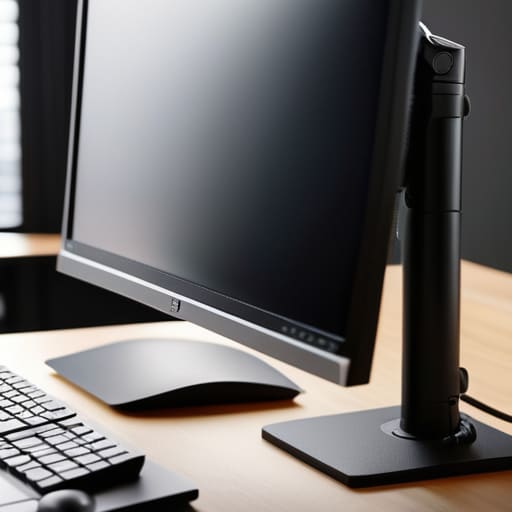
At the end of the day, getting your monitor height right isn’t about following some sacred ergonomic decree; it’s about making sure your setup doesn’t actively fight your body for eight hours a day. We’ve covered the basics: get that top third of the screen at eye level, stop using those flimsy, unadjustable plastic stands if you can afford a real one, and for heaven’s sake, stop hunching forward just to read small text. If you find yourself leaning in, your font is too small or your monitor is too far away. It’s a simple loop of cause and effect. Fix the height, fix the angle, and you’ll likely find that the physical tension you’ve just accepted as “normal” wasn’t actually normal at all.
I know it feels like just another thing to manage in a world that’s already shouting at you to optimize every single second of your existence. But look at it this way: you aren’t “optimizing your productivity,” you’re just removing the friction between your brain and your work. When your neck doesn’t ache and your eyes aren’t straining by 3:00 PM, you have more energy left for things that actually matter—like finally finishing that loaf of sourdough or actually closing your laptop when the day is done. Set it up once, do it right, and then get back to living your life.
Frequently Asked Questions
What if my desk is fixed at a height that makes my monitor too low no matter what I do?
If your desk is a fixed height and you can’t move it, you have to move the monitor up. Don’t bother with those flimsy plastic risers from the supermarket; they wobble and they’re a headache. Get a decent monitor arm that clamps to the back of the desk. It clears up your workspace and lets you dial in the height exactly where your eyes need it. If you can’t clamp, a stack of sturdy, heavy books works—just don’t use anything that might slide.
Do I need to adjust my chair every time I change my monitor height, or just the screen?
The short answer is: no, don’t move the chair. Your chair is there to support your spine, not to chase your screen around. If you start adjusting your seat every time you tweak the monitor, you’ll end up with a setup that feels fine for five minutes and then leaves you slouching. Fix the monitor to your eye level first, then adjust your chair to fit the desk. The screen moves to you; you shouldn’t be hunting for it.
Is it actually better to have a single monitor at eye level, or should I be looking at two differently?
There isn’t a “correct” answer, only what stops your neck from feeling like a rusted hinge by 3 p.m. If you go with two monitors, don’t place them like a V; that forces constant neck rotation. Either line them up so one is primary and the other is slightly offset, or stack them vertically if you’re short on desk space. If you’re just staring back and forth all day, a single large ultrawide is often less of a headache.
