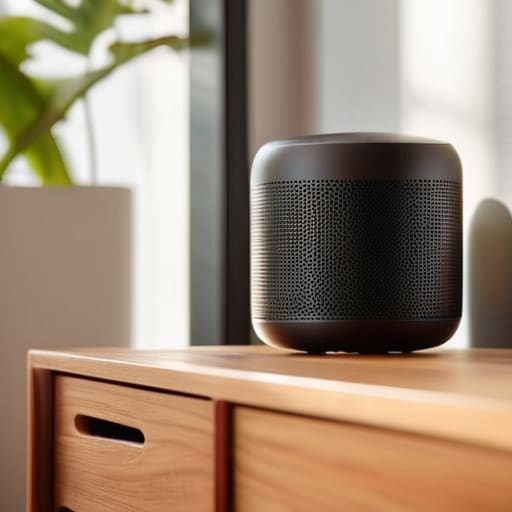
I spent three years at a helpdesk listening to people complain that their “smart” home was actually just a collection of expensive paperweights that refused to talk to the Wi-Fi. The truth is, most people think learning how to set up a smart speaker requires a degree in computer science, but it’s usually just a matter of navigating a poorly designed app and ignoring the unnecessary prompts to join a dozen different marketing lists. I remember sitting on my kitchen floor at 11 PM, staring at a blinking red light on a device that was supposed to make my life easier but was instead making me question my basic intelligence.
In this guide, I’m going to show you the actual, unvarnished way to get things running without the marketing fluff. I’ll walk you through exactly what to click, how to handle the inevitable connection hiccups, and—most importantly—what happens to your data and your privacy once that microphone is live. We aren’t going to talk about how “magical” these devices are; instead, we’ll focus on the boring, practical steps to make sure the tech actually works for you, rather than you working for the tech.
Table of Contents
Guide Overview
Tools & Supplies
- Smartphone or Tablet with camera and Bluetooth enabled
- Wi-Fi Router with active internet connection
- Smart speaker device 1 unit
- Power adapter and cable 1 set
Step-by-Step Instructions
- 1. First, get the hardware out of the box and find a spot that isn’t right next to your microwave or a thick concrete wall. You want it in a central area where it can actually hear you, but not so close to a window that it’s constantly picking up street noise. Plug it in, wait for the light to pulse or the chime to go off, and then find a power outlet that isn’t already being hogged by a tangle of other cables.
- 2. Download the specific app for your device—whether it’s Alexa, Google Home, or something else—before you even try to connect the speaker. Don’t bother trying to use a web browser for this; the setup process is almost always designed to live on your phone. Once the app is installed, make sure your phone’s Bluetooth is turned on, because that’s how the app is going to “shake hands” with the speaker for the first time.
- 3. Open the app and look for a plus sign or a “Set up device” button. The app should automatically scan and find your new speaker. If it doesn’t, don’t panic; it usually just means you need to toggle your Bluetooth off and on again. When it finds the device, it will ask you to connect it to your Wi-Fi. This is the part where most people get stuck, so double-check your password—it’s usually a capital letter or a symbol that you’ve forgotten you added.
- 4. Once the connection is established, the app will likely start a “software update.” This can take anywhere from two minutes to twenty, depending on how much the manufacturer decided to cram into the initial download. Do not unplug the device while this is happening. If you kill the power during a firmware update, you’re looking at a very expensive, very silent paperweight.
- 5. Now comes the part where they try to sell you on the ecosystem. The app will ask if you want to enable certain features, link your music accounts, or buy a premium subscription. My advice? Say no to everything that isn’t strictly necessary for the speaker to function. You can always turn these features on later, but it’s much harder to un-clutter your digital life once you’ve given every app permission to track your every move.
- 6. Test the voice recognition by asking something incredibly simple, like “What time is it?” or “Play some jazz.” If it ignores you, you probably need to adjust the sensitivity in the app settings. While you’re in there, look for the privacy settings and disable the “help improve our service” option—that’s usually just code for “we want to record your snippets to train our AI.
- 7. Finally, check the subscription status. Most smart speakers work fine with free versions of Spotify or YouTube, but the app will constantly nag you to upgrade to a paid tier. If you decide to pay for a service, remember that your music library isn’t actually yours; if you stop paying the monthly fee, your speaker becomes a very fancy, very quiet clock.
Connecting Smart Speaker to Wifi and the Inevitable Permission Trap
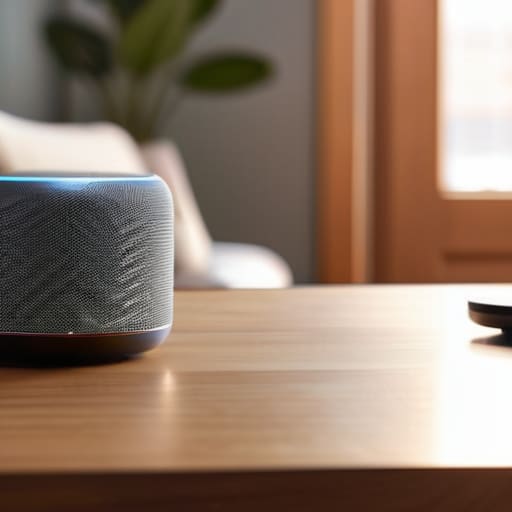
When you get to the part about connecting smart speaker to wifi, prepare for a bit of a dance. Most of these devices use your phone’s Bluetooth to “handshake” with the speaker before passing over your network credentials. If it fails, don’t panic and don’t immediately buy a new one; usually, it just means your phone is on a 5GHz band while the speaker is desperately looking for a 2.4GHz signal. If you get stuck, troubleshooting smart speaker connection issues almost always starts with toggling your phone’s Bluetooth off and on again or moving closer to the router for that initial handshake.
Once you’re online, the app will start asking for permissions like it’s applying for a mortgage. It’ll want your location, your contacts, and access to your microphone. While some of this is necessary for voice assistant configuration—like knowing your zip code for weather updates—it often feels excessive. I always recommend denying access to your contacts unless you specifically want your speaker reading your address book aloud. You can always turn them back on later if a specific feature breaks, but it’s easier to start with a “no” and work your way up.
Voice Assistant Configuration What to Click and What to Disable
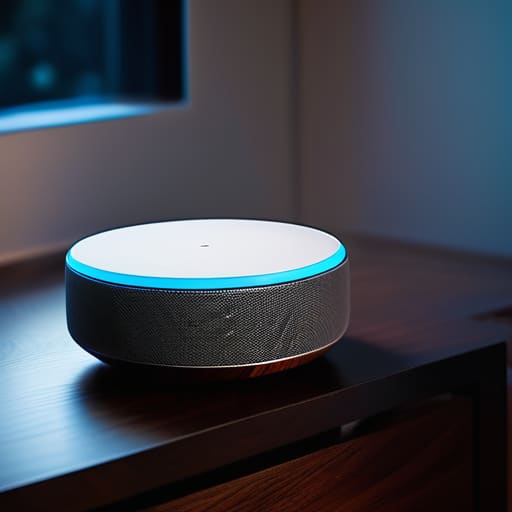
Once you’ve finished the initial setup, the app will likely try to walk you through a “personalized experience.” In plain English, this is a polite way of asking for permission to listen to everything, even when you aren’t talking to it. During your voice assistant configuration, you’ll see a long list of toggles for things like “Personal Results” or “Voice Match.” If you want the device to tell you your calendar events or read your texts, you have to turn these on, but know that it means your data is being processed to build that profile. If you just want to play music and set timers, turn everything else off.
I also suggest going into the privacy settings immediately to look for “Activity History.” Most companies default to saving every snippet of audio they capture. You can usually set this to auto-delete every three or eighteen months, which is a good middle ground. While you’re in there, check the managing smart speaker permissions section to see which third-party apps have access to your microphone. It’s a bit of a chore to click through the menus, but it stops your living room from feeling like a data collection hub.
Five things to do before you stop listening to it
- Put the thing in a central spot, but not right next to the microwave. I spent three weeks troubleshooting “connection errors” only to realize the kitchen appliances were basically shouting over the speaker every time someone made toast.
- Check the “Voice History” settings immediately. Most of these devices default to saving every snippet of audio they catch—including the accidental ones—to the cloud. Go into the app settings and turn off “Help improve products” unless you actually want a stranger in a data center hearing your midnight snack debates.
- Set a “Do Not Disturb” schedule. There is nothing quite as jarring as a smart speaker deciding 3:00 AM is the perfect time to announce a weather update or a random notification. Most apps let you schedule silence; use it.
- Map out your subscription dependencies. If you’re buying a device that requires a monthly fee to actually use the “smart” features, write down exactly what happens to that hardware if you cancel. Some of these become very expensive, very quiet paperweights the moment the credit card expires.
- Create a guest network for your smart home stuff. If you’re tech-savvy enough to care, put your speakers on a separate Wi-Fi band. It keeps your main computer and your private files tucked away on a different lane, so a cheap, poorly secured smart plug isn’t a doorway into your personal life.
The bottom line
Don’t let the setup process trick you into a subscription you don’t need; if the app asks for a monthly fee just to use basic voice commands, walk away.
Your privacy settings are not “set and forget”—go back into the app once a month to make sure a software update hasn’t toggled your microphone or location sharing back on.
A smart speaker is only as good as your Wi-Fi; if it spends half its time “thinking,” it’s usually a signal strength issue in that room, not a fault with the device itself.
The real setup process
Setting up a smart speaker isn’t actually about the hardware; it’s about deciding exactly how much of your personal data you’re willing to trade for the convenience of not having to flip a light switch.
Saoirse Doyle
Before you walk away
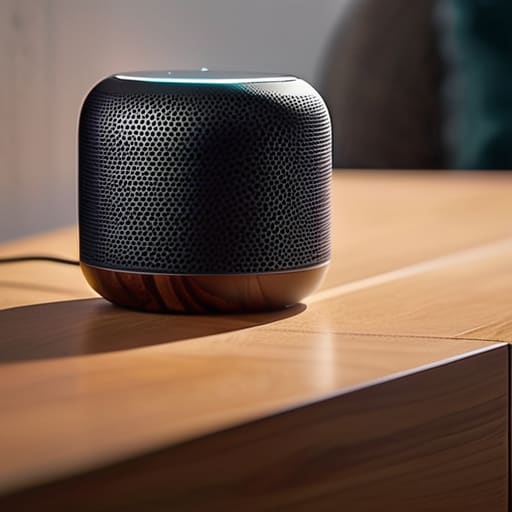
So, you’ve plugged it in, navigated the permission minefield, and hopefully turned off the settings that make you feel like you’re being watched. To recap: keep your Wi-Fi credentials handy, be prepared to say “no” to half the data-sharing prompts during setup, and most importantly, check the subscription fine print before you get too comfortable. If you decide in six months that you’re tired of the device eavesdropping or just don’t want to pay the monthly fee for premium features, make sure you know exactly how to export your history or wipe the device. It’s much easier to manage the exit strategy now than it is when you’re staring at a bricked device and a recurring charge on your bank statement.
At the end of the day, these gadgets are supposed to be tools that make your life slightly more convenient, not additional chores on your to-do list. If your smart speaker ends up just being an expensive paperweight because the setup was too fiddly or the privacy trade-off felt too high, that’s perfectly fine. Technology should serve you, not the other way around. Once you’ve got the basics running and the unnecessary nonsense toggled off, you can finally stop tinkering and get back to your actual life. Whether that’s listening to a podcast or just enjoying the silence, the goal was always to make the tech disappear into the background.
Frequently Asked Questions
What happens to my recorded voice clips if I decide to cancel the subscription or stop using the device?
Here’s the thing about your voice data: if you stop paying for a premium tier, you usually don’t lose the clips themselves, but you do lose the “smart” features that make them useful. If you ditch the device entirely, most companies keep your history on their servers indefinitely unless you manually go into the privacy settings and hit “delete all.” Don’t assume walking away means they’ve forgotten you. Go in and wipe the slate clean first.
Can I set this up without giving the app access to my entire contact list and location?
Short answer: Yes, but the app will act like it’s having a minor crisis.
If my Wi-Fi goes down, does the speaker become a very expensive paperweight, or can I still use it for basic things?
The short answer is: yes, it becomes a very expensive paperweight. Most smart speakers are essentially just glorified microphones that send your voice to a server to figure out what you’ve said. If that server can’t talk to your router, the speaker has nothing to do. You can’t even ask it for the time. If you want something that works offline, you’re looking at much more expensive, local-processing hardware.
