How to Extend Wifi Range Without Making It Slower

I spent six years on a helpdesk listening to people describe their “internet problems” as if they were mysterious, unsolvable curses. Most of the time, they weren’t actually broken; they were just trying to solve a simple physics problem with expensive, shiny garbage. You’ll see ads everywhere promising that a $300 “signal booster” will magically pierce through your brick walls, but half of those devices are just glorified paperweights that add more latency than they solve. If you are looking for how to extend wifi range, please stop looking for a magic wand and start looking at where your router is actually sitting.

I’m not here to sell you a subscription to a “smart home optimizer” or a piece of hardware that requires a monthly fee just to stay online. My goal is to give you the boring, functional truth: what to plug in, where to move your existing gear, and which mesh systems are actually worth the upfront cost. I’ll tell you exactly what happens to your connection if you stop paying for those “premium” service add-ons, too. Let’s just get your signal to the bedroom so you can stop fighting your router and get back to your life.

Table of Contents

Router Placement for Better Signal Stop Hiding Your Gear
Router Placement for Better Signal Stop Hiding Your Gear

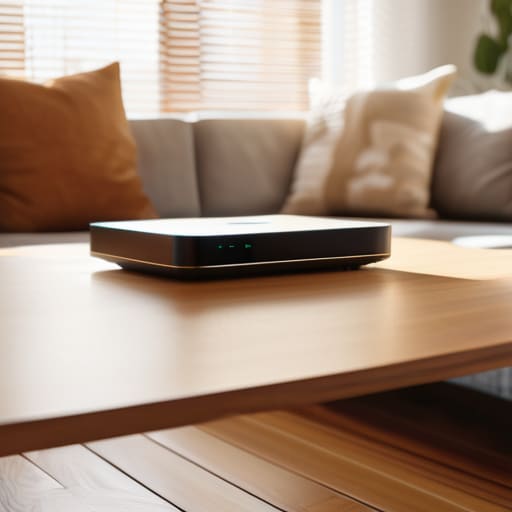
Most people treat their router like a piece of dirty laundry—they tuck it behind the TV, shove it in a cabinet, or hide it in a corner behind a stack of books. If you’re doing this, you’re essentially asking your signal to fight its way through wood, plaster, and metal just to reach your phone. To actually start improving wireless signal coverage, you need to treat your router like a lightbulb. If you put a lamp on the floor in a closet, the room stays dark; if you put it in the center of the room on a high shelf, the whole space lights up.

Get that box out in the open. Ideally, it should be in a central location, elevated off the ground, and away from other electronics. Kitchen appliances and even microwave ovens are notorious for reducing wifi interference, so keep the router at least a few feet away from the fridge. If you’ve already tried moving it and you’re still staring at a spinning loading icon, we can talk about hardware later, but start with the free fix first: stop hiding your gear.

Reducing Wifi Interference Why Your Microwave Is Killing Your Connection

Reducing Wifi Interference Why Your Microwave Is Killing Your Connection

Most people think their internet is slow because they need more speed, but usually, it’s just because the air in your house is crowded. If you’ve ever noticed your Netflix buffering right as someone starts heating up leftovers, you’ve experienced reducing wifi interference in real-time. Most household appliances, especially microwaves and older cordless phones, operate on the 2.4GHz frequency. This is the same lane your router uses to talk to your devices, and when that microwave kicks on, it’s essentially shouting over your connection.

If you’re looking at improving wireless signal coverage, you also need to consider your neighbors. If you live in an apartment, you aren’t just fighting your own appliances; you’re fighting the thirty other routers in the building. This is where understanding dual-band vs tri-band wifi actually matters. Most modern routers offer a 5GHz band, which is much faster and less prone to this kind of “noise,” though it doesn’t travel through walls quite as well. If you can, move your heavy traffic—like gaming or streaming—to that 5GHz band to get them out of the crowded lane.

Five ways to actually get better signal (without the marketing fluff)

  • Switch to the 2.4GHz band for distance. If you’re trying to get a signal through two walls to the back garden, stop using the 5GHz band. It’s faster for gaming in the same room, but 2.4GHz is much better at actually traveling through physical obstacles. It’s slower, but it’s reliable.
  • Update your firmware. I know, it sounds like a chore, but manufacturers release patches that fix how your router handles traffic. Log into your router’s admin page once every few months and check for updates. If you don’t, you’re basically running an engine with a clogged filter.
  • Check your channel congestion. If you live in a flat, your neighbor’s WiFi is likely screaming over yours. Use a free app like WiFi Analyzer to see which channels are crowded. Most routers are set to ‘Auto,’ but sometimes manually picking a less busy channel is the only way to stop the constant dropping.
  • Buy a mesh system, not a cheap extender. Most “range extenders” you see in shops are rubbish; they just repeat a weak signal and create a second, slower network that your phone won’t switch to automatically. If you have a dead zone, get a mesh system. It’s a higher upfront cost, but it acts as one single network and actually works.
  • Consider a wired backhaul if you can. If you do go the mesh route, try to connect the nodes with an Ethernet cable if your house is wired for it. It takes the heavy lifting off the wireless signal, meaning your speeds stay high even when you’re far from the main router. It’s more work to set up, but it’s the only way to get near-perfect coverage.

The short version

Move your router out of the cupboard and away from the kitchen; physical barriers and appliances are the fastest way to kill a signal.

If moving the router doesn’t work, buy a mesh system instead of a cheap “extender”—extenders often create a separate, slower network that’s a headache to manage.

Before you buy anything, check if your current router has a firmware update; sometimes the fix is just a software patch rather than a new piece of hardware.

The truth about signal strength

Most people think they need a more expensive router or a fancy new subscription service to fix their dead zones, but usually, you just need to move the box out of the cupboard and stop letting your microwave sabotage your connection.

Saoirse Doyle

Making it stick

Making it stick with better WiFi setup.

At the end of the day, fixing your WiFi doesn’t require a degree in electrical engineering or a massive budget. Most of the time, it’s just about moving that router out of the cupboard and making sure your microwave isn’t actively sabotaging your Zoom calls. If you’ve moved your gear to a central spot and cleared out the interference, you’ve already done the heavy lifting. If things are still feeling sluggish, then—and only then—should you look into hardware like mesh systems or powerline adapters. Just remember my rule: check the subscription terms before you commit to a monthly fee for a “smart” extender that might turn into a paperweight the moment you stop paying.

Technology is supposed to serve you, not become another chore on your to-do list. I spent years watching people overcomplicate their setups because they thought they needed the latest, most expensive gadget to solve a simple problem. You don’t. Your goal isn’t to have the most sophisticated network in the neighborhood; it’s to have a connection that actually stays out of your way so you can get back to whatever you were doing. Fix the basics, stop overthinking the shiny new tools, and let your tech do its job quietly in the background.

Frequently Asked Questions

Is it actually worth buying a range extender, or am I just going to end up with a slower, more annoying connection?

Most range extenders are a headache. They create a second network name, they cut your bandwidth in half because they have to talk to both the router and your device simultaneously, and they’re prone to dropping connections. Unless you’re on a strict budget and only need signal for a single smart plug, skip them. If you can afford it, get a mesh system instead. It’s a one-time cost that actually works.

If I go the mesh route, how much am I going to be paying every month just to keep my own signal alive?

The short answer is: ideally, nothing. Most decent mesh systems—like Eero, TP-Link Deco, or ASUS—are a one-time purchase. You pay the upfront cost, plug them in, and they just work.

Will changing my WiFi channel in the settings actually do anything, or is that just a thing people say to feel productive?

It can actually help, but only if you live in a crowded apartment building. If you’re in a house alone, changing channels is just moving deck chairs on the Titanic. In a dense building, your neighbors’ routers are likely shouting over yours on the same frequency. Log into your router, find the channel settings, and pick one that isn’t congested. It’s a five-minute fix, but if it doesn’t work, don’t waste your afternoon tweaking it.
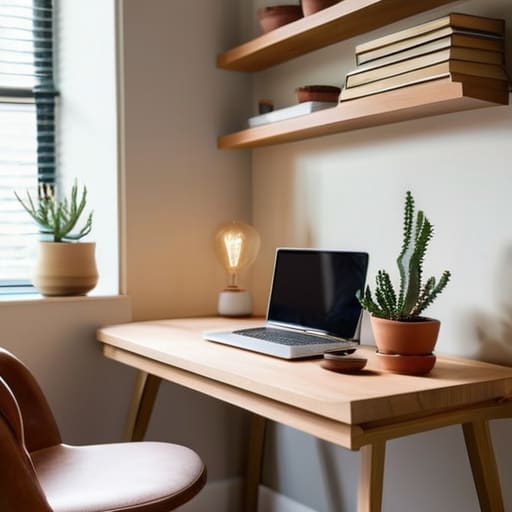

How to Fit a Working Office Into a Very Small Space

I spent six years on a helpdesk watching people try to “optimize” their lives with $500 standing desks and complex modular shelving systems that ended up being nothing more than expensive dust collectors. Most advice on how to plan a small home office feels like it was written by someone trying to sell you a lifestyle rather than a functional workspace. They want you to believe that if you just buy the right aesthetic linen desk pad or a smart light that syncs with your circadian rhythm, you’ll suddenly become a productivity god. In reality, most of that is just expensive clutter that makes your tiny room feel even smaller.

I’m not here to sell you a dream or a subscription-based task manager you’ll forget to renew in three months. Instead, I want to show you how to build a setup that actually works within the four walls you currently have. We’re going to talk about the boring, essential stuff: where to plug in your router so the Wi-Fi doesn’t drop during calls, how to choose a chair that won’t ruin your posture by age forty, and how to manage your cables so they don’t become a tripping hazard. This is the practical guide to making a small space work for you, rather than against you.

Table of Contents

Small Apartment Office Ideas That Wont Clutter Your Life

Small Apartment Office Ideas That Wont Clutter Your Life

The biggest mistake I see people make in tiny apartments is trying to carve out a “room” that doesn’t exist. You don’t need a dedicated office; you just need a zone that doesn’t make you feel like you’re living inside a cubicle. If you’re working from a corner of your bedroom or a nook in the living room, look into dual purpose furniture for working from home. A sturdy console table that looks like a sideboard during the day, or a desk that folds flat against the wall when you’re done, can save your sanity. The goal is to be able to “close” the office at 5:00 PM so it doesn’t bleed into your relaxation time.

When floor space is at a premium, stop looking down and start looking up. Maximizing vertical storage is the only way to keep your tech and paperwork from migrating across every flat surface you own. Instead of a bulky filing cabinet, get a slim shelving unit or some sturdy floating shelves. It keeps your peripheral gear off the desk surface, which is essential for minimalist desk organization. If your desk is clear, your brain stays a bit clearer, too.

Maximizing Vertical Storage Without Buying Expensive Junk

Maximizing Vertical Storage Without Buying Expensive Junk

The biggest mistake I see people make when they run out of desk space is thinking they need a bigger desk. You don’t. You just need to stop treating your tabletop like a junk drawer. If you start looking up, you’ll find a lot more room. Maximizing vertical storage is basically just the art of getting everything that isn’t your keyboard and mouse off the flat surfaces. I’m talking about pegboards, floating shelves, or even those simple metal mesh organizers that clip onto the side of a desk. It’s much better to have your pens, notebooks, and cables hanging on a wall than sliding around in a pile under your elbows.

If you’re on a budget, skip the “lifestyle” organizers from those big-box home stores that cost forty Euro for a plastic tray. Go to a hardware store and get a basic pegboard. It’s cheap, it’s modular, and it actually works. Just keep in mind that as you add more stuff to the walls, it can start to feel a bit heavy visually. I prefer minimalist desk organization—only hang the things you actually touch every single day. If you haven’t reached for that specific stapler in a month, it shouldn’t be taking up prime real estate on your wall.

The Five Things That Actually Matter (And the Stuff You Can Ignore)

  • Measure your light before you move your desk. I’ve seen people spend a week setting up a beautiful corner only to realize the glare on their monitor makes them squint for eight hours straight. If the window is behind you, you’ll get reflections; if it’s in front of you, you might be blinded by the sun at 2 PM. Find the middle ground.
  • Don’t buy a “gaming” setup unless you actually play games. Most of those ergonomic chairs are overpriced plastic shells that feel great for ten minutes and then leave you sweating. Look for a second-hand office chair from a reputable brand—it’ll be built better, last longer, and won’t cost a month’s rent.
  • Check your outlet situation before you commit. There is nothing more frustrating than setting up a perfect workstation only to realize you need three different power strips and a tangle of extension cords just to plug in your laptop and lamp. Map out the plugs first; it’s much easier to move a desk than it is to rewire a room.
  • Invest in one good cable management solution. I don’t care if it’s a $5 plastic tray that screws under your desk or just some heavy-duty velcro ties. If your wires are a bird’s nest on the floor, you’ll never feel organized, and you’ll definitely trip on them when you’re trying to get up for coffee.
  • Think about the “exit strategy” for your tech. If you buy a smart desk or a specialized lighting system, make sure it isn’t tied to a proprietary app that requires a monthly fee just to keep the presets working. If the company goes bust or you decide to cancel the subscription, you should still be able to use your desk as a regular piece of furniture.

The Short Version: What to Remember

Focus on the essentials first; you don’t need a standing desk or a designer ergonomic chair to get work done, you just need a surface that doesn’t wobble and a seat that doesn’t make your lower back ache by 3 PM.

Use your walls, not your floor; if you’re short on square footage, every shelf or pegboard you put up is one less piece of clutter competing for space on your desk.

Watch the hidden costs; before you buy into a “smart” office ecosystem, make sure you aren’t signing up for three different monthly subscriptions just to keep your lighting or desk timer running.

The Trap of the 'Perfect' Setup

“Stop looking for the office that looks like a Pinterest board; you’re trying to build a workspace, not a showroom. If your setup doesn’t let you sit down without hitting your knee on a drawer or hunting for a charger every twenty minutes, it’s not a workspace—it’s just more clutter you’re paying rent for.”

Saoirse Doyle

The Bottom Line

Small office planning: The Bottom Line.

At the end of the day, planning a small office isn’t about finding that perfect, Pinterest-worthy corner that looks like a minimalist dream. It’s about making sure your setup actually works when you’re three hours into a deadline and your back starts to ache. We’ve talked about picking furniture that fits your actual footprint, using your walls so your desk isn’t a graveyard for loose papers, and keeping the clutter to a minimum so you aren’t fighting your environment just to find a pen. Remember, every piece of gear you buy should earn its keep; if it doesn’t serve a specific purpose or provide genuine comfort, it’s just expensive digital dust waiting to happen.

Don’t get caught in the trap of thinking you need a complete overhaul or a suite of expensive “productivity” gadgets to get started. Most of the time, a clear surface and a decent chair are doing ninety percent of the heavy lifting. Your workspace should be a tool that helps you get your work done and then gets out of your way so you can actually enjoy your life once the laptop closes. Start with what you have, fix the one thing that’s currently driving you mad, and build from there.

Frequently Asked Questions

What happens to my files and data if I use a subscription-based project management tool to organize my workspace?

Here’s the thing about subscription tools: you don’t actually own your workflow; you’re just renting it. If you stop paying, most platforms lock your data behind a “read-only” wall or, worse, give you a grace period before they start pruning your projects to save server space. Before you commit, check if they have a reliable CSV or JSON export function. If you can’t get your data out in a clean spreadsheet, you’re just building a digital cage.

How do I manage cable clutter in a tiny space without spending a fortune on specialized organizers?

Forget the $50 “cable management kits” you see on Instagram. Most of them are just plastic junk that ends up in a drawer. Start with heavy-duty Velcro strips—not those plastic zip ties that bite into the wires—to bundle cables together behind your desk. If you have a gap between your desk and the wall, use a cheap command hook to route the main power cord down the leg. It’s not pretty, but it stays put.

Is it actually worth investing in an ergonomic chair, or can I just make do with what I have until I have more room?

Look, I spent six years watching people develop chronic neck pain because they thought “sitting up straight” was a personality trait. If you’re sitting in a dining chair for eight hours, your body will eventually stage a protest. You don’t need a thousand-euro designer throne, but please don’t “make do” with a wooden stool. If you can’t afford a proper task chair yet, grab a decent lumbar cushion. It’s a cheap fix that beats a chiropractor later.