Why Laptops Wreck Your Posture and How to Fix It

I spent six years on a helpdesk, and if there is one thing I learned, it’s that most people don’t need a $1,200 ergonomic chair to fix their back pain; they just need to stop treating their workspace like a battlefield. I see these “wellness influencers” selling $80 vertical mice and specialized lumbar pillows like they’re the holy grail, but most of that is just expensive noise designed to make you feel like your body is broken. The truth about how to sit properly at a laptop is usually much more boring and much more fiddly than a marketing campaign suggests. It isn’t about buying a new setup; it’s about adjusting the one you already have so it stops fighting you.

I’m not here to sell you a subscription to a posture-tracking app or a piece of furniture you’ll eventually use to hang laundry. Instead, I’m going to give you the unvarnished version of what actually works. We’re going to look at the specific, small adjustments to your screen height and elbow angles that actually stop the slouching, and I’ll tell you exactly which “ergonomic” gadgets are a waste of your hard-earned money.

Table of Contents

Eye Level Screen Height Stop the Neck Strain Prevention Battle

Eye Level Screen Height Stop the Neck Strain Prevention Battle

The biggest mistake I see—and I saw it constantly in the helpdesk days—is people treating their laptop like a fixed object rather than a piece of equipment that needs to move to fit them. If you are looking down at your screen, you are essentially carrying a bowling ball with your chin. This is the fastest way to trigger chronic neck strain. To fix this, your eye level screen height needs to be the priority. The top third of your screen should be directly in front of your eyes. If you’re using a laptop, you can’t do this while typing comfortably, which is why you need a separate keyboard and a stand (or even a sturdy stack of old cookbooks) to lift the device up.

Once the screen is at the right height, your posture usually follows suit. When the screen is too low, you instinctively lean forward, which ruins your ergonomic workstation setup and puts your spine in a C-shape. By bringing the monitor up, you allow your head to sit back over your shoulders. It might feel a bit weird for the first twenty minutes, but it’s the only way to stop that constant, dull ache from setting in by mid-afternoon.

Lumbar Support for Sitting Why Your Chair Is Lying to You

Lumbar Support for Sitting Why Your Chair Is Lying to You

Most “ergonomic” office chairs are sold with the promise that they will mold to your body, but usually, they just provide a fancy-looking mesh back that does nothing for your spine. If you find yourself sliding down into a C-shape by 3:00 PM, it’s not because you’re lazy; it’s because the chair isn’t actually doing its job. Proper lumbar support for sitting isn’t about having a high-end leather seat; it’s about ensuring there is a physical presence pushing against the small of your back to maintain that natural inward curve.

If your chair lacks that specific bump, you aren’t stuck buying a thousand-dollar replacement. I’ve spent years seeing people try to fix their posture with expensive gadgets when a rolled-up towel or a dedicated lumbar cushion tucked into the seat works just as well. The goal is preventing slouching at desk workstations by giving your lower spine a reason to stay upright. If you can’t feel that support, your muscles are doing all the heavy lifting, and they will eventually revolt.

The bits you actually have control over

  • Get an external keyboard and mouse. If you are trying to fix your posture while your hands are still reaching up to a laptop keyboard, you are fighting a losing battle against physics. You need the laptop elevated, which means your hands need to be on a separate surface.
  • The 90-degree rule isn’t a suggestion, it’s a baseline. Your elbows, hips, and knees should ideally be at roughly ninety degrees. If your feet are dangling or your knees are tucked up toward your chest, you’re just asking for lower back issues by Tuesday.
  • Stop the “turtle neck.” When the screen is too far away, we instinctively lean our heads forward to see better. This puts a massive amount of weight on your cervical spine. If you find yourself leaning in, your font size is too small. Increase it to 125% or 150% and let your head sit back.
  • Watch your wrist angle. Your wrists should be neutral—flat, not cocked up or bent down toward the desk. If you’re using a laptop on a flat table, you’re likely hitting the keys at an angle that will eventually lead to repetitive strain. A cheap wrist rest or a slightly tilted keyboard helps.
  • Movement is better than any “perfect” position. I spent years watching people try to find the one magical way to sit that wouldn’t hurt. There isn’t one. The best thing you can do is stand up, stretch, or walk to the kitchen every thirty minutes. Static is the enemy.

The "don't overthink it" summary

Stop trying to find the perfect $1,000 chair; just make sure your lower back actually has something to lean against so you aren’t doing all the work yourself.

If you’re looking down at your screen, you’ve already lost the battle; get a cheap laptop stand or a literal stack of books to bring the top of the screen to eye level.

The best setup isn’t a static one—if you feel a twinge, move. Your body wasn’t designed to be a statue, even if your job makes you feel like one.

The myth of the perfect setup

You don’t need a three-hundred-euro ergonomic chair to fix your posture; you just need to stop treating your laptop like a shrine and start treating it like a tool that shouldn’t be forcing your spine into a question mark.

Saoirse Doyle

Stop fighting your furniture

Stop fighting your furniture for better posture.

At the end of the day, you don’t need a thousand-euro ergonomic setup or a specialized chair that promises to fix your spine by Tuesday. You just need to get the basics right: get that screen up so you aren’t staring at your lap, and find a way to support the small of your back so you aren’t slouching into a question mark. If you can’t afford a dedicated monitor stand, use a stack of old cookbooks or a sturdy box. If your chair is a hollowed-out mess, roll up a towel and tuck it behind your lower back. It’s not about finding the “perfect” position—because that doesn’t exist—it’s about making sure your setup isn’t actively working against you while you try to get through your to-do list.

Most of the advice out there makes it sound like productivity is a series of expensive upgrades, but that’s just marketing nonsense. Real productivity is simply having a body that doesn’t ache by 3:00 PM. Don’t get caught up in the pursuit of the ultimate workstation; just focus on the small, boring adjustments that stop the tension from building up. Set your things up, do your work, and then actually get up and walk away from the desk once you’re done. Your back will thank you for it, and I promise, no amount of lumbar cushioning can replace a five-minute stretch.

Frequently Asked Questions

I’ve already bought a fancy ergonomic chair, so why does my back still ache after two hours?

Because a fancy chair is just a piece of furniture until you actually set it up. Most people buy a high-end ergonomic chair and then just sit in it like they would a kitchen stool. If you haven’t adjusted the lumbar tension to actually hit your curve, or if your seat pan is too deep and cutting off your circulation, that expensive mesh is just a very comfortable way to stay in pain.

Do I actually need a separate keyboard and mouse, or can I just get a better laptop stand?

If you buy a laptop stand to get the screen to eye level, you are effectively mandating a separate keyboard and mouse. If you try to type on the laptop while it’s propped up on a stand, you’ll be reaching up at a ridiculous angle, which is just trading neck pain for wrist strain. It’s a bad trade. Get the stand for your eyes, but get a cheap, reliable external set for your hands.

How often am I supposed to actually stand up and move, and does it even matter if I’m sitting "perfectly"?

Even if you have the most expensive ergonomic chair in the world, sitting is still sitting. You can’t “optimize” your way out of the fact that the human body isn’t designed to be static for eight hours. I aim for the 50/10 rule: fifty minutes of work, ten minutes of actually moving. It doesn’t matter if you’re walking to the kitchen or just stretching; the goal is to break the physical stagnation before your joints lock up.


How to Reduce Context Switching, the Quietest Time Thief

I spent six years on a helpdesk listening to people complain that they weren’t productive enough, usually while they were mid-way through a frantic, three-window shuffle between Slack, an email client, and a spreadsheet. Most “productivity gurus” will try to sell you a $20-a-month AI assistant or a complex “deep work” ritual involving expensive timers to solve this. They make it sound like a spiritual crisis. It isn’t. Learning how to reduce context switching isn’t about finding a magic new app; it’s about realizing that every time you jump from a task to a notification, you’re essentially rebooting your own brain, and that takes a massive amount of mental energy you don’t actually have to spare.

I’m not here to sell you a subscription or a lifestyle overhaul. Instead, I want to give you the boring, practical version of what actually works when you’re staring at twenty open tabs and a mounting sense of dread. We’re going to look at how to close the loops in your digital life, which tools are actually worth the clutter, and how to set up your workspace so it stops fighting you. No hype, no expensive planners—just a few ways to make your current setup stop getting in your way.

Table of Contents

Fighting the Attention Residue Effect Without the Fluff

Fighting the Attention Residue Effect Without the Fluff

The problem isn’t just that you’re jumping between tasks; it’s that your brain doesn’t actually finish the first one before you start the second. This is what researchers call the attention residue effect. When you pivot from a spreadsheet to a Slack thread, a piece of your focus stays stuck on that spreadsheet. You might think you’ve moved on, but your brain is still running background processes on the previous task, which essentially eats up your mental bandwidth.

To deal with this, you don’t need a complex new productivity framework. You just need better cognitive load management. Instead of trying to multitask—which is a lie we tell ourselves to feel busy—try grouping similar tasks together. If you have three different emails to write, do them all at once. This keeps your brain in one “mode” so you aren’t constantly paying the tax of re-orienting yourself every ten minutes. It’s not about working harder; it’s about stopping the constant mental rebooting that makes you feel exhausted by 2:00 PM.

Cognitive Load Management for People Who Actually Work

Cognitive Load Management for People Who Actually Work

Most people talk about cognitive load management like it’s some mystical state of zen you reach by buying a $40 planner. In reality, it’s just about not forcing your brain to hold too many open loops at once. When you’re constantly checking Slack while trying to draft an email, you aren’t just being “multitasking”—you are actively draining your mental battery. Every time you pivot, your brain has to reload the context of the previous task, and that’s where the fatigue sets in.

Instead of trying to master complex deep work techniques that require four hours of uninterrupted silence (which rarely happens in a real job), try narrowing your scope. If you have a messy inbox and a mounting to-do list, don’t try to tackle both. Pick one, close the other tabs, and commit to that single stream of thought. It’s not about being a productivity machine; it’s about reducing the friction between you and the task. If you can lower the number of decisions you have to make about what to do next, you’ll find you have more energy left for the actual work.

Five ways to stop the mental whiplash

  • Close the tabs you aren’t using right now. I know, you think you’ll need that research article in twenty minutes, but you won’t. Every open tab is a tiny visual demand on your brain. Use a bookmark folder or a “read later” app if you must, but get them out of your sight so you can actually look at the one thing in front of you.
  • Batch your communication instead of reacting to every ping. If you respond to every Slack message or email the second it arrives, you aren’t working; you’re just being a glorified switchboard operator. Pick three or four times a day to check these, and keep the notifications off the rest of the time.
  • Group similar tasks into dedicated blocks. Don’t write an email, then update a spreadsheet, then write a paragraph of a report. That’s how you fry your focus. Do all your admin at once, then do all your deep writing at once. It’s much easier for your brain to stay in “spreadsheet mode” than to keep jumping the fence.
  • Use a single source of truth for your to-do list. If your tasks are scattered across Post-it notes, a phone app, and a notebook, you’re spending half your energy just trying to remember what you’re supposed to be doing. Pick one tool—and stick to it—so you don’t have to hunt for your own instructions.
  • Build a “shutdown ritual” to clear the cache. At the end of the day, write down exactly where you left off and what the very first step is for tomorrow. This prevents that nagging feeling that you’ve forgotten something, which is just a subtle form of context switching that follows you into your evening.

The "don't make it harder than it is" checklist

Pick one tool and stay there; if you spend more time tweaking your productivity app than actually doing the work, you’re just procrastinating with extra steps.

Close the tabs you aren’t using right now; they aren’t “saving” your place, they’re just visual noise that makes your brain think you have ten unfinished jobs instead of one.

Batch your distractions; check your email or your messages at set times rather than letting every little ping dictate when you start and stop your actual work.

The cost of the "just one quick check"

We treat a quick glance at an email or a Slack notification like it’s free, but it isn’t. You aren’t just paying in seconds; you’re paying in the mental energy it takes to find your place again once you’ve finally closed that tab.

Saoirse Doyle

Getting your head back above water

Getting your head back above water.

If you take anything away from this, let it be that reducing context switching isn’t about downloading a new “focus” app or buying a $30 planner. It is about the unglamorous work of protecting your attention through better boundaries. We talked about managing cognitive load by closing those twenty open tabs, fighting attention residue by finishing one thing before starting the next, and being honest about how much your tools are actually costing you in mental energy. You don’t need a more complex workflow; you just need to stop the constant, tiny interruptions that bleed your focus dry before lunch.

At the end of the day, the goal isn’t to become a productivity machine that churns out tasks without error. The goal is to reach the end of your workday without feeling like your brain has been put through a paper shredder. When you stop jumping between windows and start actually finishing the things you start, you get something much more valuable than a clean inbox: you get your time back. It won’t be perfect, and your notifications will still try to ruin your afternoon, but once you build a few decent guardrails, you’ll find it much easier to stay in one place and actually get things done.

Frequently Asked Questions

I've tried time-blocking, but what do I do when an "urgent" Slack message or email actually is urgent?

The “urgent” notification is usually just someone else’s lack of planning hitting your desk. If it’s a genuine fire, fix it. If it’s just a ping, ignore it. I use “Focus Mode” on my Mac to kill those red bubbles entirely during deep work blocks. If you can’t turn them off, batch your replies. Check Slack once an hour, not once a minute. If the world hasn’t ended by 10:00 AM, it wasn’t urgent.

Is there a way to do this without buying a fancy new project management tool that just becomes another thing to manage?

The short answer is yes, and you probably shouldn’t. Most of those fancy project management tools are just expensive ways to move digital sticky notes around. If you want to stop the switching, start with a single, “dumb” tool you already own—like a basic notes app or a physical notebook. Pick one place to dump your tasks, write them down once, and stop checking your email to see what you’re supposed to be doing.

How do I stop the habit of opening twenty tabs the second I feel a tiny bit of friction with the task I'm actually doing?

That’s not a research habit; it’s a nervous twitch. You’re looking for an escape hatch because the current task got slightly boring or difficult.

Smart Plugs: the Cheapest Useful Bit of Home Automation

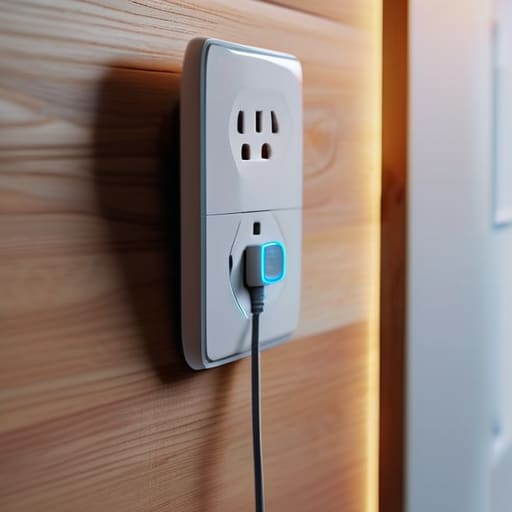
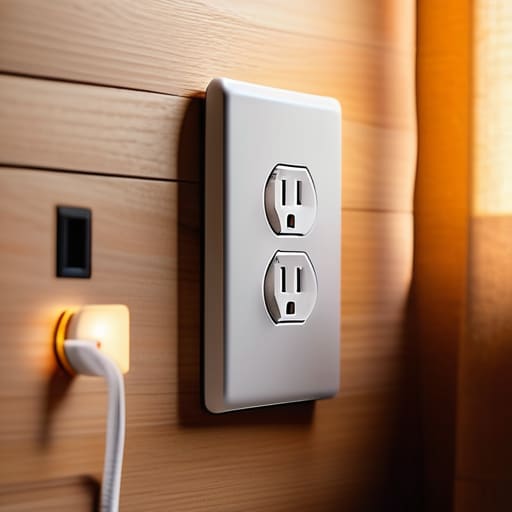
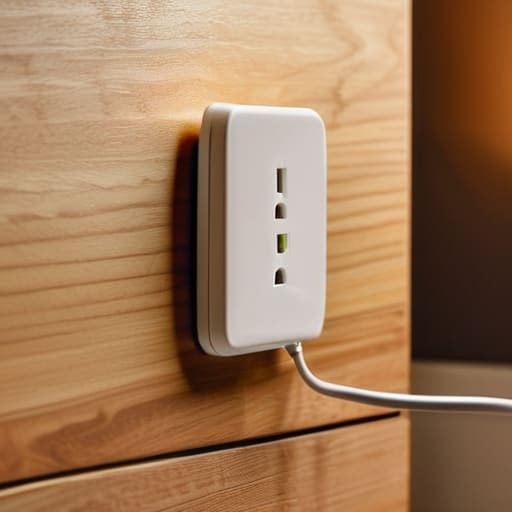
I spent six years on a helpdesk listening to people explain why they needed a $300 “smart home hub” to manage their living rooms, and frankly, most of it was just expensive noise. People get caught up in the jargon, thinking they need a complex ecosystem of interconnected sensors just to feel modern, but when they ask me what is a smart plug actually for, the answer is usually much more mundane. It isn’t a piece of futuristic tech; it’s just a little middleman that sits between your wall outlet and your lamp so you can turn it off from your phone without getting off the couch.

I’m not here to sell you on a lifestyle upgrade or a “seamlessly integrated home.” I’m here to tell you which ones actually connect to your Wi-Fi on the first try and which ones will turn into expensive plastic paperweights the moment the manufacturer decides to sunset their app. I’ll walk you through what they cost, how they behave when the internet goes down, and—most importantly—what happens to your automation schedules if you decide to stop paying for that premium subscription next year.

Table of Contents

The Reality of Wifi Enabled Outlets and Remote Device Control

The Reality of Wifi Enabled Outlets and Remote Device Control.

When people talk about remote device control, they usually make it sound like you’re piloting a spaceship from your phone. In reality, it’s much more mundane. You’re just sending a tiny command through your router to tell a little plastic box to bridge a connection. Most wifi enabled outlets work by staying connected to your home network 24/7, waiting for that “on” or “off” signal. It’s great for turning off the coffee maker when you’re already halfway to the office, but it’s not magic; if your internet goes down, your “smart” lamp becomes a very expensive, very dumb piece of plastic until the signal returns.

The real headache starts when you try to build a proper home automation ecosystem. You’ll see brands promising seamless smart home integration, but if you don’t check the fine print, you’ll end up with five different apps on your phone just to turn on the lights. I always tell people to look for smart plug compatibility with whatever hub you already own—like Apple Home or Google Home—before you buy a bulk pack. It saves you from the inevitable frustration of having to toggle between three different interfaces just to get your living room ready for a movie.

Navigating Smart Plug Compatibility Without Losing Your Mind

This is where most people run into a wall. You buy a cheap set of wifi enabled outlets because they look good on a landing page, only to realize three days later that they won’t talk to your existing setup. You end up with four different apps on your phone just to turn on a lamp and a fan, which isn’t a “smart home”—it’s just a digital chore.

When looking at smart plug compatibility, the most important thing isn’t the price tag; it’s the ecosystem you’re already using. If you’ve already committed to Apple HomeKit, Alexa, or Google Home, stick to that lane. If a box doesn’t explicitly say it works with your preferred assistant, don’t buy it just because it’s on sale.

I’ve seen too many people try to build a complex home automation ecosystem by piecing together random brands. It feels like a fun project until you realize that half your devices require a separate “hub” just to stay connected to the internet. Keep it simple: pick a standard, check the box for that standard, and move on with your life.

Five things to check before you buy a box of them

  • Check the maximum load rating before plugging in anything heavy. A smart plug is fine for a bedside lamp, but if you try to run a space heater or a high-end espresso machine through a cheap one, you aren’t “automating” your home—you’re starting a small electrical fire. Look for the wattage limit on the box.
  • Decide if you actually want another app on your phone. Most budget plugs require their own specific app to work. If you buy three different brands, you’ll end up with three different apps cluttering your home screen just to turn on your lights. Try to stick to one ecosystem if you want to keep your sanity.
  • Look for “Local Control” in the fine print. Some plugs are “cloud-dependent,” meaning if your internet goes down or the manufacturer’s server crashes, your “smart” lamp becomes a very expensive, very dumb piece of plastic. If you can find ones that work over your local network without needing to talk to a server in another country, buy those.
  • Beware of the “Subscription Trap.” While most plugs are one-off hardware purchases, some brands are starting to gatekeep advanced features—like scheduling or energy monitoring—behind a monthly fee. Read the setup instructions carefully to see if “Smart Features” actually means “Features you pay for after the first month.”
  • Plan for your Wi-Fi signal strength. A smart plug is useless if it’s sitting in a corner behind a heavy sofa where the Wi-Fi signal can’t reach. If you’re planning to put one in a far bedroom or a garage, check your signal there first, or you’ll spend your entire weekend troubleshooting a device that’s just “offline.”

The three things you actually need to remember

Check the wattage of what you’re plugging in; if you try to run a space heater on a cheap smart plug, you aren’t being productive, you’re being a fire hazard.

Don’t buy into the “ecosystem” trap unless you have to; if you only want to turn a lamp on and off, a generic plug that works with your current phone is fine.

Always ask if the plug needs a cloud subscription to function, because if that company goes bust next year, your “smart” outlet just becomes a very expensive, very dumb plastic brick.

The truth about "smart" power

A smart plug isn’t some revolutionary piece of engineering; it’s just a digital middleman that lets you toggle a switch from your phone so you don’t have to get off the couch. It’s incredibly useful until the Wi-Fi drops or the manufacturer decides to kill the app, at which point it becomes a very expensive, very stubborn paperweight.

Saoirse Doyle

The bottom line

The bottom line on smart plug usage.

At the end of the day, a smart plug isn’t some revolutionary piece of hardware that’s going to change your life; it’s just a way to make your existing stuff act a little bit smarter. You’ve looked at the compatibility hurdles, the reality of relying on a stable Wi-Fi signal, and the fact that most of these things are just glorified timers. My advice remains the same: don’t overcomplicate it. Buy a brand that actually plays well with the ecosystem you already have, check the subscription fine print so you aren’t locked out of your own lamp later, and don’t buy twenty of them until you’ve tested one to see if it actually stays connected to your router.

Technology is supposed to serve you, not become another chore on your to-do list that requires a firmware update every Tuesday. If adding a smart plug to your coffee maker saves you five minutes of standing around in the dark, then it’s a win. But if you find yourself spending your Saturday afternoon troubleshooting a connection error just to turn on a bedside light, it’s not worth the headache. Aim for the frictionless version of your home. Get the tech working in the background so you can get back to the things that actually matter—like finally finishing that loaf of sourdough or just sitting down for a quiet moment.

Frequently Asked Questions

Can I use these for high-power things like my space heater or kettle without them melting?

The short answer is: please don’t. Most smart plugs are designed for lamps, fans, or phone chargers—things that sip power. A space heater or an electric kettle pulls a massive amount of current, and if the plug isn’t rated for that specific load, it’ll get hot enough to melt the plastic or, worse, start a fire. Check the wattage on your appliance and the “Max Amps” on the plug. If they don’t match perfectly, walk away.

What happens to my lamp if my internet goes down or I change my Wi-Fi password?

If your internet drops or you change your password, your lamp becomes a regular, “dumb” lamp. You can still flip the physical switch on the wall or the plug itself, and it’ll work fine. However, the “smart” part—the app, the schedules, and the voice commands—will just sit there broken. If you change your Wi-Fi password, you’ll have to go into the manufacturer’s app and manually re-enter the new credentials to get the connection back.

Do I actually need a separate "hub" to make these work, or can I just use my phone?

For most people, no, you don’t need a hub. You can just buy a Wi-Fi plug, connect it to your router, and control it via an app on your phone. It’s the simplest way to start. However, if you start buying dozens of things—sensors, lights, locks—your Wi-Fi might start struggling, and that’s when a hub becomes useful. Just keep in mind that if you buy a hub-based system, you’re tethered to that specific brand’s ecosystem.

How to Declutter Without a Weekend-long Project

I spent six years in IT support watching people buy $50-a-month “productivity ecosystems” to solve problems that could have been fixed by a simple folder restructure and a trash can. Most of the advice you see online about how to declutter digital and physical clutter is just a way to sell you more organizers, more subscription-based note-taking apps, and more aesthetic desk setups that are actually impossible to work at. We don’t need more tools to manage the mess; we need to stop letting the mess grow in the first place by getting rid of the stuff that shouldn’t be there.

I’m not here to suggest a lifestyle overhaul or a new expensive software suite. Instead, I’m going to show you the boring, practical version of clearing your space. We’ll walk through exactly which files are safe to delete, how to handle the physical piles that have been sitting on your desk for months, and what actually happens to your data if you decide to cancel those cloud subscriptions. My goal is to help you build a setup that finally stops getting in your way.

Table of Contents

Organizing Digital Files and Emails Stop the Endless Scrolling

Organizing Digital Files and Emails Stop the Endless Scrolling

Most people treat their inbox like a junk drawer, shoving every receipt and newsletter into a single pile and hoping for the best. It doesn’t work. If you want to actually start organizing digital files and emails without losing your mind, you need to stop trying to sort everything. Instead, pick one rule: if it isn’t a task or a permanent record, it doesn’t get a folder. Archive everything older than three months into a single “Old Mail” folder. You aren’t deleting it—you’re just moving it out of your line of sight so you can actually focus.

The same goes for your desktop. I used to have hundreds of loose screenshots and “temp” files scattered everywhere, which was a massive drain on my focus. To get some mental clarity through decluttering, I created one folder named “To Sort” and dumped everything there. Now, my desktop is empty. I check that folder once a week, and if I haven’t opened a file by then, I delete it. It’s a blunt approach, but it stops the endless scrolling that makes you feel like you’re drowning in data.

Decluttering Physical Workspace Clearing the Path to Actually Work

Decluttering Physical Workspace Clearing the Path to Actually Work

Most people think they need a standing desk or a specific kind of ergonomic chair to feel productive. Usually, they just need to clear the mountain of old receipts and half-empty water bottles off their desk. When I was running the helpdesk, I saw how many people were trying to troubleshoot complex software while sitting in a literal nest of tangled cables and loose papers. It’s hard to focus when your peripheral vision is constantly catching a reminder of a task you haven’t finished.

If you’re looking for decluttering techniques for beginners, start with the “surface rule”: if it doesn’t help you complete the task currently in front of you, it shouldn’t be on the desk. This isn’t about achieving a sterile, museum-like aesthetic; it’s about removing the friction between your brain and your work. Move the stapler to a drawer, put the loose pens in a cup, and clear the visual noise. Once you stop fighting your environment, you’ll find that the mental clarity through decluttering happens almost by accident.

Five things to do before you buy another planner or app

  • Unsubscribe from the retail noise. If you haven’t bought something from a brand in six months, you don’t need their “exclusive” 10% discount code hitting your inbox every Tuesday. Use a tool like Unroll.me if you must, but honestly, just hitting ‘unsubscribe’ manually is more permanent and doesn’t involve handing your data to another company.
  • The “One-In, One-Out” rule for hardware. If you’re getting a new tablet, the old one shouldn’t sit in a drawer gathering dust. Either wipe it and sell it, or commit to using it as a dedicated e-reader. If it’s just taking up space, it’s not a backup; it’s just clutter with a battery that’s eventually going to swell.
  • Audit your “Ghost Subscriptions.” Go through your bank statement and look for those $4.99 charges for apps you haven’t opened since 2022. When you cancel, check the fine print: some services let you keep your data in a read-only format, while others just delete your account entirely. Know which one you’re dealing with before you hit ‘confirm’.
  • Stop the “Desktop Graveyard.” We all do it—saving every random screenshot and PDF to the desktop because it’s fast. Instead, create one folder called “To Sort” and dump everything there at the end of the week. It keeps your visual field clear so you can actually see your wallpaper, and it forces you to deal with the mess in one go rather than letting it creep across your screen.
  • Clear your physical cables. A tangled mess of USB-C and Micro-USB cables under your desk is a recipe for a headache. Get a cheap pack of velcro ties—not the plastic twist ties, those get brittle and snap—and bundle your cables. If you haven’t used a specific cable in a year, it’s time to put it in a box or, better yet, recycle it.

The bare essentials

Stop downloading new “organizer” apps; if your current folder structure is a mess, a new subscription won’t fix your habit of saving everything to the desktop.

If you haven’t opened a digital file or touched a physical object in two years, it’s not “important,” it’s just taking up mental space—archive it or bin it.

Always check the exit strategy: before you move your life into a new cloud service or a fancy filing system, make sure you actually know how to get your data back out when the trial ends.

The truth about "systems"

Most people don’t need a new organizational method or a $10-a-month subscription to a task manager; they just need to stop collecting digital junk and clear enough space on their desk to actually see their keyboard.

Saoirse Doyle

Getting out of your own way

Getting out of your own way.

We’ve covered a lot of ground, from the way you triage your inbox to the actual physical surface your hands rest on. The goal here wasn’t to turn you into a minimalist monk or to get you to spend forty hours setting up a complex folder hierarchy that you’ll abandon by next Tuesday. It was just about removing the friction. Whether that means deleting the redundant cloud backups you no longer need or simply clearing the coffee mugs off your desk, the objective is the same: making sure your environment serves you rather than demanding your constant attention. If you do nothing else, just pick one thing—one messy drawer or one bloated folder—and deal with it today.

At the end of the day, productivity isn’t about finding a magic app that makes time move slower; it’s about making sure your tools don’t get in the way of your actual life. You don’t need a more sophisticated system, you just need a functional one. Once the digital noise dies down and the physical clutter is pushed to the margins, you might find that you actually have the space to do the work you intended to do in the first place. Stop searching for the perfect setup and just start working with what you have left.

Frequently Asked Questions

What do I actually do with the files I'm too afraid to delete but know I haven't opened in years?

The “fear of deleting” is usually just a lack of a landing zone. If you’re terrified of losing something, don’t delete it—archive it. Create one folder named “Old Stuff [Year]” and dump everything in there. Then, move that folder to a cheap external hard drive or a cold storage cloud tier. It gets them out of your sight and off your desktop, but they aren’t gone forever. If you don’t touch that drive for two years, you can finally let it go.

Is there a way to organize my desktop without spending my entire weekend setting up a complex folder hierarchy?

Look, you don’t need a nested folder system that requires a PhD to navigate. That’s just more work you’ll eventually abandon. Instead, try the “Active vs. Archive” method. Keep one folder for whatever you are working on this week. Everything else—the stuff from last month, the random screenshots, the “final_v2_REAL” files—gets dumped into a single folder named “Archive [Date].” It clears your sightline immediately, and you can search for things later without the mental overhead.

If I decide to move everything to a cloud service to save space, what happens to my data if I eventually cancel that subscription?

Here’s the short answer: you lose access to the “live” version of your life. Most services like Google Drive or iCloud won’t delete your files the second your payment fails, but they will lock you out of editing or adding anything new. You’ll be stuck in a read-only limbo. If you let it sit too long, they eventually purge the data to reclaim the space. Always keep a local backup on a physical drive before you let a subscription lapse.

How to Negotiate a Bill Down in One Phone Call

I spent six years on a helpdesk listening to people vent about “life hacks” that were actually just expensive ways to feel organized. One of the biggest lies I hear is that you need a masterclass in psychological warfare to learn how to negotiate a bill. You don’t need a secret script or a degree in persuasion; you just need to stop being polite to a point of being profitable for companies that have already decided you’re a recurring revenue stream. Most of the advice out there makes it sound like a high-stakes poker game, but in reality, it’s usually just a matter of knowing which button to press to get a human being who actually has the authority to move a slider.

I’m not here to give you a motivational speech about “manifesting savings.” I’m going to tell you exactly what to say when the automated voice tries to hang up on you, which departments actually hold the power, and—most importantly—what to do if they refuse to budge. This is the unvarnished version: the actual steps to take, the specific language that works, and how to make sure you aren’t just trading a monthly fee for a different, equally annoying subscription.

Table of Contents

Customer Service Negotiation Tactics They Dont Want You Using

Customer Service Negotiation Tactics They Dont Want You Using

First, stop being “polite” in the way we’re taught. There is a massive difference between being a jerk and being firm. When you call, don’t lead with a story about why you need more money; lead with the fact that you’ve noticed a price hike or a competitor’s better offer. If you’re negotiating internet service provider rates, don’t ask if they can help you. Ask, “What is the current promotional rate for new customers, and how can we apply that to my account?” It shifts the dynamic from you asking for a favor to you asking for a standard business adjustment.

If the first person you talk to says they can’t do anything, don’t argue. Just ask to speak to the retention department. The front-line staff usually have very limited permissions, but the people tasked with preventing cancellations have the actual power to move the needle. This is one of the most effective customer service negotiation tactics because their entire job description is to stop you from leaving. They have different buckets of discounts that the standard support tier simply can’t touch.

Reducing Subscription Fees Before the Next Auto Pay Hits

Reducing Subscription Fees Before the Next Auto Pay Hits

Most of us treat subscriptions like a background process—we just assume the money will leave the account every month and we don’t look at it again. But if you haven’t looked at your digital receipts in six months, you’re likely paying a “laziness tax.” Before you even try the more intense customer service negotiation tactics, do a quick audit. Look for those “ghost” subscriptions—the streaming service you used once for a documentary or the fitness app you haven’t opened since January. Reducing subscription fees starts with a ruthless cull. If you aren’t using it, kill it. If you’re on the fence, cancel it now; if you actually miss it in two weeks, you can always sign back up.

For the ones you actually keep, check the “tier” you’re on. Companies love to bump you up to a premium plan when you renew, assuming you won’t notice the extra five bucks. When it comes to negotiating internet service provider rates, don’t just ask for a discount; ask what the current promotional rate is for new customers. If they won’t budge, tell them you’re considering a competitor. It’s the digital equivalent of walking out of a shop, and it’s often the only way to get them to actually look at your account.

The five things I actually do when the bill looks wrong

  • Check your actual usage first. There is nothing more embarrassing than calling an ISP to complain about a high bill when you’ve been streaming 4K video twenty hours a day; if you’re over your limit, you aren’t negotiating, you’re just asking for a favor.
  • Use the “Retention” keyword. When you call, don’t just ask for a discount from the first person who picks up; tell them you want to speak to the cancellations department, because that’s the only team with the actual authority to slash your rate.
  • Have a specific number in mind. Don’t ask “can you do better?”; ask “can you match the promotional rate I saw on your website for new customers?” It gives them a target to hit rather than leaving the math up to them.
  • Document the name and the time. If they promise you a credit or a lower rate, write down the agent’s name and the exact time you spoke; I’ve spent far too many hours on hold trying to fix “mistakes” that were actually just a representative’s bad memory.
  • Be prepared to walk away. If they won’t budge, tell them you’ll be cancelling at the end of the billing cycle. Most of the time, they’ll suddenly find a “special loyalty discount” the second they realize they’re losing a customer.

The short version

Don’t ask for a discount; ask for the “retention department” or the “cancellation line,” because the first person who picks up the phone usually doesn’t have the authority to actually change your price.

Always confirm the new total and the date it takes effect before you hang up, then check your bank statement a week later to make sure they didn’t “forget” to apply the credit.

If a company won’t budge on a monthly fee, ask if they have a loyalty tier or a way to move to a prepaid plan—sometimes the best way to save money is to stop being a recurring revenue stream for them.

## The reality of the retention department

“The person on the other end of the phone isn’t your enemy, they’re just following a script designed to keep you paying; your job isn’t to win an argument, it’s to prove that staying with them is actually more expensive than letting you go.”

Saoirse Doyle

The Bottom Line

Negotiating bills: The Bottom Line.

At the end of the day, negotiating a bill isn’t about being a difficult person; it’s just about refusing to pay the “laziness tax.” We’ve gone through the scripts for customer service, the specific ways to trim those subscription costs before the auto-pay hits, and how to spot the loopholes they leave open for people who actually bother to ask. Whether you are calling your ISP to demand a loyalty discount or clicking through a cancellation flow to trigger a “wait, don’t go” offer, the goal is the same: stop letting your money leak out of your bank account simply because you didn’t want to spend twenty minutes on hold.

I know it feels like a chore, and honestly, it usually is. Most of us would rather spend that time doing literally anything else—like actually enjoying the sourdough we spent all morning proofing. But there is a certain quiet satisfaction in knowing that your digital life is actually under your control rather than being a series of automated drains on your finances. You don’t need a complex new budgeting system or a fancy spreadsheet to fix this; you just need to occasionally look at what you’re paying for and decide if it’s still worth the price. Take the ten minutes, make the call, and then get back to your life.

Frequently Asked Questions

What do I actually do if the representative tells me there are no available discounts or promotions?

This is where most people hang up, thinking they’ve lost. You haven’t. If they say there are no discounts, ask for the “retention department” or “cancellations.” The front-line staff often literally don’t have the button to give you a deal; they’re just reading a script. Once you reach the people whose job is to stop you from leaving, the “no” usually turns into a “let me see what I can do.”

Is it worth the effort for small amounts, like a five-dollar difference on a monthly internet bill?

Look, if you’re staring at a five-dollar difference, it’s not worth a forty-minute hold session with a bot that refuses to understand English. Your time has a value. However, if you’re already on the phone for something else—like fixing a connection issue—that’s the time to throw it out there. “Since we’re already talking, can we trim this bill down?” It’s low effort then. If not? Let the five bucks go and bake a loaf of bread instead.

How can I tell if the "new customer" deal I'm seeing online is actually a better price than what I can get by calling them?

Don’t take the online banner at face value. Those “new customer” prices are often bait to get you through the door, but they frequently come with hidden caveats—like a two-year contract or a massive installation fee—that the fine print hides. When you call, ask for the “retention department” and compare their offer to the web price. If they can’t beat it, at least you know the web price is the floor, not the ceiling.

How to Cope When There Is Simply Too Much to Read

I spent six years on a helpdesk watching people try to solve their burnout by downloading yet another “second brain” app. They’d spend three hours configuring Notion databases or setting up complex tagging systems, thinking that a prettier interface would magically teach them how to deal with information overload. It never works. Most of the productivity gurus telling you to “curate your digital ecosystem” are just selling you a subscription to a problem you already have. You don’t need a more sophisticated way to collect noise; you need a way to stop the noise from getting in in the first place.

I’m not going to give you a list of shiny new tools that will just become more digital clutter for you to manage next week. Instead, I want to talk about the boring, slightly annoying stuff that actually works: aggressive unsubscribing, turning off the notifications that don’t pay your rent, and learning when to just let an email sit in the inbox. I’ll show you exactly what to click, what to cut, and—most importantly—how to keep your sanity without spending a cent on a premium subscription that you’ll eventually forget to cancel.

Table of Contents

Curating Digital Content Before It Breaks Your Brain

Curating Digital Content Before It Breaks Your Brain

Most people treat their digital life like a junk drawer—everything gets tossed in because it might be useful “someday.” But that “someday” pile is exactly what leads to managing mental fatigue without even realizing it. Every time you see a newsletter you never read or a YouTube recommendation that doesn’t interest you, your brain has to make a micro-decision: Should I click this? Should I save this? That constant, low-level processing is a massive drain.

I’m a big believer in aggressive curation. If you aren’t actively using a source of information, it’s just noise. Start by looking at your subscriptions—not the ones that cost you money, but the ones that cost you attention. Unsubscribe from the blogs that make you feel like you’re falling behind and mute the group chats that only exist to ping your phone with nonsense. True digital wellness practices aren’t about finding a better way to consume everything; they are about deciding what you are no longer going to care about. It feels a bit ruthless at first, but your focus will thank you.

Reducing Decision Fatigue by Sticking to Your Current Setup

Reducing Decision Fatigue by Sticking to Your Current Setup

The biggest mistake I see people making is treating a new app like a cure for a bad habit. You think a new task manager or a different note-taking system will suddenly make you feel organized, but you’re usually just adding another layer of complexity to manage. This is how you end up managing mental fatigue instead of actually getting things done. Every time you download a new tool, you have to learn where the buttons are, how the sync works, and how to migrate your data. That’s just more cognitive load you don’t need.

Instead of hunting for the “perfect” setup, try reducing decision fatigue by simply refusing to change what is already working. If your current calendar and a basic notepad get your appointments and to-do lists sorted, stay there. The most effective digital minimalism techniques aren’t about what you add; they are about what you stop fiddling with. If a tool doesn’t actively make your life easier, it’s just another thing that’s going to break or demand a monthly subscription you’ll eventually forget to cancel.

Five ways to stop the digital bleeding

  • Turn off every single notification that isn’t from a human being. Your smart fridge doesn’t need to tell you it’s running a cycle, and your news app doesn’t need to interrupt your lunch to tell you something happened in a city you’ve never visited. If it’s an app trying to sell you its own importance, mute it.
  • Set a “subscription expiration date” for every new tool. When you sign up for a new newsletter or a premium research tool, put a reminder in your calendar for 30 days from now. If you haven’t actually used the information to do something useful by then, cancel it. Most of what we subscribe to is just digital clutter we pay to host.
  • Stop using “Read Later” apps as a digital graveyard. We all have them—the apps where we save hundreds of articles we will never, ever read. If you haven’t opened a saved link in two weeks, delete the link. If the information was actually vital, it’ll find its way back to you.
  • Use a single, boring search bar instead of complex folder structures. I spent years helping people build these elaborate filing systems only to watch them forget where they put everything. It is much faster to just type a keyword into your computer’s search function than it is to click through six layers of nested folders.
  • Audit your “open tabs” habit. If you have thirty tabs open, you aren’t multitasking; you’re just keeping thirty tiny little distractions screaming for your attention. Use a browser extension to group them, or better yet, just bookmark the important ones and close the window. Your brain needs the white space.

The bottom line

Stop downloading new tools to fix a mess caused by your old ones; if your current setup is working, leave it alone.

If you can’t explain exactly how you’ll access your data once a subscription ends, don’t let that service hold your information hostage.

Information overload isn’t a lack of organization; it’s usually just too many open loops that you haven’t had the time to close.

The truth about the "new tool" trap

We treat information overload like a storage problem that needs a bigger hard drive or a fancier app, but it’s actually a boundary problem. You don’t need a more sophisticated way to capture everything; you need a better way to say ‘no’ to the things that don’t actually matter.

Saoirse Doyle

Getting back to reality

Getting back to reality from digital clutter.

At the end of the day, dealing with information overload isn’t about finding a magic app that sorts your life for you; it’s about setting boundaries with the tools you already own. We talked about curating your feeds so you aren’t drowning in noise, and why sticking to your current setup is usually better than chasing the latest subscription-based “productivity miracle.” If you can just stop the leak—by unsubscribing from the junk and refusing to let every notification demand your immediate attention—you’ll find that most of the overwhelm was actually just unnecessary digital clutter that you invited in yourself.

My advice is to stop looking for the perfect system and start looking for the friction. If a tool makes you feel more anxious than organized, it’s not working, no matter how many features it boasts. You don’t need to be “optimized” to be effective; you just need enough mental space to actually do the work you care about. Take a breath, close the extra tabs, and remember that the most productive thing you can do is often just to turn something off.

Frequently Asked Questions

If I finally decide to prune my subscriptions to stop the noise, how do I make sure I don't lose access to my actual files or data?

Before you hit cancel, do a manual export. Don’t trust “read-only” modes; they’re often buggy and frustrating. If it’s a cloud drive, download your files to a local hard drive first. If it’s a note-taking app, look for a Markdown or PDF export option. Once you’ve verified the files actually open on your computer, then you can kill the subscription. I’ve seen too many people lose years of notes because they assumed the “archive” worked.

How much time should I realistically spend "organizing" my digital life before it just becomes another form of procrastination?

If you’ve spent more than an hour moving files into folders or color-coding your calendar without actually doing any work, you aren’t organizing; you’re procrastinating. I call it “productive avoidance.” Set a timer for thirty minutes. If you haven’t finished your digital tidying by the time it dings, stop. The goal is a workspace that doesn’t get in your way, not a museum-grade archive that requires constant maintenance.

Is there a way to automate the filtering of my incoming info without accidentally blocking things I actually need to see?

You can use “filters” or “rules” in your email, but don’t let them become a black hole. The trick is to automate the sorting, not the deleting. Instead of a rule that sends newsletters to the trash, set a rule that moves them to a “Read Later” folder and skips the inbox. That way, they’re out of your face, but they’re still there if you actually want to find them on a Sunday morning.

Digital Detox: What Actually Helps and What Is Theatre

I spent six years in IT support, so I’ve seen exactly how much damage a “smart” device can do to a person’s ability to just sit still. Most people think a digital detox is some expensive, spiritual retreat where you wander through a forest without a smartwatch, but that’s just marketing nonsense designed to make you feel inadequate. In reality, when people ask me what is a digital detox, they aren’t looking for a lifestyle overhaul; they’re just looking for a way to stop their phone from hijacking their brain every twelve minutes. It isn’t about moving to a cabin in the woods; it’s about reclaiming the ability to finish a single task without a phantom vibration in your pocket.

I’m not going to sell you on a new app to track your screen time—mostly because those apps just end up being another thing to manage. Instead, I’m going to give you the unvarnished version of how to actually step back. I’ll walk you through the settings you need to toggle, the specific ways to silence the noise, and what actually happens to your productivity when you stop reacting to every single ping. No fluff, no expensive retreats, just the practical steps to make your tech work for you instead of the other way around.

Table of Contents

Recognizing the Signs of Digital Burnout Before You Crash

Recognizing the Signs of Digital Burnout Before You Crash

You don’t usually realize you’re drowning until you’re actually underwater. In my helpdesk days, I saw this with people’s hardware—they’d ignore the overheating and the slowing fans until the whole system just gave up. People are the same. One of the most common signs of digital burnout isn’t a sudden meltdown; it’s that low-grade, constant irritability you feel when a webpage takes two seconds too long to load, or the way you find yourself scrolling through nothing at 11:00 PM just because your brain refuses to switch off.

It’s also about how your focus feels. If you feel like you can’t sit through a ten-minute video or read a single page of a book without reaching for your phone, you aren’t “multitasking”—you’re just overstimulated. That feeling of being constantly “on” is a massive drain on your mental health and technology usage balance. You start to realize that your devices aren’t tools anymore; they’re just interruptions you’ve grown used to. If you’re feeling twitchy every time a notification pings, your system is already redlining.

The Actual Benefits of Reducing Screen Time for Your Brain

The Actual Benefits of Reducing Screen Time for Your Brain

Most people think the main benefit of a digital detox is just “feeling calmer,” but that’s a bit vague. From what I’ve seen, the real win is reclaiming focus from smartphones that have essentially hijacked your attention span. When you aren’t constantly context-switching between a Slack notification, a news alert, and a random Instagram reel, your brain actually gets a chance to settle into a single task. You stop that frantic, low-level feeling of being perpetually “on,” which is one of the primary ways you improve your overall mental health and technology usage.

It’s less about reaching some state of Zen and more about lowering your baseline cortisol. When you stop the infinite scroll, you stop the constant micro-comparisons and the dopamine loops that keep you wired at 11 PM. The most tangible benefits of reducing screen time show up in your sleep and your ability to actually finish a book or a conversation without checking your pocket. It’s about removing the friction between you and your actual life, rather than adding more “wellness” tasks to your to-do list.

Five ways to actually disconnect without losing your mind

  • Kill the red dots. Those little notification badges are designed by people who get paid to make you feel anxious. Go into your settings and turn off everything that isn’t a direct message from a real person. If it’s an app telling you about a sale or a “suggested post,” you don’t need to see it in real-time.
  • Set a “phone bed” time. I don’t care if it’s 8 PM or 10 PM, but pick a time where the device goes into a drawer or a different room. If it’s on your nightstand, you’re going to reach for it when you can’t sleep, and that’s how you end up scrolling through a stranger’s vacation photos at 2 AM.
  • Use grayscale mode. This is a bit of a technical trick, but if you turn your phone’s display to black and white in the accessibility settings, Instagram and TikTok suddenly become a lot less addictive. It turns your phone from a slot machine into a tool. It’s much harder to get lost in a feed when everything looks like a dusty newspaper.
  • Audit your “just in case” apps. We all have them—the ones we keep because we might need them once a year. If you haven’t opened it in three months, delete it. If you actually need it later, you can download it again. Clearing the clutter makes the device feel less like a chaotic workspace and more like a controlled environment.
  • Build a “low-tech” fallback. If you use your phone as your alarm, your music player, and your kitchen timer, you’ve effectively ensured you can never put it down. Buy a cheap $10 alarm clock and a dedicated radio or speaker. It sounds old-fashioned, but it creates physical boundaries between “using technology” and “just living.”

The short version

A digital detox isn’t about throwing your smartphone in a lake; it’s about setting boundaries so your tech works for you instead of you working for your notifications.

You don’t need a week in a silent retreat to see results; small, repeatable habits like a phone-free hour before bed are more effective than a massive, unsustainable overhaul.

Focus on what you’re gaining—like actual attention spans and less mental clutter—rather than just counting the minutes you aren’t looking at a screen.

The reality of the "detox"

A digital detox isn’t about moving to a cabin in the woods or deleting every account you own; it’s just about reclaiming the ability to finish a single thought without a piece of glass in your pocket telling you that you’re missing something.

Saoirse Doyle

Making it stick without the drama

Making it stick without the drama.

Look, a digital detox isn’t about throwing your smartphone into a lake or deleting every single account you own—that’s just a recipe for a different kind of stress when you inevitably have to log back in. It’s really just about reclaiming the tiny pockets of time that your devices have been slowly nickeling and diming away from you. We’ve talked about spotting the burnout, understanding why your brain actually needs the quiet, and realizing that most of those “urgent” notifications are just noise. The goal isn’t to live in a cave; it’s to ensure that your tools are actually serving you, rather than you spending your entire evening managing a never-ending stream of digital clutter.

If you’re feeling overwhelmed, start small. Pick one hour after dinner where the phone stays in the kitchen, or turn off every single non-human notification on your lock screen. You don’t need a complicated, expensive productivity system to fix this; you just need to set some boundaries that actually hold. At the end of the day, the most important thing you can own is your own attention and focus. Once you stop letting your devices dictate your rhythm, you’ll realize that the world keeps spinning just fine without you being constantly plugged in.

Frequently Asked Questions

Does a digital detox mean I have to throw my phone in a lake or go off-grid entirely?

No, and please don’t. Throwing your phone in a lake is a dramatic way to ensure you miss important calls and end up more stressed than when you started. A digital detox isn’t about living in a cave; it’s just about setting boundaries. It’s deciding that after 8:00 PM, your phone stays in the kitchen, or that you don’t check work emails while you’re eating lunch. It’s about control, not isolation.

How do I actually manage my work responsibilities if I'm trying to reduce screen time?

This is where everyone panics, thinking a detox means quitting your job. It doesn’t. It means moving your work from “reactive” to “intentional.”

Is there a way to do this without it feeling like a massive, stressful chore?

The short answer is yes, but you have to stop treating it like a lifestyle overhaul. If you try to go “off-grid” on a Tuesday, you’ll just end up stressed and checking your phone under the table. Instead, start with friction. Move your social apps off your home screen or set your phone to grayscale. It’s not about willpower; it’s about making the device slightly more boring to look at.

The Two Minute Rule and Where It Stops Working

I spent six years on a helpdesk watching people drown in “productivity systems” that required more maintenance than the actual work they were supposed to be doing. Most of the gurus online will try to sell you a $20-a-month subscription to a task manager just to explain what is the two minute rule, as if you need a complex digital ecosystem to remember to reply to an email. It isn’t a life-altering philosophy or a secret to corporate dominance; it’s just a way to stop those tiny, nagging tasks from cluttering your brain and your desktop until you feel paralyzed.

I’m not going to give you a lecture on “optimizing your workflow” or suggest you download a new app to track your progress. Instead, I’ll tell you exactly how I use it to keep my own life from falling apart between sourdough feedings. We’ll look at the mechanics of the rule, where it actually fails, and—most importantly—how to use it without turning your entire day into a series of distracting micro-tasks. No fluff, just the practical bits.

Table of Contents

David Allen Getting Things Done Without the Fluff

David Allen Getting Things Done Without the Fluff

The two-minute rule is essentially a stripped-back version of David Allen’s Getting Things Done (GTD) methodology. If you’ve ever looked into GTD, you probably saw a mountain of complex diagrams about “next actions” and “context folders” that looked more like a second job than a way to get work done. Allen’s core idea is that your brain is a terrible place to store a to-do list; it’s meant for processing, not storage. The two-minute rule is just the practical shortcut for that process. It’s the part of the system that keeps your inbox and your physical desk from becoming a graveyard of half-finished thoughts.

Instead of adding a tiny, nagging task to a digital planner—which usually just leads to overcoming task paralysis by making the list look even more intimidating—you just do it. If it takes less time to reply to that one email or file that single receipt than it does to write it down and remember to do it later, you just do it. It’s one of those micro-productivity habits that actually saves mental energy because you aren’t constantly deciding whether a task is “worth” the effort of scheduling.

Micro Productivity Habits That Actually Stop the Bleeding

Micro Productivity Habits That Actually Stop the Bleeding

The problem with most productivity hacks for procrastination is that they ask you to overhaul your entire life. They suggest you wake up at 5:00 AM or spend three hours color-coding a digital planner. That’s not helpful; it’s just more work. Real micro-productivity habits are about the tiny, friction-filled moments where you usually decide to just “do it later.” It’s the email that takes thirty seconds to answer, the single dish in the sink, or the file that needs renaming. If you can do it in two minutes, do it now so it stops taking up mental real estate.

When you’re dealing with task paralysis, the sheer volume of a to-do list feels like a physical weight. You aren’t lazy; you’re just overwhelmed by the scale of everything. By focusing on these tiny wins, you aren’t trying to “optimize your workflow”—you’re just clearing the debris. It’s much easier to tackle a big project when you aren’t simultaneously distracted by twenty half-finished, two-minute chores lurking in the corners of your brain. It’s not about being a machine; it’s about keeping the small stuff from becoming a mountain.

How to actually use it without turning your life into a checklist

  • If it takes longer than two minutes, put it on a list. The biggest mistake I see is people trying to “do” the two-minute rule for a task that actually requires fifteen minutes of focus. That’s not a quick win; that’s a distraction that’ll break your flow.
  • Use it for the digital clutter that accumulates like dust. That “save as” window you keep ignoring, the unread notification that requires one click to dismiss, or the single email that needs a “yes” or “no” response—do those immediately. It keeps your workspace from feeling heavy.
  • Don’t mistake “doing it now” for “doing it perfectly.” If you’re spending ten minutes agonizing over the wording of a two-minute email, you’ve failed the rule. Send the draft, hit send, and move on. Perfectionism is just a slow way of procrastinating.
  • Batch the “almost” two-minute tasks if you’re in deep work mode. If you’re mid-project and a tiny task pops up, don’t break your concentration. Write it down and save it for a five-minute window later. The rule is a tool, not a leash that forces you to stop working every time a notification pings.
  • Watch out for the “productivity trap” of cleaning instead of working. Sometimes we use tiny, easy tasks to avoid the big, scary ones. If you find yourself suddenly deciding that your desktop icons need to be perfectly aligned instead of writing that report, stop. You’re not being productive; you’re just avoiding things.

The bottom line

The bottom line of productivity efficiency.

Don’t mistake “doing things faster” for “doing things better”; the goal is to clear the mental clutter, not to turn yourself into a human machine.

If a task takes longer than two minutes, it goes on a list—putting it in your head is just a way to ensure you’ll stress about it all afternoon.

This isn’t a way to fix a broken schedule, but it is a very effective way to stop small, annoying tasks from piling up until they feel overwhelming.

The reality of the rule

The two-minute rule isn’t about finding more time; it’s about stopping the tiny, nagging tasks from becoming the mental clutter that makes you feel like you’re drowning when you’re actually just underwater with unread emails and half-finished chores.

Saoirse Doyle

The bottom line

At its core, the two-minute rule isn’t about finding more time; it’s about reducing the mental tax of a mounting to-do list. We’ve looked at how David Allen’s framework works without the productivity-guru nonsense, and we’ve touched on how small, micro-habits can stop your digital life from feeling like a constant fire drill. Whether it’s replying to a quick email, filing a single receipt, or clearing that one annoying desktop icon, the goal is to stop the accumulation of tiny stressors. You don’t need a complex new app or a $20-a-month subscription to manage these tasks. You just need to decide, in the moment, that the effort of doing it now is less than the effort of remembering to do it later.

If you’re feeling overwhelmed, don’t try to overhaul your entire life by Monday morning. That’s how people end up buying expensive planners they never use. Instead, just pick one category—maybe it’s your inbox or your physical mail—and apply the rule there. The best system is the one that actually stays out of your way so you can get on with your real life. Productivity shouldn’t feel like a second job; it should just be the quiet background process that lets you focus on what actually matters, like finally finishing that loaf of sourdough or actually closing your laptop at 5:00 PM.

Frequently Asked Questions

Does this actually work if I'm already constantly overwhelmed, or will I just end up doing more tasks than I can handle?

Honestly, if you’re already drowning, the two-minute rule can feel like just another thing on your to-do list. It’s not a magic fix for a massive backlog. The trick is to use it only for the “micro-clutter”—the tiny, nagging things like replying to a one-sentence email or filing a receipt. Don’t use it to tackle your actual work. Use it to clear the mental static so you can finally focus on the big stuff.

How do I know when a task is "two minutes" versus something that's going to turn into a thirty-minute rabbit hole?

The best way to tell is to look for “decision fatigue” or “setup time.” If the task requires you to open three different browser tabs, hunt for a lost password, or wait for a software update, it’s not a two-minute task. It’s a project. A real two-minute task is something you can finish before you even have time to get distracted by a notification. If you have to “get ready” to do it, put it on the list instead.

What happens if I use this for everything—will I just end up constantly distracted by small things instead of doing my actual work?

That’s the exact trap. If you treat every single notification like a two-minute task, you aren’t being productive; you’re just busy-working. The rule is meant to clear the clutter, not become the clutter. If a task feels like it’s pulling you away from deep work, ignore it. The goal is to stop the small things from piling up, not to let them hijack your entire afternoon. Use it for chores, not for every email.

Smart Locks: Convenience, Batteries and Actual Security

I spent six years on a helpdesk listening to people explain how their “revolutionary” new tech was actually just a fancy way to make their lives harder. Most marketing fluff will try to tell you that a smart lock is a gateway to a futuristic, seamless lifestyle, but let’s be honest: what is a smart lock actually? At its simplest, it’s just a deadbolt that lets you use your phone or a keypad instead of a physical key, provided the battery doesn’t die on you at 2 AM. I’ve seen too many people get caught up in the unnecessary complexity of high-end security ecosystems when all they really wanted was to stop fumbling for their keys while carrying three bags of groceries.

I’m not here to sell you on a lifestyle upgrade you don’t need. Instead, I want to walk you through the actual mechanics of how these things work, what they cost upfront, and—most importantly—what happens to your access if you stop paying for the subscription that runs the app. We’ll look at the different connection types, which ones are actually reliable, and exactly where the potential points of failure live.

Table of Contents

Remote Door Unlocking Technology vs Just Using a Key

Remote Door Unlocking Technology vs Just Using a Key

The main reason people look into remote door unlocking technology isn’t actually for the “cool factor”—it’s for the moments when you’re standing on the porch with two bags of groceries and realize your keys are at the bottom of your bag. Being able to tap a button on your phone to buzz a delivery person in or let a partner inside is genuinely convenient. It turns your door into a node in your home automation security features, rather than just a piece of wood and metal.

However, there is a trade-off. When you use a traditional key, the physics are simple: metal turns a tumbler, and you’re in. With a smart setup, you are introducing a layer of digital complexity. You have to consider your smart lock connectivity protocols—whether it’s Wi-Fi, Bluetooth, or Zigbee—because if your internet goes sideways, that “remote” feature becomes a paperweight. I always tell people to check if the lock has a physical key backup or a keypad. You don’t want to be the person who has to climb through a window because your phone died and the electronic deadbolt benefits suddenly feel like a massive inconvenience.

The Messy Truth About Smart Lock Installation Types

The Messy Truth About Smart Lock Installation Types

When you start looking at smart lock installation types, you’ll quickly realize they aren’t all created equal. You generally have two paths: the “replace the whole thing” method or the “tack it on” approach. Replacing your existing hardware is the cleaner option, but it usually means you’re unscrewing your current deadbolt and potentially dealing with a door that doesn’t quite align with the new hole. If you go this route, you get the full suite of electronic deadbolt benefits, like a more cohesive look, but you’re also committed to the physical labor of a proper install.

Then there are the retrofit kits. These are designed to sit on top of your existing hardware, meaning you keep your current keys and your door’s original look. It’s much easier, but it can feel a bit clunky and added-on. These kits often rely on your existing thumbturn to work, which is fine until you realize you’ve just added another layer of tech that might need a firmware update. Either way, before you buy, check your door’s clearance; if your deadbolt is recessed too deeply, most of these “easy” installs will end up being a headache.

Five things to check before you let a gadget control your front door

  • Check the physical key situation. If the smart tech fails—and it will, whether it’s a dead battery or a software glitch—you need to know if there is a physical keyway that still works. Don’t buy a “keyless” lock unless you have a backup plan that doesn’t involve calling a locksmith at midnight.
  • Look at the “subscription trap.” Some brands charge a monthly fee just to access the remote unlocking features or to save your entry logs. Before you buy, ask yourself: if I stop paying that $5 a month, does my lock become a very expensive, very dumb piece of metal?
  • Verify your door’s hardware. A smart lock isn’t a magic wand that fixes a wonky door frame. If your current deadbolt is finicky or requires you to pull the door toward you to get it to latch, a smart lock will only make that frustration digital. Fix the door first, then buy the tech.
  • Decide how you actually want to unlock it. Do you want a keypad, a fingerprint scanner, or just your phone? Fingerprint scanners are great until you’re wearing lotion or your hands are wet from gardening. Keypads are reliable, but you have to remember to wipe off the greasy fingerprints so people can actually see the numbers.
  • Consider the “bridge” or “hub” requirement. Some locks connect directly to your Wi-Fi, while others require you to buy a separate little plug-in device (a bridge) to talk to your phone when you aren’t home. Factor that extra cost and that extra plug into your budget from the start.

The things you’ll actually care about after reading

Decide if you want a “smart” deadbolt or just a smart keypad; one lets you unlock the door from your sofa, the other just means you can stop losing your keys.

Check your door hardware before buying anything, because “easy installation” usually assumes you have a very specific type of deadbolt and zero existing holes in your door.

Factor in the “hidden” costs, specifically battery replacements and whether the app you need to open your own house requires a monthly subscription.

The reality of the "smart" deadbolt

At the end of the day, a smart lock is just a regular deadbolt that’s been given a brain—and like any brain, it can occasionally get confused, run out of energy, or decide it doesn’t like the Wi-Fi, so you’d better make sure you still have a physical key tucked in a drawer somewhere.

Saoirse Doyle

The bottom line

The bottom line on smart lock security.

At the end of the day, a smart lock isn’t a magic shield that makes your house impenetrable; it’s just a different way to manage access. You have to decide if you actually want the convenience of remote unlocking and temporary codes, or if you’re just buying a gadget that adds another layer of potential failure to your front door. If you go ahead with it, remember to check if the hardware requires a monthly subscription just to keep your history or if it works locally. Most importantly, make sure you have a physical backup plan—whether that’s a hidden key or a model that still accepts a manual turn—for those inevitable moments when the batteries decide they’ve had enough.

Don’t let the marketing hype convince you that your home is “incomplete” without a dozen connected devices. Technology should serve your routine, not dictate it or force you into a constant cycle of troubleshooting and subscription renewals. If a smart lock makes your life easier by letting you stop fumbling for keys while carrying groceries, then it’s a win. But if it feels like just another thing you have to manage, it’s okay to just stick to a standard deadbolt. The best setup is always the one that stays out of your way and actually works when you need it most.

Frequently Asked Questions

Do I actually need a monthly subscription just to let my dog walker in?

The short answer is: maybe, but you shouldn’t have to. Some brands lock basic features—like sending a notification when your dog walker arrives—behind a monthly paywall. If you want to avoid the “subscription trap,” look for locks that support local Wi-Fi or use a hub that doesn’t require a cloud account for basic remote access. Just check the fine print first; otherwise, you might find yourself paying $5 a month just to see if the door actually closed.

What happens to my door if the Wi-Fi goes down or the batteries die?

If the Wi-Fi cuts out, you’re usually fine—you just won’t be able to unlock the door from your office or via voice command. Most locks use Bluetooth for local control, so they still talk to your phone when you’re standing on the porch. If the batteries die, though, that’s a different story. Check the box before buying; most have a physical key backup or a spot to jump-start them with a 9V battery so you aren’t locked out.

Can someone actually hack my lock through my home network?

Technically, yes, but it’s much harder than the movies make it look. To hack your lock, someone usually needs to get onto your Wi-Fi first. If they’re already in your network, they’re halfway there. Most modern locks use encryption that’s actually quite solid, but the weakness is often the “bridge” or the app on your phone. Keep your firmware updated and use a strong password; it’s less about the lock being “hackable” and more about your network being a sieve.

How to Split Household Bills Fairly When Incomes Differ

I spent six years at a helpdesk watching people lose their minds over things that shouldn’t have been broken in the first place, and if there is one thing I’ve learned, it’s that we tend to over-engineer our lives to avoid a little bit of awkwardness. You don’t need a bespoke, automated financial ecosystem or a high-tier subscription to a “wealth management” app just to figure out how to split bills in a household. Most of the advice out there is written by people who want to sell you a monthly recurring charge for something a basic shared note or a simple spreadsheet could do just as well. We make it complicated because we think complexity equals fairness, but usually, it just leads to more things breaking.

I’m not here to pitch you a shiny new tool that will lock your data behind a paywall the second you stop paying. Instead, I want to walk you through the boring, functional ways to get your money sorted so you can stop thinking about it. I’ll tell you exactly which methods work, which ones are a massive headache to maintain, and—most importantly—what actually happens to your shared data if you decide to walk away from an app. No hype, just the steps you need to take to make the system stop getting in your way.

Table of Contents

Finding Equitable Expense Sharing Methods That Actually Work

Finding Equitable Expense Sharing Methods That Actually Work

Most people start with the “equal split” approach because it feels fair on paper. You divide the rent and utilities by the number of people in the house, and everyone pays the same. It’s simple, it’s easy to track, and it works perfectly—until one person makes eighty thousand a year and the other is working three part-time retail jobs. That’s when the math starts to feel less like cooperation and more like a burden. If you want to avoid resentment, you have to look at calculating income-based splits as a legitimate option rather than a radical one. It isn’t about being “charitable”; it’s about ensuring the cost of living doesn’t disproportionately sink one person while the other barely notices the dent in their savings.

If the income gap isn’t massive, you might find that equitable expense sharing methods are more about the “who pays for what” rather than the “how much.” Some households find success by assigning specific categories—one person handles the internet and electricity, while the other covers groceries and household supplies. It keeps the mental load distributed. Just make sure you actually sit down and look at the monthly averages before you commit to a system, or you’ll find yourself back at the kitchen table arguing about a $40 water bill six months from now.

Splitting Rent and Utilities Without the Constant Nagging

Splitting Rent and Utilities Without the Constant Nagging

The biggest friction point in any shared living space isn’t the actual amount of money; it’s the mental load of remembering who owes what for the electricity or the Wi-Fi. If you’re still relying on a messy group chat or a “just Venmo me when you can” approach, you’re asking for resentment. I’ve seen it happen a hundred times: one person becomes the unpaid debt collector, and suddenly, a simple utility bill feels like a personal attack. To avoid this, you need a system for splitting rent and utilities that is automated enough to be boring.

I usually suggest picking one dedicated tool—something like Splitwise or even a shared Google Sheet—and making it the single source of truth. If you’re looking into managing roommate finances, don’t overcomplicate it with complex spreadsheets that require weekly maintenance. Set a rule: every bill gets logged the moment it arrives, and everyone settles up on a specific date, like the first of the month. If you use a subscription-based app to track this, just keep in mind that if you stop paying for the “premium” version, you’ll likely lose the ability to export your history, so keep a manual backup of your settled totals once a quarter.

Five ways to stop the "who owes what" math from ruining your evening

  • Pick one single source of truth. Whether it’s a shared spreadsheet or a dedicated app, stop letting bills live in WhatsApp threads or random scraps of paper. If it isn’t in the designated spot, it didn’t happen.
  • Decide on a method before the first bill arrives. Are you splitting everything 50/50, or are you doing it proportionally based on income? Don’t wait until you’re staring at a £200 heating bill to start negotiating the fairness of your arrangement.
  • Automate the “unfun” stuff. If you use an app like Splitwise, set up a recurring monthly reminder. If you’re using a joint account, set up standing orders for the big hitters like rent and internet so you aren’t manually moving money every single month.
  • Watch out for the “subscription trap.” If you’re splitting a Netflix or Spotify family plan, agree on what happens when someone moves out or stops paying. Most of these services don’t offer partial refunds, so someone always ends up subsidizing someone else’s binge-watching.
  • Build in a “buffer” for the small things. Things like cleaning supplies or lightbulbs always seem to fall through the cracks because they aren’t “major” bills. Put a small, agreed-upon amount into a communal pot each month to cover these tiny, annoying expenses.

The short version

Pick one method and stick to it; the “perfect” math matters far less than everyone agreeing on the rules before the first bill arrives.

Automate the movement of money where you can, but always keep a manual way to check the math so you aren’t flying blind.

Before you download a new shared expense app, check if it lets you export your data—because you don’t want your entire financial history held hostage if you decide to cancel the subscription.

The truth about household spreadsheets

Most people don’t actually need a more complex budget or a fancy new fintech app; they just need a way to track what’s owed that doesn’t require a weekly interrogation or a degree in accounting.

Saoirse Doyle

The bottom line

The bottom line of dividing household costs.

At the end of the day, there isn’t a single “correct” way to divide your costs, only the way that causes the least amount of friction in your living room. Whether you decide to go with a strictly proportional split based on income or just a flat fifty-fifty even if one person earns more, the goal is the same: removing the guesswork. You’ve looked at the apps, you’ve weighed the pros and cons of manual spreadsheets, and you’ve figured out how to handle those pesky utility fluctuations. Just remember that once you pick a method, stick to it for at least three months before deciding it’s a failure. Most systems don’t break because the math is wrong; they break because people stop checking the inputs.

Don’t let the pursuit of the perfect financial setup become another chore on your mounting to-do list. The point of setting this up isn’t to become an amateur accountant; it’s to make sure that when you’re sitting on the sofa on a Tuesday night, you aren’t thinking about who owes what for the internet bill. Pick a tool that doesn’t feel like a second job, set up your automation, and then let it run in the background. A good system should be like a good piece of sourdough starter: once it’s established and fed, you shouldn’t have to think about it every single day. Just get it working so you can get back to actually living in your home.

Frequently Asked Questions

What happens to our shared data or history if one of us moves out and stops paying for the subscription?

This is the part most apps gloss over. If you’re using a shared subscription like Splitwise or a household banking app, the data usually stays with the “owner” of the account. If your roommate leaves and cancels their part, the history typically remains intact for the remaining members, but the person who leaves loses their view. If the whole account lapses, that data is often gone or locked behind a paywall. Always export your history to a CSV first.

How do we handle those annoying one-off costs, like a broken toaster or a shared grocery run, without it becoming a whole thing?

The “one-off” stuff is what actually kills the vibe. You don’t need a new system for a toaster; you just need a shared digital bucket. I use a shared note or a simple app like Splitwise. You snap a photo of the receipt, log it, and walk away. If you’re using an app, just remember: if you stop paying the premium version, you’ll still see your history, but you won’t be able to add new stuff.

Is there a way to do this that doesn't involve me manually checking bank statements every single month?

You don’t want to be playing detective with your bank statements every month; I spent enough time in IT to know that manual tracking is just a recipe for human error. The easiest way out is to set up a joint account specifically for household bills. You both contribute a set amount via standing order on payday, and all the utilities come out of that one pot. It’s boring, but it works.