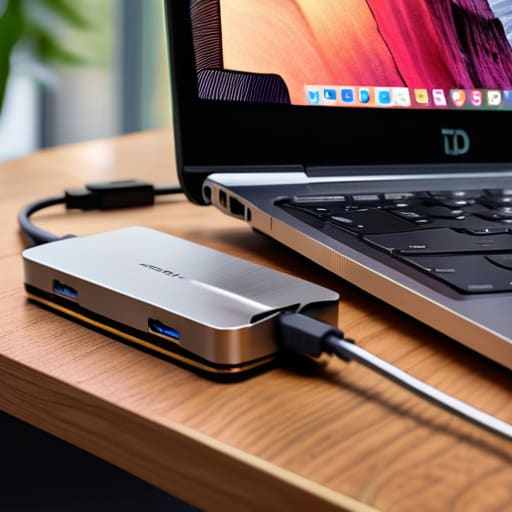
I spent six years in a cramped helpdesk office listening to people complain that their brand-new, ultra-slim laptops were essentially expensive paperweights because they didn’t have enough ports to do anything useful. Most tech reviewers will try to sell you on the “revolutionary connectivity” of these little dongles, but let’s be honest: you’re just trying to figure out what is a usb-c hub so you can plug in your mouse, an external drive, and a monitor without your desk looking like a nest of tangled wires. You don’t need a lecture on data transfer protocols; you just need to know which one won’t die on you the moment you plug in a heavy-duty hard drive.
I’m not here to hype up every shiny plastic gadget on the market. My goal is to give you the boring, practical truth about how these things actually work in a real home office. I’ll walk you through what to look for, which ports are actually worth the extra money, and—most importantly—which cheap models tend to overheat and drop your connection mid-task. No fluff, just the steps you need to take to get your setup working so you can get back to your actual life.
Table of Contents
Unpacking Usb C Port Functionality Without the Marketing Fluff

When you look at a laptop, that little oval hole looks identical across every device, but that’s where the marketing starts lying to you. Just because a plug fits doesn’t mean it does the same thing. Some ports are just for charging, others are for data, and a few are actually high-speed lanes for video. Understanding usb-c port functionality is basically realizing that one port might be capable of running two monitors while its twin on the other side of your laptop can barely handle a mouse.
This is usually where people get stuck deciding between a usb-c hub vs docking station. If you just need to plug in a thumb drive and maybe a keyboard while you’re sitting on the sofa, a small multiport adapter is fine. But if you’re trying to turn your laptop into a permanent desktop with dual monitors and wired internet, a hub will likely choke. Most cheap hubs struggle with external peripheral connectivity once you plug in more than two things at once. They get hot, they drop the connection, and suddenly your second monitor goes black right in the middle of a meeting.
Multiport Adapter Benefits Versus Just Buying More Cables
You could technically solve your port shortage by buying a dozen individual dongles, but that is a recipe for a desk that looks like a bird’s nest of tangled wires. The real multiport adapter benefits aren’t just about adding ports; they’re about centralizing the chaos. Instead of plugging in your mouse, your keyboard, and your external drive one by one every time you sit down, you plug in one single cable. It turns your laptop from a mobile device into a semi-permanent workstation without the clutter.
However, you need to be careful about the distinction between a simple hub and a full-scale setup. When people ask about a usb-c hub vs docking station, they’re usually looking for a way to connect multiple monitors or high-speed storage. A hub is great for a few extra peripherals, but if you need to power a massive desktop setup with dedicated power delivery, a hub might struggle. Just keep an eye on your usb-c hub data transfer speeds; if you buy the cheapest plastic version available, you might find that moving large files takes twice as long as it should.
Five things to check before you hit 'buy'
- Check the power delivery (PD) specs. If you’re planning to charge your laptop through the hub, make sure the hub supports the wattage your laptop actually needs. Some cheap ones claim to support “charging” but only provide enough juice to keep the battery from dying, not actually increase the percentage while you’re working.
- Look for the “Pass-through” distinction. A lot of people buy a hub and realize too late that they can’t plug their laptop charger into the hub itself. If your laptop only has one USB-C port, you absolutely need a hub with a dedicated power delivery port, otherwise you’ve just traded one port problem for another.
- Beware of the “everything-at-once” trap. If you plug a high-speed external drive, a mouse, a keyboard, and a monitor into a single cheap hub, you might see your file transfer speeds plummet or your mouse start stuttering. This happens because they’re all fighting for the same narrow bandwidth. If you do heavy data work, get a hub with a dedicated Thunderbolt port or a high-quality USB 3.2 spec.
- Read the fine print on HDMI versions. If you have a 4K monitor, a hub that only supports HDMI 1.4 will make your screen look like a choppy mess at 30Hz. You want at least HDMI 2.0 if you want smooth 4K at 60Hz. It sounds nitpicky, but it’s the difference between a crisp setup and a frustrating one.
- Think about the physical footprint. I’ve seen people buy these bulky, heavy bricks that turn their sleek laptop into a desktop-style mess. If you’re someone who actually moves around with their computer, look for a “dongle” style that sits flush or a slim adapter. If it’s going to live on your desk forever, the bulk doesn’t matter as much.
The short version
A USB-C hub isn’t a magic upgrade; it’s a way to add ports back to a laptop that was designed too thin to have them.
Don’t just buy the cheapest one on the shelf, because cheap hubs tend to overheat or drop your connection right when you’re mid-transfer.
Check the power delivery specs before you buy—some hubs let you charge your laptop through them, while others will actually drain your battery faster by trying to run too many peripherals at once.
The reality of the single-port struggle
“A USB-C hub isn’t some revolutionary piece of engineering; it’s just a way to stop your laptop from becoming a very expensive paperweight the moment you try to plug in a mouse, a monitor, and a thumb drive at the same time.”
Saoirse Doyle
The bottom line on USB-C hubs

At the end of the day, a USB-C hub isn’t a magic upgrade for your laptop; it’s just a way to manage the physical limitations of modern hardware. You’ve seen the trade-offs: you gain a dozen ports, but you might lose a bit of power delivery or deal with a device that gets uncomfortably warm under a heavy load. When you’re shopping, ignore the glossy descriptions of “seamless integration” and look at the actual specs—specifically the data transfer speeds and the wattage it can pass through. If you buy a cheap, unbranded adapter just to save ten pounds, you’re likely going to spend your afternoon re-plugging a mouse that keeps disconnecting or worrying about a corrupted file during a transfer. Stick to a brand that actually lists its power requirements so you aren’t left guessing.
My advice is to stop looking for the “perfect” setup that will finally make you productive. Technology is just a tool, and a hub is a very small, very specific tool meant to solve a very specific problem: not having enough holes to plug things into. Once you find one that handles your monitor, your drive, and your keyboard without crashing, stop tweaking your desk setup and get back to your actual work. The goal isn’t to have the most impressive array of peripherals; the goal is to have a setup that stays out of your way so you can actually get things done.
Frequently Asked Questions
Will a hub actually charge my laptop while I'm using it, or is it just for peripherals?
It depends entirely on whether the hub has “Power Delivery” (PD) written on the box. If it does, you can plug your charger into the hub, and it will pass that power through to your laptop. If it doesn’t, the hub is just a middleman for your mouse and keyboard, and your laptop will still be draining battery while you work. Just watch out: cheap hubs can get hot enough to cook an egg when they’re handling both data and power.
Can I plug in a high-speed external drive and a monitor at the same time without everything slowing down?
The short answer is yes, but it depends entirely on the “bandwidth” of the hub you bought. If you’re using a cheap $20 adapter, plugging in a monitor and a high-speed drive simultaneously is a recipe for frustration; the monitor will hog the data lanes, and your drive transfers will crawl or simply disconnect. If you want both to work properly, look for a hub that explicitly mentions “Thunderbolt” or “USB4.” Otherwise, expect things to get fiddly.
If I buy a cheap $15 hub, am I going to risk frying my laptop's motherboard?
It’s unlikely a $15 hub will physically fry your motherboard, but it’s definitely not “safe” in the way you want it to be. Cheap hubs often have terrible power management. If you plug in a high-draw device or a charger, the hub can overheat or send a power surge back through the port. You won’t see a spark, but you might see your laptop suddenly shut down or, worse, lose a port permanently.
