I spent six years on a helpdesk watching people treat their laptops like they were made of glass, only to realize they were actually killing them with “expert” advice from random forums. I once had a user come in, absolutely distraught, because they’d been following a strict ritual of discharging their battery to 0% every single night because they read it was better for the cells. In reality, they were just putting unnecessary stress on the hardware and making their device less reliable. If you’re looking for a complicated, twenty-step ritual on how to keep a laptop battery healthy, you can stop reading now; most of that advice is just noise designed to make you feel like you’re doing something wrong when you’re actually just being efficient.
I’m not here to sell you on a “battery optimization” app that costs ten dollars a month and does nothing but ping your notifications. Instead, I’m going to give you the unvarnished truth about heat, charging cycles, and those annoying percentage thresholds. We’ll look at what actually matters, what you can safely ignore, and—most importantly—what happens to your hardware if you ignore the basics. No hype, no expensive gadgets, just the practical steps to make sure your machine doesn’t die on you when you’re in the middle of something important.
Table of Contents
- Deep Discharge Prevention and the Lithium Ion Battery Lifespan
- The Optimal Charging Temperature Youre Probably Ignoring
- Five things to actually do (and one thing to stop doing)
- The quick version for when you're in a rush
- ## The reality of the "100% charge" trap
- The long and boring truth about your battery
- Frequently Asked Questions
Deep Discharge Prevention and the Lithium Ion Battery Lifespan
If you leave your laptop sitting in a drawer for three months with 0% charge, don’t be surprised if it refuses to wake up when you finally plug it back in. This is the result of deep discharge, and it is one of the fastest ways to kill your lithium-ion battery lifespan. When a battery hits absolute zero, a chemical reaction can occur that makes it physically impossible to recharge. In some cases, this leads to the battery cells expanding, which is the primary cause of preventing battery swelling from being a simple fix—once the casing is bulging, the hardware is toast.
To avoid this, if you aren’t going to use your machine for a while, aim for about 50% charge before turning it off. It’s a bit of a balancing act, but it keeps the chemistry stable. If you notice your percentage readings seem to jump around wildly—say, dropping from 30% to 5% in a minute—you might need some laptop battery calibration. This just means letting it run down and charging it back up fully to help the software “re-learn” where the actual floor and ceiling are.
The Optimal Charging Temperature Youre Probably Ignoring
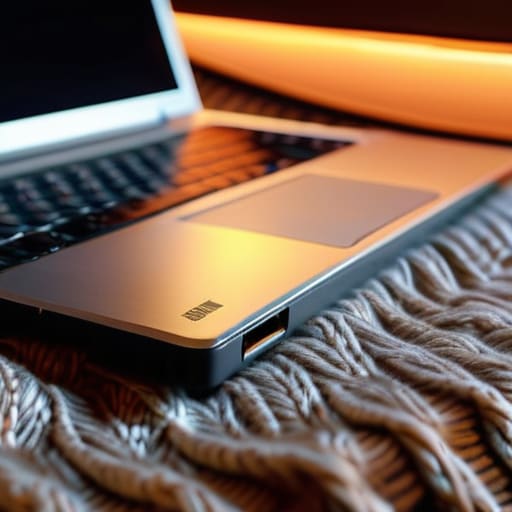
If there is one thing I learned while troubleshooting hardware for a hundred different employees, it’s that heat is the silent killer. Most people think a warm laptop is just “working hard,” but if that heat is soaking into the cells, you’re actively shortening your lithium-ion battery lifespan. Batteries are like sourdough starters; they need a stable, moderate environment to thrive. If you leave your laptop on a soft duvet or a thick rug, you’re essentially wrapping it in a blanket that traps heat, which is a primary cause of preventing battery swelling from actually working.
You want to keep your machine in a temperature range that feels comfortable to you. If it feels too hot to touch, your battery is already suffering. I always tell people to stick to a hard, flat surface—a desk or even a large book—to let the fans actually do their job. If you’re working in a hot car or under direct sunlight, stop. High temperatures cause chemical degradation that no amount of software tweaking can fix. It’s not about being fancy; it’s just about not cooking your hardware.
Five things to actually do (and one thing to stop doing)
- Stop living on the charger. I know it’s easier to just plug it in and forget it, but keeping your battery pinned at 100% all day is a fast way to make it swell and die. Try to let it breathe; aim for a cycle that keeps you between 20% and 80% when you can.
- Check for a “Battery Threshold” setting. Most modern laptops—especially ThinkPads or anything with decent management software—have a setting that lets you cap the charge at 60% or 80%. If you use your laptop like a desktop most of the time, turn this on. It’s a massive win for longevity.
- Watch the heat, even if you aren’t “charging.” Heat is the silent killer. If you’re doing heavy video editing or gaming on a soft blanket, you’re essentially slow-cooking your battery. Use a hard surface or a stand to keep the airflow moving.
- Don’t let it sit dead in a drawer. If you’re putting a laptop away for a month, don’t leave it at 0% and don’t leave it at 100%. Charge it to about 50%, power it down completely, and then tuck it away. A completely discharged battery can fall into a “deep discharge” state where it simply refuses to wake up ever again.
- Be wary of “Battery Booster” software. I’ve seen plenty of these in my time on helpdesk. Most of them are useless bloatware that just eats up your RAM. Your operating system already knows how to manage power; you don’t need a third-party app promising to “optimize” your cells.
The quick version for when you're in a rush
Stop letting your laptop die completely; if it hits 0%, you’re putting unnecessary stress on the cells. Aim to plug it in once it hits about 20%.
Keep it cool. Heat is the silent killer of batteries, so don’t work on your laptop on a duvet or a pillow where the vents get choked.
If you’re leaving your laptop plugged in at a desk all week, check if your manufacturer has a “battery protection” mode that caps the charge at 80%. It’s worth the two minutes of setup to stop the battery from swelling.
## The reality of the "100% charge" trap
We’ve been conditioned to think a full battery is a happy one, but keeping your laptop pinned at 100% while it’s plugged into the wall all day is basically just keeping it under constant chemical stress. If you want that battery to actually last more than two years, you have to stop treating it like a gas tank that needs to be topped off every single time you sit down.
Saoirse Doyle
The long and boring truth about your battery
At the end of the day, keeping a laptop battery healthy isn’t about some secret, high-tech ritual; it’s just about avoiding the extremes. If you stop letting it hit zero, keep it away from the heat of a sunny windowsill or a heavy blanket while it’s running, and stop leaving it plugged into the wall like it’s part of the furniture, you’ve already won 90% of the battle. It’s not about being perfect every single day, but about not making the same mistakes that force a hardware replacement two years too early. Remember, these batteries are consumables—they are designed to degrade—but you can certainly slow down the inevitable if you treat them with a bit of common sense.
I know it feels like just another thing to manage in a world that already demands too much of your attention. We are constantly told we need the latest, fastest, thinnest machine, but the most sustainable thing you can do is actually make the hardware you own last. Don’t let the cycle of planned obsolescence trick you into thinking your laptop is “broken” just because the battery life has dipped slightly. Take care of the machine, keep it cool, and let it do its job. If you do that, you’ll spend less time troubleshooting power issues and more time actually getting things done.
Frequently Asked Questions
Should I be using those "battery limiter" apps that cap the charge at 80%, or is that just more software bloat?
If your laptop has a built-in setting to limit charging to 80%, use it. That’s not bloat; that’s a hardware-level instruction that actually helps. However, if you’re downloading a third-party “optimizer” app to do the same thing, skip it. Most of those are just extra processes eating your RAM and potentially spying on your usage. If the manufacturer didn’t build the limiter into the BIOS or their official utility, it’s probably not worth the headache.
If my battery has already started swelling or getting hot, is there a way to save it, or is it already a fire hazard?
If your battery is swelling, stop. There is no “saving” it. A swollen battery is a chemical reaction gone wrong, and it is a genuine fire hazard. Unplug it immediately, don’t try to squeeze it back down, and don’t keep using the laptop. If it’s just getting hot during a heavy task, that’s normal, but if it’s hot while sitting idle, the battery is failing. Get it replaced or recycle the device safely.
Does using my laptop while it's plugged in actually do more harm than good, or is that just an old myth from the nickel-battery days?
It’s mostly a myth, but with a catch. Modern laptops don’t have the “memory effect” issues that old nickel batteries did; once you hit 100%, the laptop stops charging the battery and just runs off the power cord. However, keeping it pinned at 100% while under heavy load creates heat, and heat is the real killer. If you’re doing heavy work, stay plugged in, but try to let the battery breathe occasionally.
