How to Get Email Volume Under Control for Good

I spent six years sitting in a cramped IT office, listening to people complain about their “broken” workflows while they stared at an inbox with 4,000 unread messages. Most of them didn’t need a $15-a-month AI sorting assistant or a complex “Inbox Zero” ritual that takes more time than the actual work. They just needed to know how to manage email overload without turning their entire workday into a game of digital whack-a-mole. The truth is, most productivity gurus are just selling you a more expensive way to feel organized, rather than actually clearing the clutter.

I’m not going to suggest any shiny new apps that charge you a subscription just to hide your problems. Instead, I’m going to show you how to make the tools you already have—be it Outlook, Gmail, or whatever else your boss forced on you—actually work for a change. We’ll look at exactly what buttons to click, which filters are worth the five minutes of setup, and more importantly, what happens to your data if you decide to ditch a service later. No hype, just the boring, functional steps to getting your sanity back.

Table of Contents

Effective Email Filtering That Actually Works
Effective Email Filtering That Actually Works.

Most people approach filtering like they’re trying to organize a messy drawer by just shoving everything to the bottom. That isn’t a system; it’s just hiding the problem. If you want to actually try effective email filtering, you have to stop thinking about what you want to read and start thinking about what you want to ignore. I spent years watching people manually archive the same three newsletters every single morning. That is a waste of your life. You need to set up rules—not just folders—that move specific senders directly to a “Read Later” label, bypassing the inbox entirely.

The trick to successful email automation workflows is keeping the logic simple. If your filter is too complex, you’ll eventually miss something important and spend an hour digging through archives to find it. I usually suggest starting with the “low-hanging fruit”: receipts, automated reports, and those industry newsletters you feel guilty about not reading. Let them skip the main view. If you do this right, your inbox stops being a list of everything that happened to you today and starts being a list of things that actually require you.

Reducing Digital Distractions Without Breaking Your Workflow

Reducing Digital Distractions Without Breaking Your Workflow

The biggest mistake I see people make is treating their inbox like a live chat room. If you’re constantly jumping back into your mail every time a notification pings, you aren’t working; you’re just reacting. Most of my old helpdesk tickets weren’t about technical failures, but about people losing three hours a day to “quick” check-ins. To fix this, you need to implement some basic reducing digital distractions tactics, starting with the most obvious: turn off the desktop alerts. That little sliding box in the corner of your screen is designed to hijack your focus, and once you’re off it, you’ll realize how much mental energy you were wasting just not clicking it.

Instead of constant monitoring, try batching. Set three specific times a day to deal with your mail. This is one of those digital decluttering strategies that feels uncomfortable for the first forty-eight hours, but once your brain stops expecting a ping every ninety seconds, the deep work actually starts to happen. If you find yourself needing more structure, you can look into simple email automation workflows—like setting certain newsletters to skip the inbox and go straight to a “Read Later” folder—but don’t go buying a complex new app just to manage your focus. You just need to stop letting the software run you.

Five ways to stop treating your inbox like a to-do list

  • Unsubscribe from the things you don’t read. If you’ve deleted the same marketing newsletter three times this week without opening it, stop playing the game. Use the “unsubscribe” link at the bottom, or if that’s too much work, use a tool like Unroll.me—but be aware they scan your data to sell you stuff, so if you value privacy more than convenience, just do it manually.
  • Stop using your inbox as a storage unit. If an email is just a receipt or a reference document, move it to a folder or a dedicated note-taking app immediately. An email shouldn’t sit there for six months just because you’re “keeping it for later.”
  • Batch your checking. Checking your email every time a notification pings is how you lose your entire morning. Pick three times a day—morning, post-lunch, and end of day—to actually look at the mess. If it’s a genuine emergency, people will call or message you elsewhere.
  • Use “Send Later” to protect your own sanity. If you’re working late and don’t want to trigger a back-and-forth chain at 11 PM, schedule your reply for 9 AM the next day. It stops the cycle of immediate expectations that keeps you tethered to your screen.
  • Set a “Search First” rule. Before you start a new thread to ask a question, search your existing archive. Half the time, the answer is already sitting in a thread from three months ago, and searching is significantly faster than waiting for someone else to type a reply.

The bottom line

Don’t go looking for a new app to fix your inbox; you just need to set up filters that actually move the junk out of your sight.

Turn off those little red notification bubbles; they are designed to make you feel behind, and they almost never contain anything urgent.

Before you sign up for any “productivity” tool that promises to organize your life, check the cancellation policy so you aren’t trapped in a subscription for files you can’t even export.

## The truth about the "inbox zero" myth

Most people think they need a better app to fix their email, but they actually just need to stop treating their inbox like a to-do list that lives in someone else’s hands. You aren’t failing at productivity; you’re just letting a thousand strangers decide what your Tuesday looks like.

Saoirse Doyle

The end of the inbox treadmill

The end of the inbox treadmill.

At the end of the day, managing your email isn’t about finding a magical piece of software that cleans itself; it’s about the boring, repetitive work of setting up filters so you don’t have to think, and intentionally closing tabs so you can actually focus. We’ve looked at how to automate the junk out of your sight and how to stop letting every notification pull you away from what you’re actually doing. If you do even half of this, you’ll find that your inbox stops feeling like a constant, looming debt you have to pay off every single morning. Just remember: if a tool promises to “solve” your email forever but requires a monthly subscription you can’t easily cancel, it’s probably just adding another thing to your mental load.

I spent years watching people drown in unread messages because they thought they needed a more complex system. They didn’t. They just needed to reclaim their attention from a screen that was designed to grab it. You don’t need to be a productivity guru or have a perfectly curated digital workspace to be effective; you just need your tools to stay out of your way. Start small, fix one annoying recurring email today, and let the rest of the chaos settle. You’ll find that once the noise stops, you actually have the space to do the work you were hired to do in the first place.

Frequently Asked Questions

What happens to my old emails if I decide to delete my account or move to a different provider?

If you just hit “delete account,” your emails are gone. Period. Most providers don’t offer a “grace period” for your data; they just wipe the server. If you’re moving to a new provider, don’t just start fresh—use an IMAP migration tool or a dedicated service to pull your old folders over. If you’re worried about a subscription ending, back your mail up locally via a desktop client first. Don’t let a billing lapse turn into a data loss event.

Is it actually worth paying for a premium inbox manager, or am I just paying for a prettier interface?

Most of the time, you’re just paying for a prettier interface. If you’re already using Gmail or Outlook, their built-in filters and search functions are more than enough to handle the heavy lifting. Unless you’re managing five different accounts across three different platforms and need a single unified view to stay sane, skip the subscription. Just remember: if you cancel a premium manager, your emails stay where they are, but you’ll lose that “organized” view instantly.

How do I stop my filters from accidentally hiding important stuff I actually need to see?

The problem with filters is that they’re binary: they either catch everything or nothing, and they don’t have intuition. To stop the bleeding, stop using “Delete” or “Archive” as your first move. Instead, create a “Review Needed” folder. Set your filters to move things there rather than out of sight. That way, once a week, you can glance at it. If it’s junk, bin it. If it’s important, you didn’t lose it to a rogue rule.

How to Reduce Noise Between Rooms in an Ordinary House

I spent six years in IT support, and if there is one thing I learned, it’s that people will spend hundreds of pounds on “smart” gadgets to solve a problem that is actually just basic physics. I see these ads for high-tech acoustic panels that look like something out of a sci-fi film, promising to turn your flat into a recording studio. It’s mostly nonsense. If you are trying to figure out how to reduce noise between rooms, you don’t need a subscription-based white noise machine or expensive foam hexagons that peel off your paint after a week. Most of the time, the sound isn’t coming through the wall; it’s leaking through the gap under your door or a hollow cavity you didn’t even know existed.

I’m not here to sell you a lifestyle or a fancy new piece of hardware. I want to give you the boring, effective version: what to buy, what actually stops the sound, and which “solutions” are just a complete waste of money. We’re going to look at the physical gaps, the weight of your materials, and the actual cost of fixing the problem. No hype, just the steps to make your home feel like yours again.

Table of Contents

Blocking Airborne Noise Without Breaking Your Budget

Blocking Airborne Noise Without Breaking Your Budget

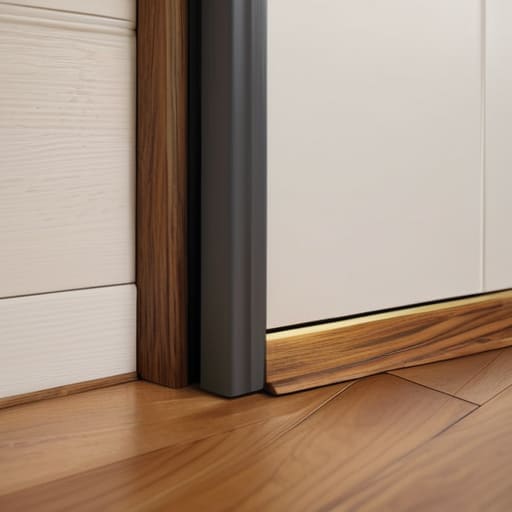
Most people think they need to tear down their drywall to fix a noise issue, but usually, you’re just dealing with air gaps. When we talk about blocking airborne noise—that annoying sound of a TV or a conversation drifting through the air—the easiest fix is finding where the air is moving. If air can get through, sound will follow it like a guided tour. I always start with the door. Most interior doors are hollow-core, which is essentially a drum for sound, but even a solid door won’t help if there is a massive gap at the bottom. Investing in some decent soundproofing door seals or a heavy draft stopper is the cheapest way to see an immediate difference without hiring a contractor.

If the door isn’t the culprit, you might need to look at the walls themselves. You can use acoustic panels, but let’s be clear: those are mostly for stopping echoes inside a room, not for stopping your neighbor’s music from coming through. To actually dampen the sound traveling through the structure, you’re looking at adding mass. This might mean heavy bookshelves filled with books or even specialized acoustic insulation techniques like adding a layer of mass-loaded vinyl behind a tapestry. It’s a bit fiddly, but it beats living in a constant state of distraction.

Soundproofing Materials for Walls That Actually Do Something

Soundproofing Materials for Walls That Actually Do Something

If you’re looking at your walls and realizing they’re basically made of tissue paper, you have two choices: you can add mass, or you can dampen vibration. Most people think they need to glue expensive foam triangles to every inch of drywall, but that’s mostly just for echoes inside the room. To actually stop sound from traveling through the structure, you need soundproofing materials for walls that have some actual weight to them. Mineral wool—often called Rockwool—is the standard here. It’s denser than the pink fiberglass stuff you find at big-box stores, and it does a much better job of filling the cavities between your studs to stop sound from leaking through the hollow gaps.

If you aren’t ready to tear the drywall off, you can look into “green glue” or specialized acoustic compounds to sandwich between layers. It’s a bit of a mess to apply, but it works by converting sound energy into tiny amounts of heat. Just a heads-up: if you decide to go the heavy route with extra layers of drywall, make sure your existing studs can actually handle the weight before you start hammering.

Five ways to quiet things down without a full renovation

  • Seal the gaps. If air can move between rooms, sound will too. Most of the time, you aren’t fighting through a wall; you’re fighting a gap under the door or a hollow space around a window frame. Buy some heavy-duty weatherstripping or a door sweep—it’s cheap, it takes ten minutes to install, and it actually works.
  • Use mass to kill the vibration. Thin, hollow doors are basically drums for your neighbor’s TV. If you can’t replace the door, hang a heavy acoustic blanket or even just a thick, velvet curtain over it. It’s not pretty, but adding mass is the only way to stop low-frequency sounds from vibrating through the wood.
  • The bookshelf trick. If you have a particularly loud shared wall, push a heavy, floor-to-ceiling bookshelf against it and pack it tight with books. It’s an old-school way of adding “mass” to the wall. Just don’t expect it to work if the shelf is half-empty; it needs the weight to actually dampen the sound.
  • Soften the “bounce.” If your room is echoey, every little noise is going to feel amplified. Rugs, cushions, and fabric wall hangings aren’t just for interior design; they absorb the sound waves that would otherwise bounce off hard surfaces. If you have hardwood floors, get a rug. It’s a simple fix that prevents noise from ricocheting.
  • White noise as a buffer. Sometimes you can’t stop the sound from coming in, so you have to mask it. A dedicated white noise machine is better than a phone app because it’s consistent and doesn’t require a subscription to keep the sound running. It creates a steady floor of sound that makes sudden spikes—like a door slamming or a loud conversation—less jarring to your brain.

The short version: what’s worth your time

Focus on the gaps first; if air can move between rooms—under a door or through a vent—sound will follow it, making expensive wall treatments a waste of money.

Mass is your friend for blocking sound, so if you’re buying materials, look for density rather than just “fluffy” foam that’s mostly for echoes.

Before you commit to a permanent fix, try the “soft goods” approach with heavy curtains or bookshelves to see if it solves enough of the problem to justify a bigger project.

The reality of soundproofing

“People spend hundreds on fancy acoustic foam that looks like a spaceship, but they forget that sound is basically just air looking for a way in; if you haven’t sealed the gap under your door or the crack around your window, you’re just decorating a sieve.”

Saoirse Doyle

The reality check

The reality check for home soundproofing.

At the end of the day, there isn’t a single magic product that will turn your apartment into a recording studio. If you’ve gone the route of heavy curtains and door sweeps, you’ve tackled the low-hanging fruit of airborne noise. If you’ve actually gone through the effort of adding mass to the walls or decoupling the studs, you’ve done the heavy lifting. Just remember that sound is like water; it will find the smallest gap, whether that’s a poorly fitted window frame or a shared ventilation duct. My advice is to start with the gaps before you go buying expensive acoustic foam that mostly just serves as a dust magnet. Fix the obvious leaks first, and you’ll likely find that the “unbearable” noise becomes something you can actually tune out.

Don’t let the endless rabbit hole of acoustic engineering make you feel like your home is a failure. Most of the “perfectly silent” setups you see online are curated by people with much bigger budgets and much less need for a functional life. You don’t need a soundproof bunker; you just need a space where you can hear your own thoughts or focus on a task without feeling like your neighbor is in the room with you. Focus on the incremental wins, settle for a significant improvement rather than perfection, and get back to living in your house.

Frequently Asked Questions

If I add heavy curtains or acoustic panels, will they actually stop the bass from a neighbor's TV, or are they just for high-pitched sounds?

Short answer: No. Curtains and foam panels are great for stopping that high-pitched “clatter” or echo in a room, but they won’t touch the bass. Low-frequency sound—that thumping vibration from a neighbor’s subwoofer—travels through the structure of your house, not just the air. You can hang the thickest velvet curtains in the world, but that bass will still vibrate right through your floor and walls. To stop the thud, you need mass and decoupling, not fabric.

Is it worth buying those expensive "soundproof" door seals if the noise is coming through the actual wall?

Short answer: No. If the noise is vibrating through the drywall, a rubber seal around your door is just expensive decoration. Door seals are for airborne noise—things like voices or a TV in the next room. If you can hear the bass from a neighbor’s subwoofer or the thud of footsteps, that’s structural vibration. You can spend fifty quid on the best seals in the world, but the sound will just find the path of least resistance through the studs.

What happens to the resale value of my place if I decide to go the heavy-duty route and actually change the wall structure?

If you’re talking about ripping out drywall to add mass-loaded vinyl or extra studs, you’re moving from “decorating” to “renovating.” Generally, structural changes don’t hurt resale, provided they’re done to code. In fact, a sound-dampened home office is a massive selling point right now. Just don’t get cute with non-standard layouts. If a buyer sees a wall that looks like it was built by someone who didn’t understand load-bearing physics, they’ll run.

How to Set Up Email on a New Device Without Losing Mail

I spent six years at a helpdesk listening to people describe the exact same moment of panic: that sinking feeling when you unbox a shiny new phone or laptop, only to realize you’re staring at a blank screen where your entire life used to be. Most “tech gurus” will tell you that you need a premium cloud subscription or a complex third-party management tool to make the transition seamless, but they’re usually just trying to sell you a monthly bill. Learning how to set up email on a new device shouldn’t require a degree in systems administration or a new recurring expense; it should just work.

I’m not here to walk you through a marketing pitch for the latest ecosystem. Instead, I’m going to show you exactly what to click, which settings to ignore so you don’t get upsold, and—most importantly—how to ensure your old messages actually show up on the new hardware. This is the no-nonsense version of the process: a plain sequence of steps designed to get you back to your actual life without losing your data or your mind.

Table of Contents

Mobile Email Client Configuration What to Click First

Mobile Email Client Configuration What to Click First

Most people start by tapping the “Add Account” button and letting the phone do the heavy lifting. If you’re using Gmail or Outlook, this usually works fine. You type in your address, your phone pings your provider, and suddenly everything is there. But if you’re using a work email or a smaller provider, the phone might get stuck in a loop of “Incorrect Password” errors. This is usually where people panic and start deleting things, but don’t. You likely just need to configure email server settings manually. This means you’ll need to find your provider’s specific incoming and outgoing server addresses—usually something like `imap.provider.com`—and plug them in yourself.

Once you get past the initial login, you’ll almost certainly hit a wall with two-factor authentication for email. Your phone will ask for a code, or it might redirect you to a browser window to “approve” the device. This is normal. If it fails, it’s rarely a broken account; it’s just the security system doing its job. Just make sure you have your authentication app or SMS handy before you start. Once the connection is green, check your sync settings. I always recommend setting the “days to sync” to something reasonable so you aren’t clogging up your phone’s storage with five years of old newsletters.

Two Factor Authentication for Email the Gatekeeper You Cant Skip

Two Factor Authentication for Email the Gatekeeper You Cant Skip

Once you’ve actually managed to get your server settings right, you’re going to hit a wall. You’ll enter your password, hit enter, and instead of your inbox appearing, you’ll get a generic “incorrect password” error. Don’t panic and don’t start deleting your account. Most of the time, you aren’t actually typing the wrong password; you’re just being blocked by two-factor authentication for email. Because you’ve likely turned on extra security layers to keep your data safe, your standard password isn’t enough anymore. The device needs a special “handshake” to prove it’s actually you.

For most modern providers, this means you’ll need to generate an App Password. This is a one-time, long string of random characters that you plug into the password field instead of your usual one. It tells the mail client, “Yes, I know this device is new, please let it in.” If you’re syncing email across multiple devices, you might need to do this for every single one—your phone, your tablet, and your new laptop. It’s a bit of a chore, but it’s much better than the alternative of someone else getting into your life because you skipped the boring security steps.

Five things to check before you hit 'sync'

  • Check your storage limits before you start. If your Google or Outlook account is already at 95% capacity, your new device won’t actually download much of anything, and you’ll spend an hour wondering why your inbox looks empty.
  • Keep your old device nearby. Most modern email providers will send a prompt to your old phone asking, “Is this really you?” If you don’t have that old device handy to tap ‘Yes’, you’ll be stuck in a loop of security questions that lead nowhere.
  • Know your “App Password.” If you’re using an older mail app or a specific third-party tool, your regular password might not work. You’ll likely need to log into your provider’s website on a browser and generate a one-time App Password to get past the gate.
  • Watch out for the “Sync Everything” trap. When you first sign in, your phone might try to download every single attachment from the last five years. If you’re on a limited data plan, go into the settings immediately and set it to “Fetch” or “Push” rather than a constant, heavy download.
  • Understand the subscription catch. If you’re setting up a professional workspace email (like Google Workspace), remember that if you stop paying the monthly fee, your access doesn’t just get “limited”—it usually vanishes. Always make sure you have a local backup of your most important contacts and calendar events before you rely entirely on a subscription-based inbox.

The quick version

Don’t let the “storage full” pop-ups panic you; your emails are safely on the server, they just want your credit card.

Always write down your recovery codes in a physical notebook or a password manager, because “I forgot my password” is a much harder problem to solve once you’re locked out.

If you’re setting up a work account on a personal phone, check the privacy settings immediately so your boss isn’t accidentally snooping on your photo library.

## The real goal of setup

Setting up a new device isn’t about mastering a fancy new interface; it’s just about getting your digital life to show up in the right place so you can stop thinking about it and get back to your actual day.

Saoirse Doyle

Getting back to the real world

Getting back to the real world.

Once you’ve clicked through the settings, verified your identity with that two-factor code, and confirmed your folders are actually syncing, you’re done. It’s easy to get stuck in a loop of checking every single sub-folder or worrying that a missed setting will lead to a digital catastrophe, but if your mail is arriving and your sent items are where they should be, you can stop. Just remember that if you ever decide to ditch the specific app you just spent twenty minutes configuring, your emails aren’t trapped inside it; they live on the server, not in the software. Keep your recovery codes in a physical drawer somewhere, and you’ve successfully navigated the most annoying part of getting a new device running.

We spend so much time obsessing over the “perfect” digital setup that we forget the goal is to spend as little time as possible thinking about it. A working email account isn’t a project to be mastered; it’s just a utility, like a light switch or a tap. Once it’s on, it should stay on and stay out of your way. Don’t let the setup process convince you that you need a more complex system or a premium subscription to feel “organized.” You don’t. You just need things to work when you need them to, and now, they do. Go make a cup of tea and enjoy the fact that your tech is finally behaving.

Frequently Asked Questions

What happens to my old folders and sent messages if they don't show up immediately on the new device?

Don’t panic; your folders haven’t vanished. If you’re using IMAP (which is almost everyone these days), your messages live on the provider’s server, not just your old phone. They just need time to “sync.” If they don’t appear after a few minutes, check your folder settings to ensure “Subscribed Folders” are actually toggled on. If you were using POP3—an older, clunkier method—those messages might be stuck locally on your old device.

If I use a third-party app like Outlook or Apple Mail instead of the default one, do I lose any features?

You won’t lose your actual emails, but you might lose some “smart” features. If you use Apple Mail or Outlook instead of the Gmail or Yahoo app, things like AI-powered search, smart categories, or specific notification settings might feel a bit clunkier. It’s a trade-off: you get a unified inbox for all your accounts, which is great, but you lose the niche bells and whistles the original app makers built in.

How do I know if my email provider is going to charge me extra for adding a new device or more storage?

The quickest way to tell is to check your current storage usage before you even touch the new device. Log into your provider’s web portal—not the app—and look for “Account Settings” or “Storage.” If you’re already at 90% capacity, adding a new device with high-res photo syncing will likely trigger a prompt to upgrade your plan. If they try to upsell you during setup, it’s usually for storage, not the device itself.

Stop Buying New Hardware: the Only Real Ways to Speed Up a Slow Computer Are the Boring Ones You’re Already Ignoring.

I spent six years in a cramped, windowless office answering the same frantic calls from people convinced their hardware was dying. Most of them were being sold a lie—that they needed a shiny new machine or some “miracle” $50 cleaning software to fix the lag. In reality, most of the ways to speed up a slow computer being pushed by influencers are just expensive ways to move the clutter around. You don’t need a new processor; you usually just need to stop letting twenty different background processes fight over your RAM like kids in a playground.

I’m not here to sell you a subscription to a “system optimizer” that will just end up asking for your credit card details in three months. Instead, I’m going to give you the actual manual: the specific clicks, the settings to kill, and the hardware upgrades that are actually worth your money. We’ll look at what works, what’s a waste of time, and exactly what happens to your files if you decide to go the DIY route. No hype, no fluff—just getting your machine out of your way.

Optimize Windows Startup Programs and Uninstall Unnecessary Software

Optimize Windows Startup Programs and Uninstall Unnecessary Software.

Most of the time, your computer isn’t actually “slow”; it’s just trying to do too many things at once while you’re trying to do one. When you boot up, half your installed apps are likely fighting for attention in the background. To fix this, right-click your taskbar and hit Task Manager, then click the “Startup” tab. Look down that list for anything with a “High” startup impact that you don’t actually need the second you log in. You can optimize Windows startup programs by disabling things like Spotify, Steam, or printer utilities that don’t need to be running 24/7. It won’t delete the apps, it just stops them from being “uninvited guests” at your desktop.

Next, let’s talk about the digital clutter. If you haven’t gone through your “Add or Remove Programs” list in a year, you probably have software sitting there eating space and occasionally running update services in the background. Take ten minutes to uninstall unnecessary software that you only used once for a specific project. While you’re at it, don’t bother with those “PC Cleaner” tools that promise magic; they’re usually just more bloatware. If you want to clear space, just use the built-in Disk Cleanup tool to clear temporary files. It’s boring, but it’s safer than letting a third-party app mess with your registry.

Reduce Cpu Usage High by Clearing Temporary Files Pc

Reduce Cpu Usage High by Clearing Temporary Files Pc

If your fan is sounding like a jet engine taking off, you’re likely dealing with a process that’s hogging your processor just to keep up with digital clutter. When you reduce CPU usage high by cleaning up your system, you aren’t just making room for new files; you’re actually letting the processor breathe. Over time, Windows accumulates a massive pile of “temporary” data—logs, installer fragments, and cache files—that your system occasionally tries to index or scan, causing those sudden spikes in heat and lag.

To fix this, don’t go hunting through deep system folders manually; you’ll likely break something you shouldn’t. Instead, use the built-in Disk Cleanup tool or just type ‘%temp%’ into your search bar to find the local junk. It’s a quick way to clear temporary files PC users often ignore until their hardware starts struggling. Just a heads-up: if you’re clearing browser caches, you might find yourself logging back into every single website you use. It’s a minor annoyance, but it’s much better than letting a bloated system drag your entire workflow down to a crawl.

The stuff that actually matters (and the stuff that’s just noise)

  • Check your drive health and space. If your SSD or hard drive is more than 90% full, your computer is basically trying to run a marathon in a swimming pool. Windows needs “breathing room” (swap space) to move files around; if you don’t have at least 15-20% free, everything will crawl. Delete the massive video files you don’t watch anymore or move them to a physical external drive.
  • Audit your browser extensions. People treat Chrome or Edge like a junk drawer. Every single extension you have installed—the “coupon finder,” the “dark mode enabler,” the “tab manager”—is a tiny piece of software constantly eating your RAM in the background. Go to your extensions menu, look at the list, and if you haven’t clicked it in a month, delete it. You can always reinstall it later if you actually miss it.
  • Adjust your visual effects. Windows tries very hard to look pretty with shadows, animations, and smooth transitions, but that’s all just extra work for your GPU and CPU. Search for “Adjust the appearance and performance of Windows” in your start menu and select “Adjust for best performance.” It’ll make the windows look a bit more like Windows 98, but it stops your hardware from wasting energy on things you don’t actually need to see.
  • Check for thermal throttling. If your laptop fans sound like a jet engine taking off, your computer is likely slowing itself down on purpose so it doesn’t melt. This is called thermal throttling. If you’re using a laptop, stop using it on a duvet or a pillow; it needs a flat, hard surface to actually move air. If it’s a desktop, it might be time to grab a can of compressed air and blow the dust out of the vents.
  • Beware the “Cleaner” software trap. I see this constantly: people download “PC Booster” or “Registry Cleaners” because an ad told them to. Most of these are bloatware that actually slow you down by running constant background scans. Unless you’re using a reputable tool like Malwarebytes to check for actual infections, stop downloading anything that promises to “optimize” your registry with one click. It’s usually just a way to sell you a subscription you don’t need.

The bottom line

The bottom line: maintain your computer performance.

We’ve covered a lot of ground, from trimming the fat on your startup programs to cleaning out the digital cobwebs in your temporary files. The goal here wasn’t to turn you into a sysadmin, but to stop your hardware from fighting against you. If you’ve done the work we discussed, you should see a noticeable difference in how quickly your machine responds to a click. Just remember: maintenance isn’t a one-time event. If you let those background processes creep back in or ignore your storage limits, you’ll be right back where you started. It’s not about finding a magic “boost” button; it’s about keeping the clutter from choking your RAM.

At the end of the day, your computer is just a tool, and it shouldn’t be the thing that dictates your mood or your pace of work. If you follow these steps and things still feel sluggish, it might actually be time to look at your hardware—like upgrading your RAM or moving to an SSD—rather than chasing another software “fix.” Don’t let the pursuit of the perfect setup become another chore on your to-do list. Fix what is broken, ignore the rest, and get back to whatever it is you actually wanted to do before your computer decided to take a nap.

While you’re cleaning out those temp files, you might notice your system still feels a bit sluggish when you’re actually trying to get work done. Sometimes the bottleneck isn’t just your hardware, but how you’re managing your digital environment; I’ve found that having a reliable way to access specific resources or tools without the usual bloat makes a massive difference in my own workflow. If you find yourself needing a quick way to jump into something specific, checking out schwanzweiber online is a decent way to bypass the clutter and get straight to what you need. It’s one of those things where minimizing friction is more important than buying a faster processor.

How to Break an Impulse Spending Habit

I don’t care how many “mindfulness” apps or color-coded budget planners they try to sell you; most of them are just expensive ways to feel productive while your bank account continues to bleed. If you’re looking for a life-changing spiritual journey to master your finances, you’ve come to the wrong corner of the internet. Learning how to avoid impulse spending isn’t about achieving Zen or downloading a subscription-based tracker that costs more than the coffee you’re trying to save on. It’s actually much more annoying and manual than that. It’s about recognizing that every “Buy Now” button is a tiny piece of software designed specifically to bypass your common sense.

I’m not here to give you a motivational speech or a list of “manifesting” tips. Instead, I’m going to give you the boring, practical version: the digital friction you need to build between your brain and your credit card. We’ll talk about deleting saved card info from your browser, why “one-click” is a trap, and what actually happens to your data when you finally hit cancel on those “free” trials. No hype, no fluff—just a few straightforward steps to make your tech work for your wallet instead of against it.

Table of Contents

How to Spot the Urge Before You Reach for Your Card

How to Spot the Urge Before You Reach for Your Card

The urge to buy usually doesn’t start in your wallet; it starts in your head, often right when you’re feeling particularly drained or bored. In my helpdesk days, I noticed people only tended to “upgrade” their setups when they were already frustrated with something else. It’s the same with shopping. You aren’t actually looking for a new espresso machine; you’re looking for a hit of dopamine to offset a Tuesday afternoon slump. Identifying these emotional spending triggers—like that specific hollow feeling after a long meeting or the frantic need to “fix” your life via a shipping notification—is half the battle.

Once you recognize the feeling, you need a way to interrupt the loop. I’m a big fan of simple delayed gratification methods that don’t require a complex spreadsheet. Instead of a “no-buy” rule, which usually ends in a massive, guilt-ridden binge, try the 48-hour rule. If you see something you want, put it in the cart and close the tab. If you still feel like it’s a necessity in two days, fine. But usually, you’ll find that the urge was just a temporary glitch in your mood, not a genuine need for more stuff.

Overcoming Retail Therapy When the Workday Goes Sideways

Overcoming Retail Therapy When the Workday Goes Sideways

We’ve all been there: a meeting goes off the rails, your inbox is a disaster, and suddenly that $40 gadget on your “saved for later” list looks like the only thing that can fix your mood. This is the classic trap of overcoming retail therapy when your brain is looking for a quick hit of dopamine to offset a bad afternoon. In my IT days, I saw people try to “fix” a broken server by buying expensive peripheral gear they didn’t need; it’s the same logic, just applied to your bank account.

The trick isn’t to develop more willpower—willpower is a finite resource that runs out by 4:00 PM. Instead, you need to build a physical barrier between the stress and the “Buy Now” button. I use a simple version of delayed gratification methods: if I feel that frantic urge to shop after a rough call, I have to add the item to a list and wait exactly 24 hours. Usually, by the time the next morning rolls around and I’ve had a coffee, the “must-have” feeling has evaporated, and I’m just left with a sense of relief that I didn’t waste the money.

Five ways to stop the bleeding before you hit 'checkout'

  • Delete your saved card info from your browser and favorite shopping sites. It’s not about being lazy; it’s about adding friction. If you have to physically get up, find your wallet, and type in sixteen digits, you give your brain enough time to realize you don’t actually need that ergonomic spatula.
  • Use the ’72-hour rule’ for anything that isn’t food or an emergency. If you see something you want, put it in the cart and then close the tab. If you’re still thinking about it in three days, fine. Usually, the dopamine hit fades by hour four and you’ll realize it was just a momentary distraction.
  • Unsubscribe from those “flash sale” emails. They aren’t giving you deals; they are creating fake emergencies. Every time your phone buzzes with a “24 hours only!” notification, you’re being manipulated into a decision you wouldn’t make if you were just sitting on your sofa.
  • Check the “Total Cost of Ownership” before you buy. I see this a lot with tech and gadgets. Don’t just look at the price tag; look at the required subscriptions, the replacement filters, or the proprietary cables you’ll have to buy later. If the item requires a monthly fee just to function, it’s not a purchase, it’s a hostage situation.
  • Stop shopping when you’re “HALT” (Hungry, Angry, Lonely, or Tired). I learned this the hard way during my helpdesk days. When you’re drained, your impulse control is the first thing to go offline. If you’re feeling low, go make a piece of toast or take a nap instead of browsing Amazon.

The quick version

Remove your saved card details from browsers and apps; making yourself physically find your wallet adds just enough friction to break the impulse.

If you’re buying something to fix a bad mood, close the tab and walk away for twenty minutes—usually, the urge passes once the immediate stress spike drops.

Always check the “subscription” trap before you hit buy; if you can’t easily cancel it or if it locks your data behind a monthly fee, it’s probably not worth the impulse.

The subscription trap

“The goal isn’t to find a better way to shop; it’s to make it slightly more annoying to spend money. If you have to manually type in your sixteen-digit card number every single time you want something, you’ll find that half the things you thought were ‘must-haves’ suddenly don’t seem worth the effort.”

Saoirse Doyle

Getting your hands off the "Buy Now" button

Getting your hands off the "Buy Now" button.

At the end of the day, avoiding impulse spending isn’t about having some superhuman level of willpower; it’s about building better friction into your digital life. It’s about recognizing that the urge to buy is often just a way to mask a bad afternoon or a boring Tuesday, and choosing to walk away from the screen instead. Whether you decide to delete your saved card details, implement a mandatory 48-hour waiting period, or simply stop using those one-click checkout features, you are essentially just debugging your own habits. You don’t need a complex new budgeting app or a life overhaul to see results. You just need to stop letting convenience dictate your bank balance and start making the decision to spend a little more difficult.

If you find yourself slipping up and buying something you didn’t need, don’t treat it like a system failure. I’ve spent years fixing broken setups, and I can tell you that even the best systems have glitches. The goal isn’t to be perfect; it’s to be slightly more intentional than you were yesterday. Once you stop viewing every sale as a personal opportunity and start seeing it as a marketing tactic designed to exploit your momentary lapse in judgment, the power shifts back to you. Take a breath, close the tab, and go do something that doesn’t require a credit card. Your future self—and your savings account—will definitely thank you for it.

Frequently Asked Questions

What do I do if I’ve already bought something and I’m feeling that immediate buyer's remorse?

First, stop beating yourself up. Shame is a terrible motivator and it usually leads to more “retail therapy” to fix the mood. Take a breath. Now, go straight to your email and find the order confirmation. Most big retailers have a grace period where you can cancel with one click before it even ships. If it’s already on the way, set a calendar alert for the return window deadline. Don’t let it sit in a box.

How do I stop my phone from constantly nudging me to spend money with all those "limited time" notifications?

First, go into your settings and kill the notifications for every shopping app you own. If you can’t see the “flash sale” banner, the urge doesn’t exist. For the ones you actually need—like your grocery app—turn off everything except the essentials. These apps are designed to manufacture urgency; if you can’t see the countdown timer, you’re much less likely to feel like you’re missing out on a deal that wasn’t actually a necessity.

Is it actually worth the effort to manually delete my saved card details from every single site, or is there a faster way to do it?

Manually hunting down every single “saved payment method” in your account settings is a soul-crushing task. I spent enough time on helpdesks to know that’s a losing battle.

Stop Looking for a Productivity Hack and Just Try the Benefits of the Pomodoro Technique Before You Burn Out.

I spent six years in a cramped IT helpdesk office, and if there is one thing I learned, it’s that most “productivity hacks” are just expensive ways to feel busy without actually doing anything. I see people buying $30 planners and downloading complex, subscription-based task managers just to manage a simple to-do list, but the truth is much more boring. People talk about the benefits of the pomodoro technique as if it’s some life-altering spiritual awakening, but it isn’t. It’s really just a way to stop yourself from staring at a flickering cursor for forty minutes straight because you’re too overwhelmed to start.

I’m not here to sell you a lifestyle change or a new app that charges you monthly just to see your own data. I want to tell you how this actually works when you’re sitting in a chair, tired, and just need to get through a spreadsheet. I’ll walk you through the actual mechanics of the timer, which tools are worth your time, and—most importantly—how to make sure you don’t end up more exhausted by the breaks than you were by the work.

Reducing Procrastination With Timers Before You Lose the Thread

Reducing Procrastination With Timers Before You Lose the Thread

If you find that your brain is still too noisy to even start a timer, you might need to look at how you’re handling your downtime. I’ve learned that if you don’t actually switch off when the interval ends, the whole system falls apart. Sometimes that means finding a bit of a distraction or a way to decompress that isn’t just scrolling through more work emails. If you’re looking for a way to shift your focus entirely, checking out something like Sexsteiermark can be a decent way to break the cycle of work-related stress and actually give your mind the reset it needs before the next twenty-five-minute sprint begins.

The problem with procrastination isn’t usually a lack of willpower; it’s that the task ahead looks like a giant, unmanageable mountain. When you look at a massive project, your brain instinctively looks for an exit strategy—which usually involves checking your email or reorganizing your desktop icons for the third time today. By reducing procrastination with timers, you aren’t trying to finish the whole mountain; you’re just telling yourself you have to sit there for twenty-five minutes. It lowers the barrier to entry because the commitment is small and finite.

It also helps with cognitive load management. When you know a break is coming, you’re less likely to let your mind wander into a rabbit hole of unrelated tasks. You’re essentially training your brain to accept that focus is a series of short sprints rather than a marathon. This approach to improving focus and concentration works because it removes the dread of the “infinite workday.” You aren’t working until you’re dead; you’re working until the little digital bell rings, and that distinction makes a massive difference in whether or not you actually get started.

How to actually use it without it becoming another chore

How to actually use it without it becoming another chore
  • Pick one single task before you start. If you spend your first twenty-minute interval deciding whether to write that email or organize your desktop, you’ve already lost the battle.
  • Respect the break, even when you’re in the flow. If you skip the five-minute rest because you feel “productive,” you’re just borrowing energy from your future self, and you’ll pay for it with a massive crash by 3:00 PM.
  • Use a physical timer if you can. If you use your phone, you’re one notification away from a twenty-minute deep dive into a stranger’s vacation photos on Instagram, which defeats the entire purpose.
  • Don’t get precious about the timing. If twenty-five minutes is too short for your specific workflow, try fifty. The “technique” is just a way to create boundaries; it doesn’t have to be a religious ritual.
  • Track your wins, not just your work. At the end of the day, look at how many intervals you actually finished. It’s a much more honest metric of progress than that vague, stressful feeling of being “busy” all day.

The reality of the timer

Understanding the reality of the timer.

At the end of the day, the Pomodoro Technique isn’t about becoming a productivity machine or optimizing every single second of your existence. It’s just a way to stop your brain from drifting into the weeds when a task gets slightly annoying. We’ve covered how those structured intervals keep you from staring blankly at a monitor and how a simple timer can act as a nudge to start before you completely lose momentum. It’s a low-tech solution to a high-stress problem: the feeling that you have too much to do and no way to actually begin. You don’t need a $20-a-month subscription or a complex ecosystem of apps to make this work; you just need a way to track time and the willingness to stop when the bell rings.

If you try this and find that the ticking clock actually makes you more anxious, then throw it away. Not every system works for every brain, and forcing yourself into a rigid structure is just another way of getting in your own way. But if you find that having a defined finish line makes the work feel slightly less heavy, then keep using it. The goal isn’t to work more hours; it’s to make the hours you are actually working feel a bit more manageable. Start small, keep it simple, and don’t overthink it.